Convert Email to PDF with PDF Creator Plus
Convert Email to PDF for easy sharing and archiving. Save all your Email to PDF with this simple, cost-effective PDF creation software. With many built-in features, PDF Creator Plus is a complete solution for all your file conversion needs that can create Adobe PDF files and TIFF, JPEG, and other image formats.
PDF Creator Plus Feature Highlights
- Don’t lose important messages – save your email confirmations, invoices, itineraries, and other email messages as PDFs for easy sharing and future reference.
- Easily merge multiple emails into a single PDF.
- Drag and drop PDF files to quickly merge them with other emails.
- Preview, add, organize, and delete unwanted pages before creating your PDF.
- More than just PDF, PDF Creator Plus can also create TIFF, JPEG, and BMP images.
How to Convert Email to PDF
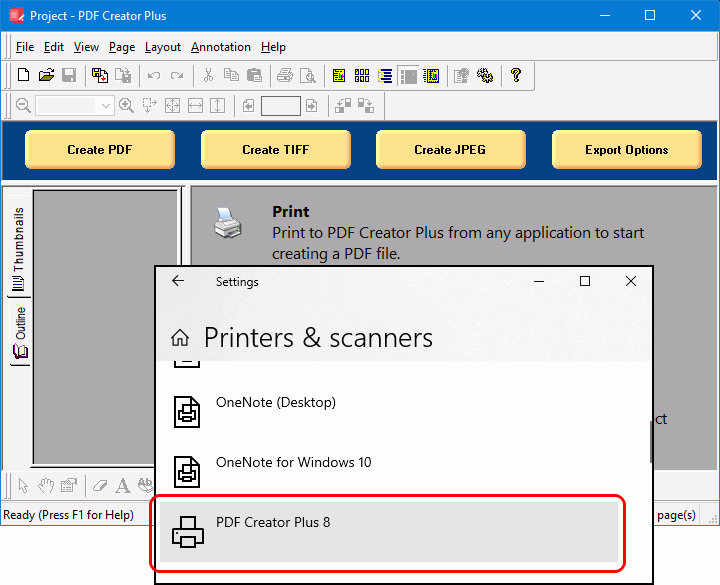
Download and install a free trial to try it out, or install and activate your purchased copy. The setup program will install the PDF Creator Plus app and PDF Creator Plus 8 virtual printer to your computer.
PDF Creator Plus can convert and merge email messages to PDF by printing the emails to the PDF Creator Plus 8 virtual printer instead of your regular printer.
Combining the virtual printer with the PDF Creator Plus app allows you to build your PDF from multiple emails and other documents. You only need to continue printing additional messages and other documents or dropping PDF files into the app until you have collected all the pages for your PDF.
To start, open your favorite email client. Two popular desktop email clients are the Office 365 desktop app for Outlook and Mozilla Thunderbird. Also popular are web-based email clients for Office 365 and Gmail by Google.
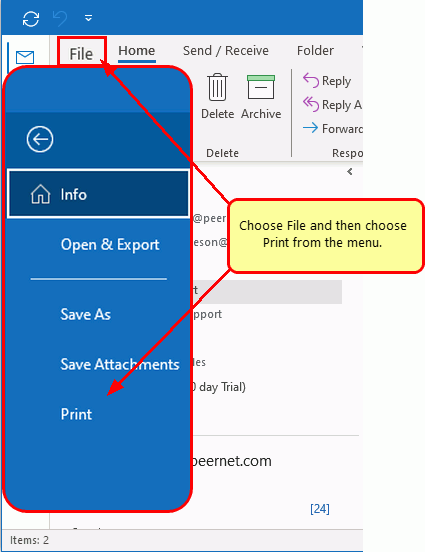
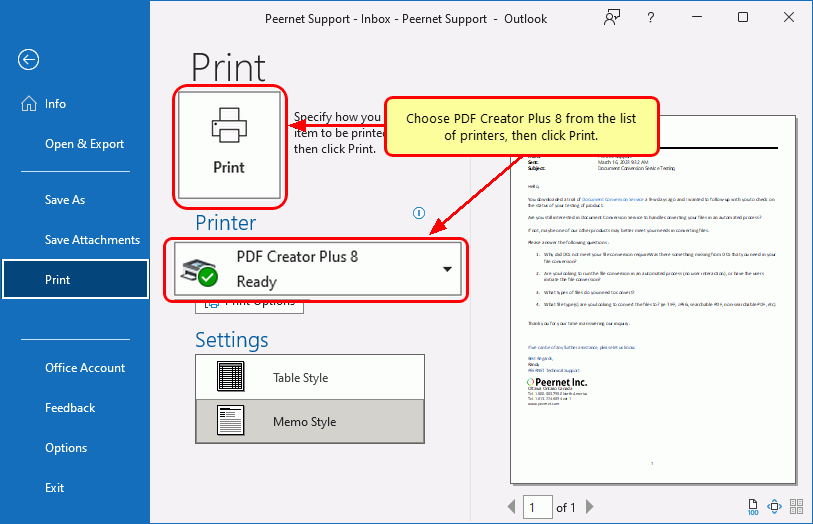
Below demonstrates converting an email from Microsoft Outlook on a desktop. The steps are similar for other email clients. With your email program open and a message selected, go to File->Print from the application menu.
From the Print options screen, select any printing options for your email message. Next, choose PDF Creator Plus 8 from the list of printers and click the Print button to begin.
Working With Email Messages and Other Files in PDF Creator Plus
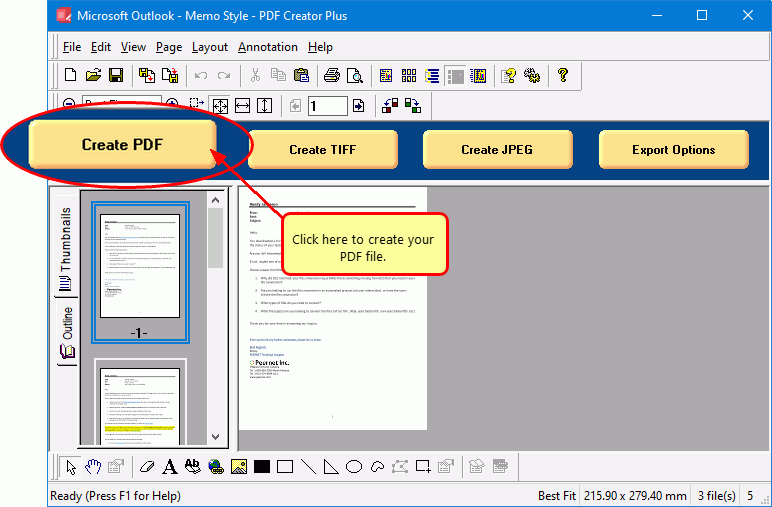
The PDF Creator Plus 8 printer sends the printed pages from your email message or online email client to the PDF Creator Plus app.
In the app, you can use the included tools to annotate the pages with text, shape, and images. Furthermore, in the app’s thumbnail view, you can move, rotate, and delete unwanted pages before creating your PDF file.
Although printing your email does not keep any outline or hyperlink information, there are annotation tools for adding outline headings and hyperlinks back on your pages. See Creating An Outline/Bookmarks in PDF Creator to learn how to add outline information to your pages before creating your PDF. Subsequently, for hyperlinks, see our article How do I add a hyperlink to a PDF Creator Plus Project?
After you have collected your pages in the app, click the Create PDF button to convert your email to PDF. Alternatively, you can continue printing to add other pages and documents.
Saving Your PDF File
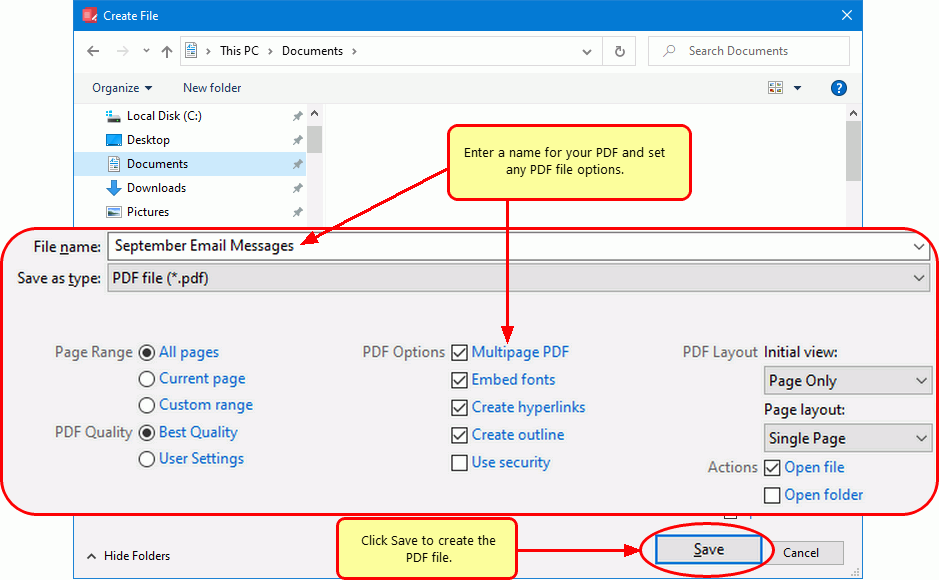
In the Create File dialog, edit the name for your new PDF file and choose where to save it. Next, choose options for your PDF file:
- Select PDF file (*.pdf) as the Save as type.
- Check the Multipaged PDF and Embed fonts options.
- If you added hyperlinks or outline information annotations by hand, check the options for Create hyperlinks, Create outlines, or both.
- Keep the Open file option enabled to open PDF automatically upon creation.
Finally, click the Save button to convert your email and any other included documents to PDF.
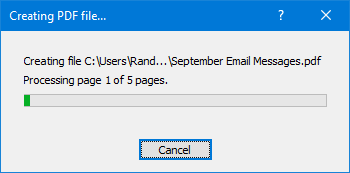
A progress dialog will appear as PDF Creator Plus creates your new PDF. If you need to change your PDF, use the Cancel button to stop the process. You can then make your changes and start again.