

Well Logs: Stitch PDF Pages into a Continuous TIFF Image
Stitching a multiple-page well log into a continuous TIFF image leads to more straightforward analysis, simplifies data integration, and improves data visualization. We’ll show you how to use our TIFF Image Printer or Raster Image Printer, combined with Foxit Reader, and stitch a multi-page PDF into a single continuous TIFF image.

Quick Links
What are Well Logs?
A well log is like an EKG recording, except it measures information about rocks and fluids in the ground while drilling instead of the activity of your heart. It records this information as a series of curved lines. Each curve represents a different property. The type of rock, how porous or dense it is, and mineral composition are just a few properties a well log records.
Traditionally, a surface recording system would record the information from the well-logging tool onto a continuous roll of paper. These rolls of plotter, or well log paper, could be extremely long. They can reach up to hundreds of feet to accommodate recording the full depth of the drilling. These days, modern well logs record directly in digital formats. However, paper is often still used as a backup.
A digital well log is a single file that contains all the data as a continuous log. Log viewing software may break this data into pages when exporting to PDF or other formats. Older paper well logs digitized using scanning software can also end up as multi-page PDF files.
Why Stitch PDF Pages Into a Single Continuous TIFF Image
Stitching the pages of a PDF into a single continuous TIFF has several benefits:
- Recognizing patterns and trends in the log data is much easier within a single continuous image.
- Importing a single TIFF image into geological software avoids potential issues with page breaks and data gaps.
- TIFF images are a popular format for archiving and long-term storage.
What You Need To Stitch Your PDF Into a Continuous TIFF
We combine Foxit Reader’s printing options for printing multiple pages per sheet with our Image Printer’s custom paper size and trimming features to create a single continuous TIFF.
- Download and install Foxit Reader if you do not have it installed.
- Download and install TIFF Image Printer or Raster Image Printer. We have fully functional trials for you to experiment with.
- Create an image printer conversion profile tailored to your well logs. We must set custom paper width, height, and page trimming options.
- Print your PDF from Foxit to our Raster or TIFF Image printer.
Creating the Continuous TIFF Conversion Profile
The following steps create a profile that will convert your well logs to TIFF. If you have our Raster Image Printer, you can create PDF, TIFF, and other images instead.
Before we start, you need to know the width of your well logs and the length of your longest log.
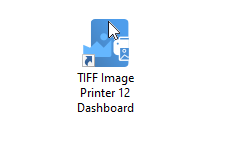
To create a conversion profile, double-click the Dashboard icon.
Then, select the Edit & Create Profiles button to open the Profile Manager.

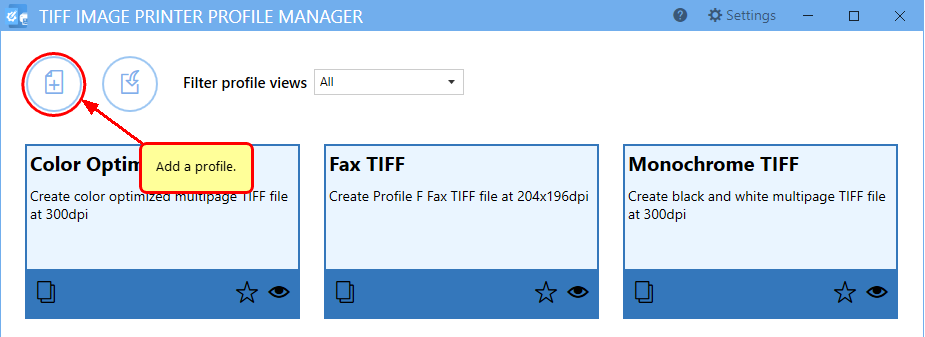
Click the Add Profile button in the upper left to create a new conversion profile.
Setting a Custom Paper Size
Give your new profile a name and a description, then select the Printer Overrides tab near the bottom left. Go to the Force Paper Size section and toggle the option to Use the following form or custom paper size.
Now, we can enter our custom page size to accommodate our well logs. In our example, we’ll use a page width of 8.5 inches. Your logs may be different.
As for page height, the length of well logs can vary. Therefore, you can have PDF well logs with differing page counts. In this scenario, estimate the maximum number of pages you might have and multiply that by the individual page height.
Our sample here has 16 Letter-sized pages. So, our custom page height is 11 inches x 16 pages = 176 inches. The stitching feature in Foxit removes the top and bottom margins when it stitches the PDF pages together. Without the margins, we end up with extra white space at the bottom of the new page. We will use our Page Trimming feature to remove this white space.
You can choose a larger paper height than you need since page trimming removes the excess. However, remember that the more white space to trim, the longer it takes to create your file.

Trimming Extra Whitespace from the Continuous Image
Next, we’ll set up the page trimming feature to remove any extra white space from the end of our stitched PDF well log pages. Go to the Page Editing tab and scroll down to the Trim Existing Margins by Color Intensity section.
Click the bottom arrow to enable trimming of only the bottom part of the page. Set the color intensity scale to white. With these trimming options, the printer will trim your output file from the bottom of the page until it reaches the first pixel that is not white.

Using the Profile in the Printer
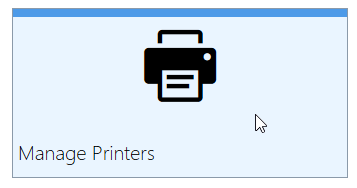
Now that we have our profile, we must tell the printer to use it when we print our PDF well log to stitch the PDF pages together. To make this new conversion profile the default profile for your printer, return to the Dashboard and select Manage Printers.
Select the new profile from the list in the Printer Management screen. Click the Save icon to save the new setting. You are now ready to print your PDF from Foxit Reader to create your continuous TIFF image.

Stitch PDF Pages into a Continuous TIFF With Foxit Reader
This final step is the trick that stitches the PDF pages together and removes the gaps between pages. This step is what allows us to create a single continuous TIFF image.
The Print options in Foxit Reader include a section on Page Handling. In this section, we use the Multiple Pages Per Sheet option. We customize the number of pages per sheet and the margin and page border settings so that it prints the log pages as a single extended image.
Setting the Continuous Mode Print Options
Open your PDF well log in Foxit Reader. Then go to File – Print (or Ctrl+P) to select your printing options.
- First, select TIFF Image Printer 12 (or Raster Image Printer 12) as your printer. Foxit needs to use the custom paper information in our profile to determine how to print our pages.
- Next, select Multiple Pages Per Sheet in the Page Handling section. To print all our pages as a single image, we tell Foxit to print 1 page wide with all our pages in that sheet. For our sample PDF shown here, we have 16 pages, so we entered 16. Enter the number of pages in your well log. This is what will stitch the PDF pages together
- Set Page Order to Vertical, and uncheck Margins and Print Page Border. As you make your changes, you can see a preview of your well log as it would look when printed.
Below, the print preview shows our pages stitched and placed on an 8.5-inch x 176-inch page. The TIFF Image Printer uses the trimming features we set to remove the white space at the bottom of the page when we create the TIFF image.

Summary & Tips
In the real world, your well logs will have varying page lengths. Some will be longer, some shorter. Our example handles a specific number of pages at a specific page size, 16 8.5 inch x11 inch pages. Your pages may be Legal (8.5 inch x 14 inch) or any other page size. You may have 16 pages, or only 6, or 60.
When you create a conversion profile for printing well logs, consider the page size in your PDF well log. Also, consider the highest number of pages in your well logs. Use those values to calculate your custom paper size in the profile.
You have a maximum page length of 80,000 inches when using custom paper size. However, we do not suggest using that value as your page length. That much extra white space would create unnecessarily large TIFF images. The nonessential white space would significantly increase the time needed to trim extra white space from the bottom of the image. Your best approach is to use a page length based on your longest well logs or to create conversion profiles tailored for different well log lengths.


