• Contact
  • Company
  • Login / My Account
  • Shopping Cart (0)
Document Conversion Made Easy!
Peernet Menu
  • Products
      • Virtual Printers
        • tiff-image-printer-iconTIFF Image Printer – Create TIFF Images
        • raster-image-printer-iconRaster Image Printer – Create TIFF, PDF, JPEG, etc.
        • pdf-image-printer-iconPDF Image Printer – Create Searchable PDF
      • PDF Editor
        • pdf-creator-plus-iconPDF Creator Plus – Merge, Edit, Create Searchable PDF
      • Batch Converters
        • document-conversion-service-iconDocument Conversion Service – Unattended 24/7 Batch Converter
        • file-conversion-center-iconFile Conversion Center – Desktop Batch Converter
      • Reporting Software
        • peernet-reports-iconPEERNET Reports – Barcode, Report and Label Software
      • enterprise-licensingEnterprise Licensing for your Corporation
      • discounts-multiple-licensesDiscounts for Purchasing Multiple Licenses
      • distribute-bundle-peernet-softwareDistribute PEERNET Software Bundled with your Product
  • Purchase
      • Purchase Virtual Printers
        • tiff-image-printer-iconTIFF Image Printer – Create TIFF Images
        • raster-image-printer-iconRaster Image Printer – Create TIFF, PDF, JPEG etc.
        • pdf-image-printer-iconPDF Image Printer – Create Searchable PDF
      • Purchase PDF Editor
        • pdf-creator-plus-iconPDF Creator Plus – Merge, Edit, Create Searchable PDF
      • Purchase Batch Converters
        • document-conversion-service-iconDocument Conversion Service – Unattended 24/7 Batch Converter
        • file-conversion-center-iconFile Conversion Center – Desktop Batch Converter
      • Purchase Reporting Software
        • peernet-reports-iconPEERNET Reports – Barcode, Report and Label Software
      • peernet-online-store-purchase-optionsPurchase Options
      • peernet-software-license-levelsLicense Levels
      • peernet-software-purchase-resellerFind Resellers
      • peernet-software-sales-faqsSales FAQ
  • Learn & Support
        • peernet-help-centerTutorials
          • Learn the Basics or Go Beyond with Video Tutorials, FAQs and Guides

            At PEERNET we pride ourselves on providing the best support and the fastest response times in the industry.
          • Select Software Tutorials:
              • tiff-image-printer-iconTIFF Image Printer
              • raster-image-printer-iconRaster Image Printer
              • pdf-image-printer-iconPDF Image Printer
              • pdf-creator-plus-iconPDF Creator Plus
              • document-conversion-service-iconDocument Conversion Service
              • file-conversion-center-iconFile Conversion Center
              • peernet-reports-iconPEERNET Reports
        • peernet-software-faqsSales FAQ
          • Popular Topics

            Find all the answers you need to our most frequently asked questions.
              • Download & Install
                • How do I download software I already purchased?
              • Purchasing & Renewing
                • How do I purchase PEERNET software?
                • What license level do I need?
                • How do I add licenses to an existing serial number?
                • How do I renew my annual subscription?
              • Licensing & Operating
                • How do I activate my new PEERNET software?
                • How do I activate my software without an internet connection?
                • Where do I find my serial number?
                • How do I move my software to a new computer?
                • How do I update/upgrade my software to the latest release?
            • Read all Sales FAQs
  • Blog
  • Menu Menu

How to Use the DCS Watch Folder Service

Trial Download
View Product

Once you have installed Document Conversion Service, how can you start to use the product?

Document Conversion Service comes bundled with a ready to use drop folder service named Watch Folder.

The Watch Folder service comes pre-configured with 6 Watch Folder sections to create different types of files:

  • ConvertToTIFF – creates 300dpi optimized TIFF image
  • ConvertToFaxTIFF – creates 204×196 monochrome fax image
  • ConvertToAdobePDF – creates searchable PDF file
  • ConvertToRasterPDF – creates non-searchable PDF file
  • ConvertToJPG – creates 300dpi JPEG file
  • LargeBatchTIFF – convert large batch of files; 10 files at a time

Editing the Folders used by Watch Folder
Using Watch Folder

Editing the Folders used by Watch Folder

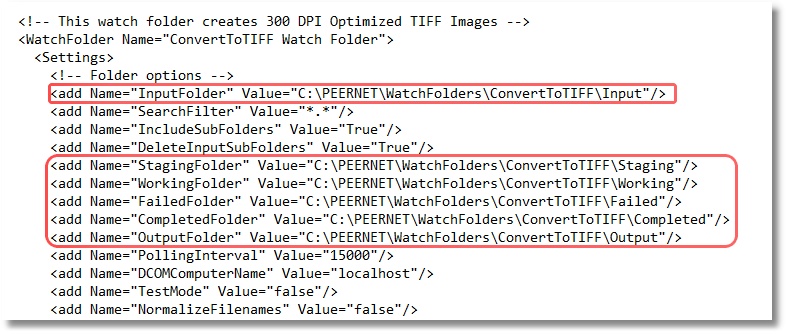
Each section in the Watch Folder Service is preconfigured to use certain folders for each of the following folder settings in the drop folder service:

  • InputFolder – files to be converted
  • OutputFolder – successfully converted files
  • CompletedFolder – original files that have been successfully converted
  • FailedFolder – original files that have failed to be converted
  • StagingFolder – holds original files while they are being converted
  • WorkingFolder – holds output files during creation

It is easy to edit Watch Folder folders to your own folders with a few simple clicks.

  1. Stop the Watch Folder Service by clicking Start – All Programs – Document Conversion Service 3.0 – Watch Folder – Stop Watch Folder Service.
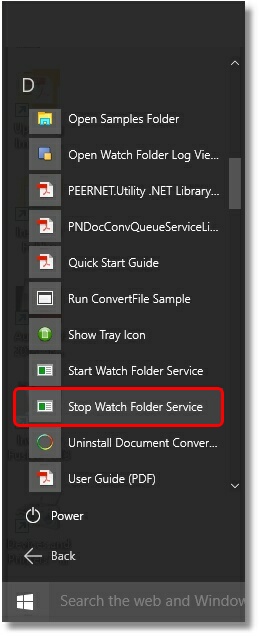
    Watch Folder - Stop Service Menu

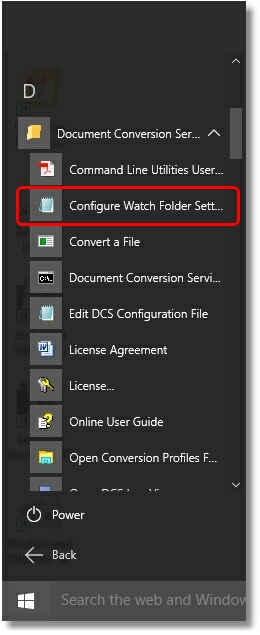
  2. Click Start – All Programs – Document Conversion Center 3.0 – Watch Folder – Configure Watch Folder Settings.
    Watch Folder - Configure Watch Folder Settings Menu

  3. Scroll down to the section in the Watch Folder configuration file to edit the path for each folder you wish to change.
    Watch Folder - Folder Options Settings

  4. Change the folder path to the location you wish to use.
    ie <add Name=”InputFolder” Value=”C:\Audits\Reports” />
  5. Save the Watch Folder configuration file.
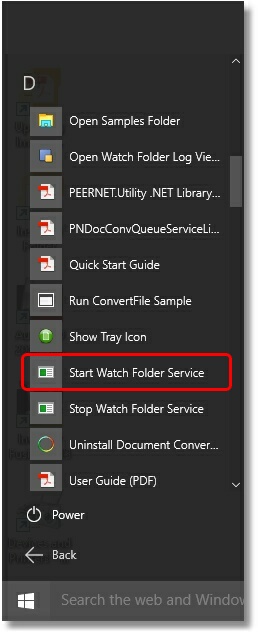
  6. Start Watch Folder Service by clicking Start – All Programs – Document Conversion Service 3.0 – Watch Folder – Start Watch Folder Service.
    Watch Folder - Start Service Menu

Using Watch Folder

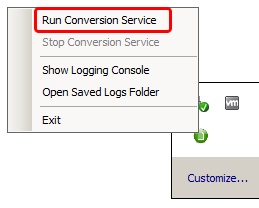
  1. Ensure Document Conversion Service is running by clicking the System Tray icon (DCS-SystemTrayIcon) and then click Run Conversion Service. (NOTE: If Run Conversion Service is greyed out, then Document Conversion Service is already running.)
    DCS-RunConversionService
  2. Start Watch Folder service by clicking Start – All Programs – Document Conversion Service 3.0 – Watch Folder – Start Watch Folder Service.
    Watch Folder - Start Service Menu
  3. Now when files are copied into the Input folder location (ie C:\PEERNET\WatchFolders\ConvertToTIFF\Input), they will be automatically converted and the newly created files will be saved in the Output folder location (ie C:\PEERNET\WatchFolders\ConvertToTIFF\Output).

Watch more Document Conversion Service Tutorials


Getting Started Series

Install DCS
Configure DCS
Start & Verify DCS
Configure Watch Folder
Watch Folder Settings Overview

Watch Folder Service

Watch Multiple Input Folders
Clustering Setup
Change the Logon Account
Extract MSG Attachments
Run Post Command

Resources

Why DCS Is Right For You
Ways DCS Can Work For You
The DCS License Level You Need

More Tutorials

Creating and Editing Conversion Profiles
Troubleshooting with the Logging Console
Activate License

https://www.peernet.com/wp-content/uploads/tutorial-post.png 600 900 Robert Massart https://www.peernet.com/wp-content/uploads/peernet-logo.png Robert Massart2013-09-25 22:33:592019-01-18 11:31:11How to Use the DCS Watch Folder Service
  • Document Conversion Service
  • TIFF Image Printer
  • Raster Image Printer
  • PDF Image Printer
  • PDF Creator Plus
  • File Conversion Center
  • PEERNET Reports
Search Search

Recent Posts

  • PNSrv11Lib to PNSrv12Lib: Migration Made Easy
  • Migrating to Version 12: Compatibility Mode Quick Start Guide
  • Well Logs: Stitch PDF Pages into a Continuous TIFF Image
  • Dynamic Stamp Content
  • Convert to PDF: The Power of On-Premise PDF Creation

INTERESTING LINKS

Below are some interesting links for you! Enjoy your stay :)

RSS Feed Logo RSS Feed Logo Subscribeto RSS Feed

OUR PRODUCTS

  • Document Conversion Service
  • TIFF Image Printer
  • Raster Image Printer
  • PDF Image Printer
  • PDF Creator Plus
  • File Conversion Center
  • PEERNET Reports

LATEST NEWS

  • PNSrv11Lib to PNSrv12Lib: Migration Made EasyMarch 14, 2025 - 2:10 pm
  • Migrating to Version 12: Compatibility Mode Quick Start GuideMarch 14, 2025 - 2:09 pm
  • Well Logs: Stitch PDF Pages into a Continuous TIFF ImageMarch 14, 2025 - 2:08 pm
  • Dynamic Stamp ContentNovember 4, 2024 - 4:47 pm

BUSINESS INFORMATION

Toll Free: 1-800-883-7980 North America

Tel: 1-613-224-6894

Our office hours are Monday to Friday, from 0900 hrs to 1700 hrs, Eastern Standard Time.

Email Address: [email protected]
Copyright © 1997-2026. All rights reserved. Terms and Conditions | Disclaimer | Privacy Policy | Trademarks.
PEERNET® is a registered trademark of PEERNET Inc.
  • Link to Youtube
  • Link to Rss this site
  • Products
  • Purchase
  • Company
  • Contact
Link to: Combining or Appending Files Using Command Line Tool Link to: Combining or Appending Files Using Command Line Tool Combining or Appending Files Using Command Line Tool Link to: How To Create PDF Files Using Watch Folder Link to: How To Create PDF Files Using Watch Folder How To Create PDF Files Using Watch Folder
Scroll to top Scroll to top Scroll to top