
• Contact
  • Company
  • Login / My Account
  • Shopping Cart (0)
Document Conversion Made Easy!
Peernet Menu
  • Products
      • Virtual Printers
        • tiff-image-printer-iconTIFF Image Printer – Create TIFF Images
        • raster-image-printer-iconRaster Image Printer – Create TIFF, PDF, JPEG, etc.
        • pdf-image-printer-iconPDF Image Printer – Create Searchable PDF
      • PDF Editor
        • pdf-creator-plus-iconPDF Creator Plus – Merge, Edit, Create Searchable PDF
      • Batch Converters
        • document-conversion-service-iconDocument Conversion Service – Unattended 24/7 Batch Converter
        • file-conversion-center-iconFile Conversion Center – Desktop Batch Converter
      • Reporting Software
        • peernet-reports-iconPEERNET Reports – Barcode, Report and Label Software
      • enterprise-licensingEnterprise Licensing for your Corporation
      • discounts-multiple-licensesDiscounts for Purchasing Multiple Licenses
      • distribute-bundle-peernet-softwareDistribute PEERNET Software Bundled with your Product
  • Purchase
      • Purchase Virtual Printers
        • tiff-image-printer-iconTIFF Image Printer – Create TIFF Images
        • raster-image-printer-iconRaster Image Printer – Create TIFF, PDF, JPEG etc.
        • pdf-image-printer-iconPDF Image Printer – Create Searchable PDF
      • Purchase PDF Editor
        • pdf-creator-plus-iconPDF Creator Plus – Merge, Edit, Create Searchable PDF
      • Purchase Batch Converters
        • document-conversion-service-iconDocument Conversion Service – Unattended 24/7 Batch Converter
        • file-conversion-center-iconFile Conversion Center – Desktop Batch Converter
      • Purchase Reporting Software
        • peernet-reports-iconPEERNET Reports – Barcode, Report and Label Software
      • peernet-online-store-purchase-optionsPurchase Options
      • peernet-software-license-levelsLicense Levels
      • peernet-software-purchase-resellerFind Resellers
      • peernet-software-sales-faqsSales FAQ
  • Learn & Support
        • peernet-help-centerTutorials
          • Learn the Basics or Go Beyond with Video Tutorials, FAQs and Guides

            At PEERNET we pride ourselves on providing the best support and the fastest response times in the industry.
          • Select Software Tutorials:
              • tiff-image-printer-iconTIFF Image Printer
              • raster-image-printer-iconRaster Image Printer
              • pdf-image-printer-iconPDF Image Printer
              • pdf-creator-plus-iconPDF Creator Plus
              • document-conversion-service-iconDocument Conversion Service
              • file-conversion-center-iconFile Conversion Center
              • peernet-reports-iconPEERNET Reports
        • peernet-software-faqsSales FAQ
          • Popular Topics

            Find all the answers you need to our most frequently asked questions.
              • Download & Install
                • How do I download software I already purchased?
              • Purchasing & Renewing
                • How do I purchase PEERNET software?
                • What license level do I need?
                • How do I add licenses to an existing serial number?
                • How do I renew my annual subscription?
              • Licensing & Operating
                • How do I activate my new PEERNET software?
                • How do I activate my software without an internet connection?
                • Where do I find my serial number?
                • How do I move my software to a new computer?
                • How do I update/upgrade my software to the latest release?
            • Read all Sales FAQs
  • Blog
  • Menu Menu
word-excel-ppt-to-pdf-post

Combine Files Into PDF With PDF Creator Plus

November 23, 2017/by Robert Massart

PDF Creator Plus makes it easy to combine files into PDF. The included PDF Creator Plus printer lets you add to your PDF from any document you can print. With the PDF Creator Plus app, you can preview, re-organize, or delete pages before creating your PDF.

Below, we combine a Word document, a JPEG image, and an Excel spreadsheet into a PDF file to show you how easy it is.

Trial Download
View Product
View as PDF

Steps For Combining Several Files Into a Single PDF File

Download and install a free trial to try it out, or install and activate your purchased copy. The setup program will install the PDF Creator Plus app and PDF Creator Plus 8 virtual printer to your computer.

PDF Creator Plus can combine and convert files to PDF by printing the files to the PDF Creator Plus 8 virtual printer instead of your regular printer.
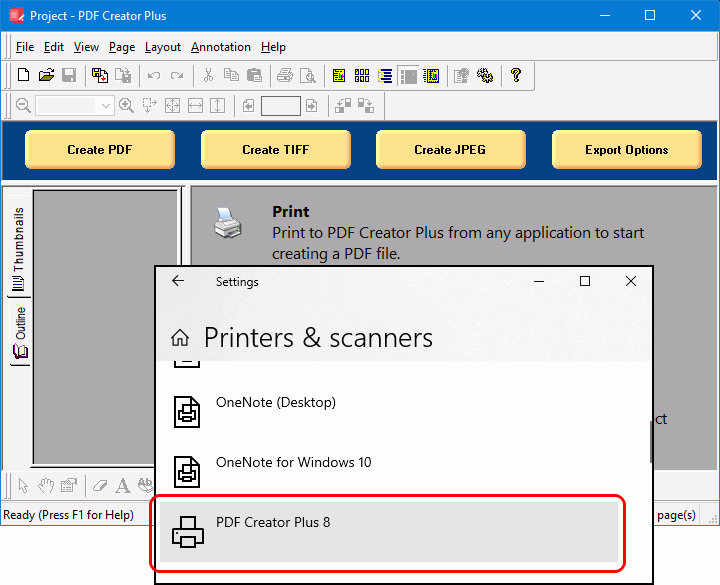
The PDF Creator Plus 8 pdf writer app and printer are added to your computer.

Print the Word Document to PDF Creator Plus

Open the Word file and click File->Print from the application menu. Next, select PDF Creator Plus 8 from the list of printers, then click Print.
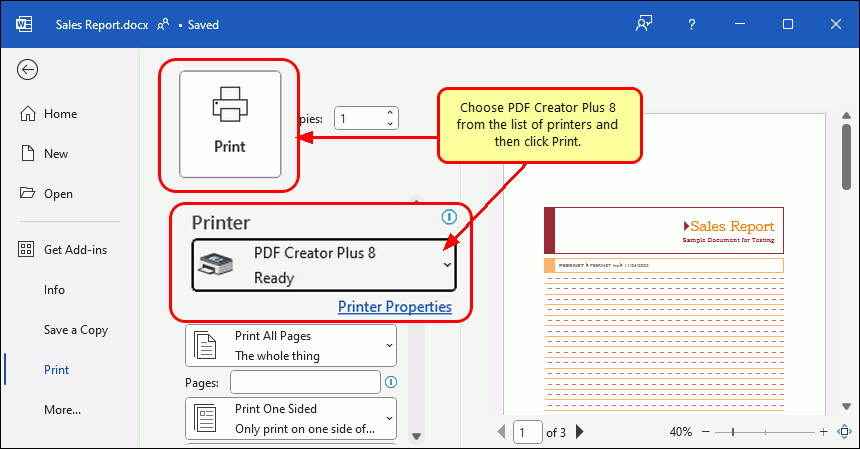
Print the first document to the PDF Creator Plus 8 printer to start combining into a PDF.

PDF Creator Plus will display the pages from the Word document. Do not close the PDF Creator Plus application. Next, we are adding the JPEG image.
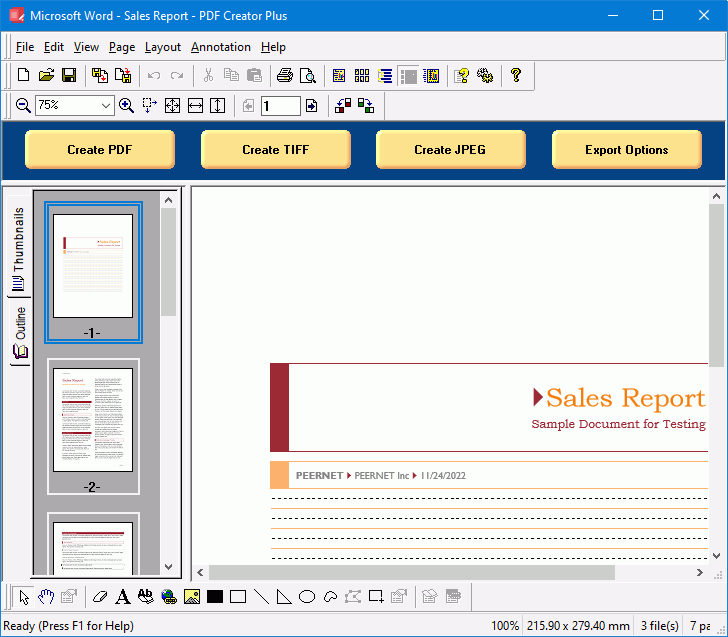
Printed pages from Word are added to a PDF Creator Plus project.

Adding the JPEG Image to PDF Creator Plus

Open the JPEG image in Windows Photos, click the triple dot (…) icon to show the drop-down menu, and then select the Print action.
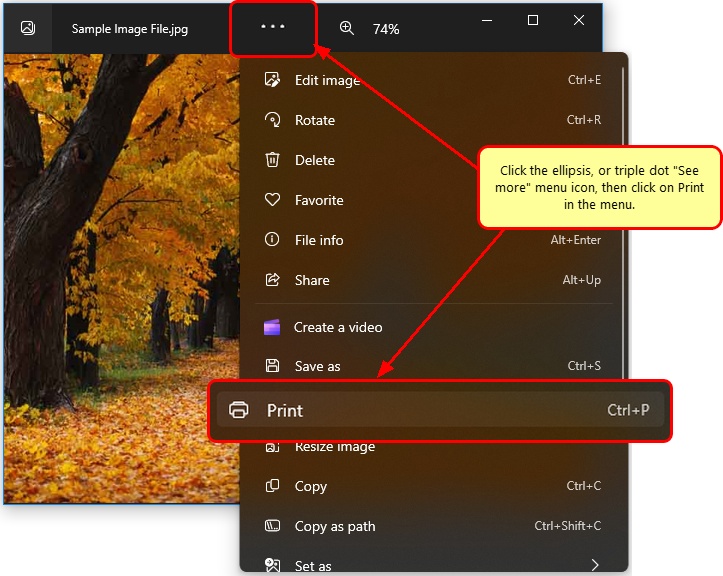
Print the next file, a JPG, by clicking the ellipses menu icon, then Print from the menu.

Again, choose PDF Creator Plus 8 from the list of printers and click the Print button, as we did above for the Word document.
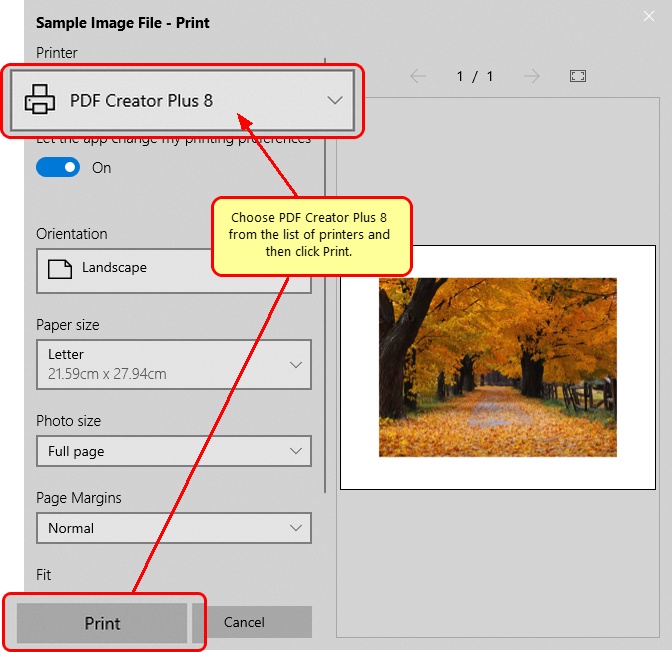
Print JPG to PDF Creator Plus 8 printer to combine files into PDF.

When adding additional pages to a PDF Creator Plus project, the Incoming Document window appears to choose where to place the new pages. Pages can be added at the beginning, a custom position, or appended to the end. 

Choose the Append to the end of the project option to add the incoming JPEG image as the next step to combine files into a single PDF file.
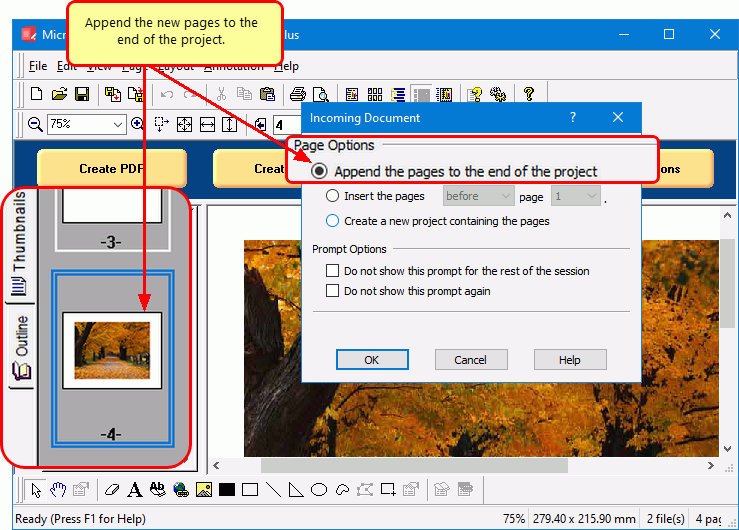
JPEG Image is appended to the project to be combined into a PDF.

Print the Excel File to Combine Into PDF

Again, do not close the PDF Creator Plus application. Now open the Excel spreadsheet and click File->Print from the application menu.
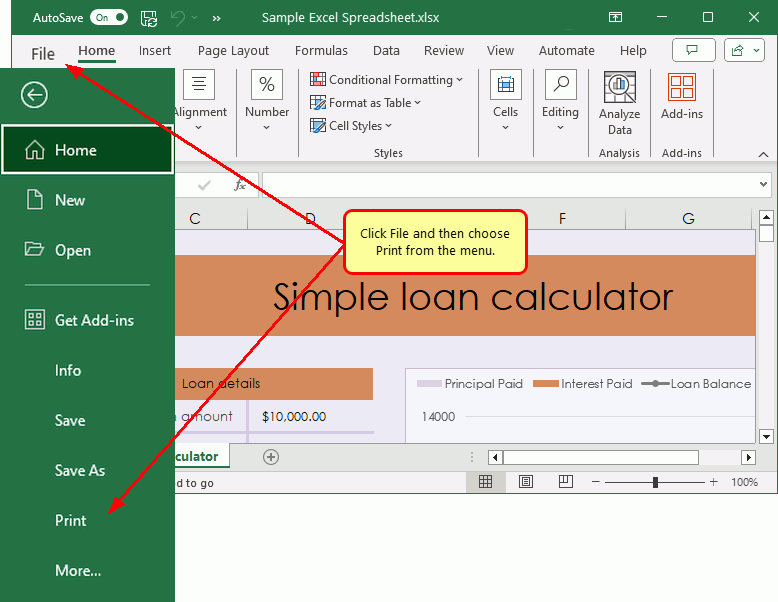
Click File and then choose Print from the menu to start combining your spreadsheet to PDF.

Choose PDF Creator Plus 8 from the list of printers and click the Print button.
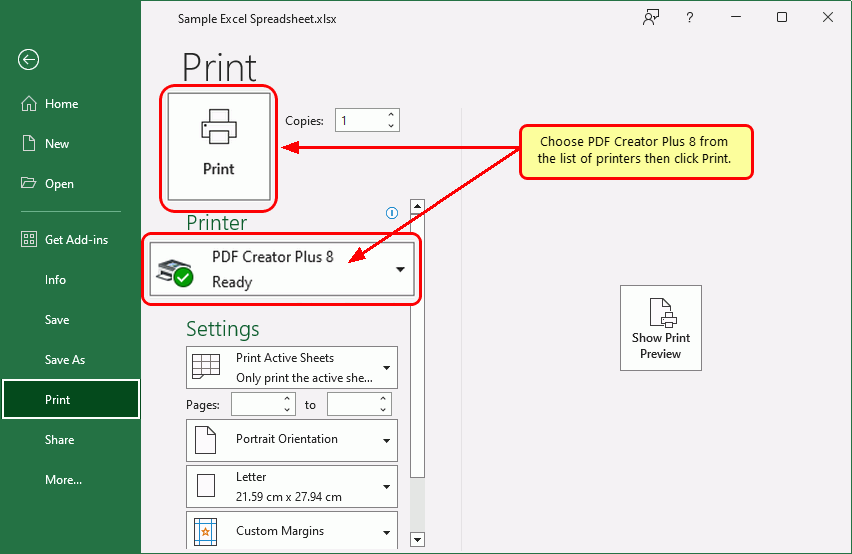
Select PDF Creator Plus 8 from the list of printers then click the Print button.

As we did above, when the Incoming Document window appears, select Append the pages to the end of the project to insert the Excel spreadsheet pages after the JPEG image.
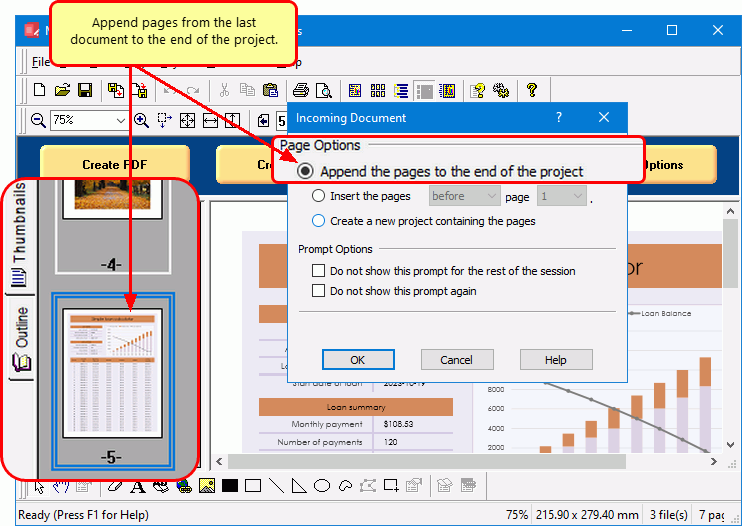
The  Excel Spreadsheet is appended to the end of the page collection to combine into PDF.

The Excel file is the last of the files we want to add to our page collection to combine into a single PDF.

Now is the time to re-organize pages or delete any pages before we create our PDF file. When you are ready, continue by clicking the Create PDF button to combine the collected files into a PDF file.
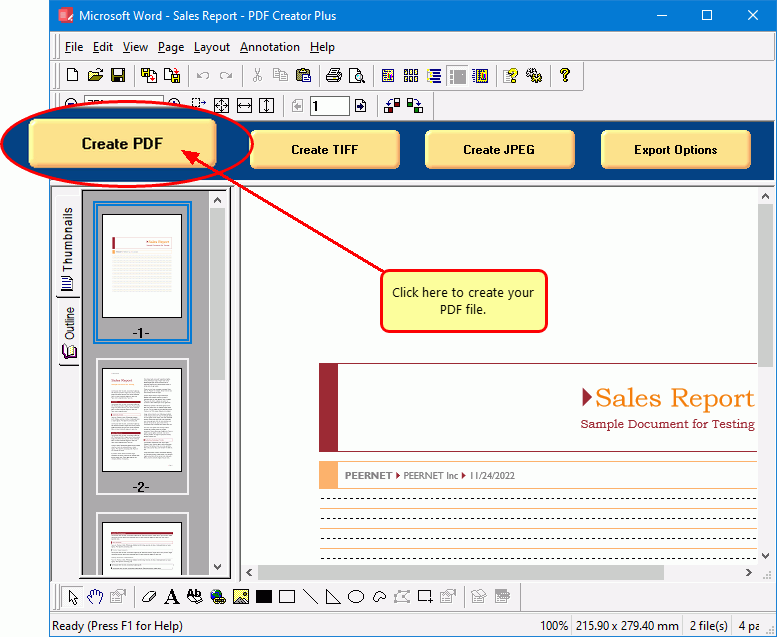
Click the Create PDF button to combine files into PDF.

Save the Combined Pages Into a PDF File

In the Create File dialog, edit the name for your new PDF file and choose where to save it. Next, choose options for your PDF file:

  • Select PDF file (*.pdf) as the Save as type.
  • Check the Multipaged PDF and Embed fonts options.
  • If you added hyperlinks or outline information annotations by hand, check the options for Create hyperlinks, Create outlines, or both.
  • Keep the Open file option enabled to open PDF automatically upon creation.

Finally, click the Save button when you are ready to combine your pages into a PDF.
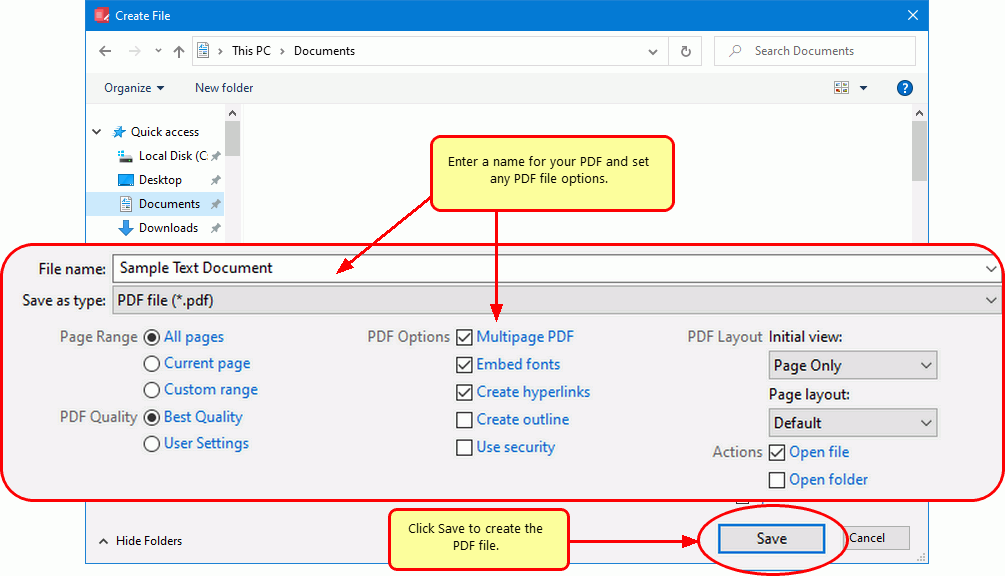
Type a name and choose the save location, then click Save to combine the pages to a single PDF file.

A progress dialog will appear as PDF Creator Plus creates your new PDF. If you need to change your PDF, use the Cancel button to stop the process. You can then make your changes and start again.
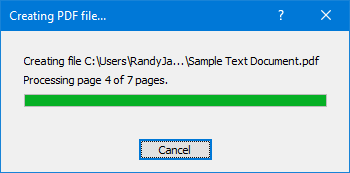
A progress dialog tracks the creation of your PDF file.

Delete Pages From a PDF Creator Plus Project

Before you combine your pages into a PDF file, you can easily remove any unwanted pages from the page collection. You may have blank pages that were part of the pages printed to PDF Creator Plus that you don’t want in the final PDF file or sections of other documents you don’t want included.

The Thumbnail view is the easiest way to delete pages. You can delete the current page or a range of pages.

To delete pages, right-click a page in the thumbnail view and go to Delete->Page or Delete->Range in the context menu that pops up.

You can find the same options in the Page application menu.
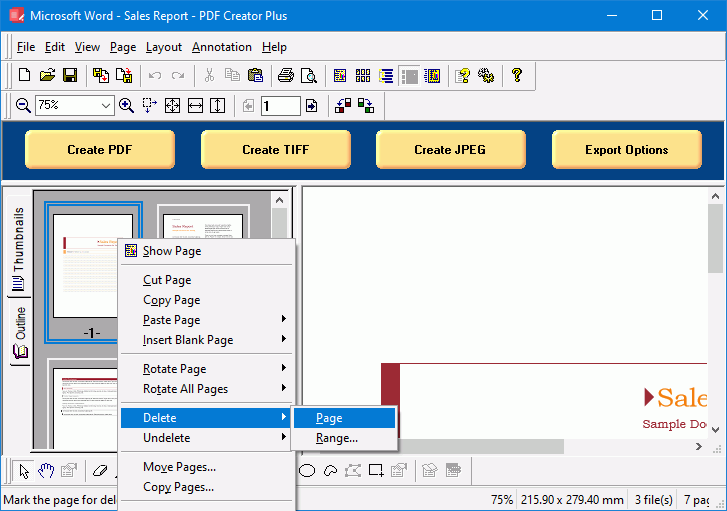
Delete a page or a range of pages before creating the PDF file.

Move Pages In PDF Creator Plus

The easiest way to re-order and organize the pages you want to combine into a PDF is by using the thumbnail view. 

In the thumbnail view, select the page you want to move and use the mouse to drag it into position. As you move the mouse, a black bar will appear to show the new page position. The cursor also changes to a cross-hair icon when in move mode. Release the mouse to move the page.
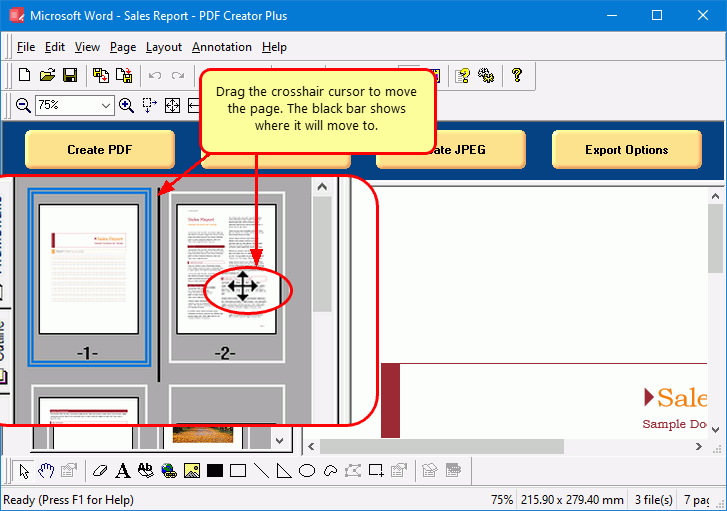
Move a page or a range of pages in the PDF Creator Plus page thumbnail view.

To move a group of pages, right-click any page and select Move Pages from the context menu. The same option is in the application menu under Page->Move Range. 

Use the Move Pages dialog to choose the page or pages to move and what position in the project to move them.
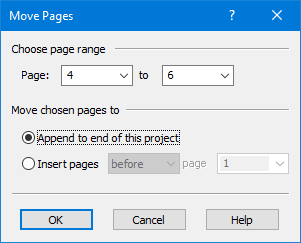
Use Move Range to move a group of pages to a new location in the page collection.
https://www.peernet.com/wp-content/uploads/word-excel-ppt-to-pdf-post.png 600 900 Robert Massart https://www.peernet.com/wp-content/uploads/peernet-logo.png Robert Massart2017-11-23 11:41:232023-10-19 15:48:33Combine Files Into PDF With PDF Creator Plus
  • Document Conversion Service
  • TIFF Image Printer
  • Raster Image Printer
  • PDF Image Printer
  • PDF Creator Plus
  • File Conversion Center
  • PEERNET Reports
Search Search

Recent Posts

  • PNSrv11Lib to PNSrv12Lib: Migration Made Easy
  • Migrating to Version 12: Compatibility Mode Quick Start Guide
  • Well Logs: Stitch PDF Pages into a Continuous TIFF Image
  • Dynamic Stamp Content
  • Convert to PDF: The Power of On-Premise PDF Creation

INTERESTING LINKS

Below are some interesting links for you! Enjoy your stay :)

RSS Feed Logo RSS Feed Logo Subscribeto RSS Feed

OUR PRODUCTS

  • Document Conversion Service
  • TIFF Image Printer
  • Raster Image Printer
  • PDF Image Printer
  • PDF Creator Plus
  • File Conversion Center
  • PEERNET Reports

LATEST NEWS

  • PNSrv11Lib to PNSrv12Lib: Migration Made EasyMarch 14, 2025 - 2:10 pm
  • Migrating to Version 12: Compatibility Mode Quick Start GuideMarch 14, 2025 - 2:09 pm
  • Well Logs: Stitch PDF Pages into a Continuous TIFF ImageMarch 14, 2025 - 2:08 pm
  • Dynamic Stamp ContentNovember 4, 2024 - 4:47 pm

BUSINESS INFORMATION

Toll Free: 1-800-883-7980 North America

Tel: 1-613-224-6894

Our office hours are Monday to Friday, from 0900 hrs to 1700 hrs, Eastern Standard Time.

Email Address: [email protected]
Copyright © 1997-2026. All rights reserved. Terms and Conditions | Disclaimer | Privacy Policy | Trademarks.
PEERNET® is a registered trademark of PEERNET Inc.
  • Link to Youtube
  • Link to Rss this site
  • Products
  • Purchase
  • Company
  • Contact
Link to: Annotate PDF Files Using PDF Creator Plus Link to: Annotate PDF Files Using PDF Creator Plus Annotate PDF Files Using PDF Creator Plus Link to: Convert to PDF with PDF Creator Plus Link to: Convert to PDF with PDF Creator Plus print-to-to-pdf-postConvert to PDF with PDF Creator Plus
Scroll to top Scroll to top Scroll to top