
4 Ways to Automate Document Conversion on Windows
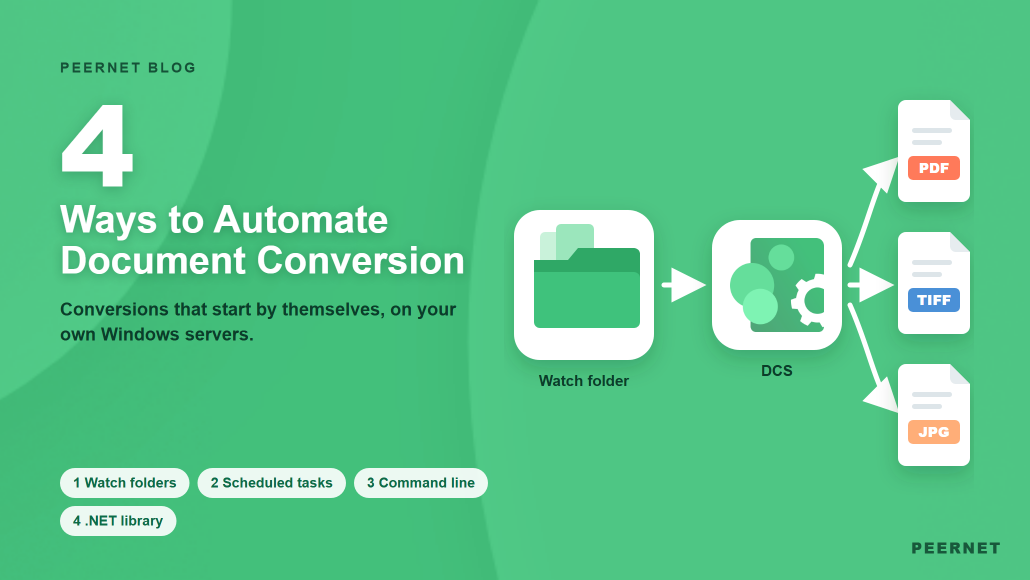
Want to automate document conversion on Windows® and stop opening files one by one to save them as PDF or TIFF? With Document Conversion Service (DCS), conversions can start by themselves: when a file arrives, at a set time, from a script, or from inside your own application. Here are the four ways to set it up, which one fits your situation, and the conversion jobs worth handing over first.
Quick Links
- 1. Watch folders: convert files the moment they arrive
- 2. Scheduled tasks: convert a batch at a set time
- 3. Command line: convert from a script or another program
- 4. .NET library: convert from inside your own application
- Which way fits your situation?
- What to automate first
- Scaling up: more files, more servers
- FAQ
1. Watch folders: convert files the moment they arrive
The Watch Folder Service that comes with DCS monitors input folders, picks up every new file, converts it and puts the result in an output folder. Staff drop in Microsoft® Word documents, Excel spreadsheets, PDF files or AutoCAD drawings, or a whole folder of files, and collect TIFF, PDF or JPEG files a moment later. Nobody opens an application or remembers a setting, and it runs as a Windows service in the background, 24/7.
One Watch Folder Service can serve a whole organization:
- As many folders as you need, each with its own output: a file dropped in the Sales folder can become a greyscale TIFF while one in the Purchases folder becomes a black and white TIFF.
- Shared network folders, so people drop files from their own desk. Give the service a log-on account that can reach the share, and keep access open or limit it to the user groups that need it.
- Folder trees keep their structure in the output folder, or can be flattened into a single folder when the next step in your workflow wants everything in one place.
Learn more: How to Set Up Automated Document Conversion with DCS Watch Folder Service, Batch Convert from Multiple Folders and Change the Log On Account to Monitor Network Paths
2. Scheduled tasks: convert a batch at a set time
Some conversions belong at a fixed time rather than the moment a file lands, such as a nightly run over the day’s documents or a month-end archive. Create a task in Windows Task Scheduler that runs the DCS command line tool DCSConvertFolder on the folder, sub-folders included, and the batch converts on schedule without anyone starting it.
This suits work that arrives in bulk, or conversions you want to keep out of office hours.
Learn more: Converting a Folder Using a Scheduled Task with DCS
3. Command line: convert from a script or another program
When conversion is one step in a longer process, call the DCS Command Line Tools at the point you need them, from a batch file, a script or any program that can start an external program. The process decides when to convert, and DCS does the work:
- DCSConvertFile converts a single file
- DCSConvertFolder converts a folder of files, including sub-folders
- DCSConvertFileList converts a list of files
- DCSCombineFiles combines a list of files into one output file
Each run writes a result log, and DCSExtractResults pulls the results out of it, so your script can check what converted before it moves on.
Learn more: How to Run Document Conversion from the Command Line
4. .NET library: convert from inside your own application
If you write software in C# or VB.NET, build conversion into it with the PEERNET.ConvertUtility .NET library included with DCS. Its methods mirror the command line tools (ConvertFile, ConvertFileList, ConvertFolder and CombineFiles), so your application converts a document the moment a user saves or submits it, with no folder in between.
Learn more: Integrate Document Conversion into Your Application
Which way fits your situation?
- People convert files by hand today: watch folders. Nothing changes for them except where they save the file.
- Files pile up and can wait: a scheduled task.
- Conversion is one step in an existing script or workflow: the command line tools.
- You build or maintain the application that handles the documents: the .NET library.
All four send their files to the same DCS conversion service, so the output is the same whichever way starts the job. Each watch folder has its own output settings. The command line tools and the .NET library choose theirs with a conversion profile: named settings for resolution, color, multipage or single-page files and more.
Learn more: Creating and Editing Conversion Profiles
What to automate first
Any of the four ways can take over these common jobs. Start with the one your team repeats most.
- Scanned PDFs to searchable PDF. DCS runs optical character recognition (OCR) and adds an invisible text layer to each page. It recognizes English, French, Italian, German, Spanish, Arabic, Hebrew and Hindi out of the box, and you can download more languages. Batch OCR PDF – Make PDF Searchable
- Emails with their attachments. Outlook message (.msg) and .eml files are converted together with their attachments, so the email and every supported attachment come out as PDF or TIFF in one step. Filtering options choose which attachments to convert. Convert EML with Attachments to PDF or TIFF
- Fax-ready TIFF. The ready-made ConvertToFaxTIFF folder creates 204×196 black and white fax images.
- Archive copies. Ready-made profiles create PDF/A-1b, searchable PDF, TIFF and JPEG files.
- eDiscovery sets. DCS can reveal hidden rows and columns in Excel and adjust headers, footers and page layout while it converts, so nothing is left out of the created file.
Scaling up: more files, more servers
How many files DCS converts at once depends on the number of CPU cores and on your license level: Entry converts one document at a time, Level I three and Level II six, with higher levels for more. When one server isn’t enough, you can cluster several servers running DCS on the same shared folder. They share the work, and if one server is taken offline for maintenance, the others keep converting.
Learn more: Configure DCS for Optimal Performance and Batch Conversion: Clustering and Failover
FAQ
What files can Document Conversion Service convert automatically?
Word, Excel and PowerPoint documents, PDF files, HTML pages, images, CAD drawings, and Outlook .msg and .eml emails with their attachments. It creates TIFF, JPEG and Adobe® PDF files, both searchable and image-only. See the Document Conversion Service page for the full list.
Can I use more than one way at the same time?
Yes. Watch folders, scheduled tasks, scripts and the .NET library all send their work to the same DCS installation, so you can start with a watch folder and add a script or your own application later.
Do my files leave our network?
No. DCS is installed on your own Windows computers or servers and converts files there. There is no cloud service and no upload.
Which Windows versions are supported?
DCS runs on 64-bit Windows 7 through Windows 11 and Windows Server 2008 R2 through Windows Server 2025, with .NET Framework 4.8.
Can I try it before I buy?
Yes. The free 30-day trial is a fully functional copy of DCS Level I. Every file it creates carries a watermark until you buy a license.
Get started
Pick the one conversion your team repeats most, choose the way that fits how it happens today, and let DCS take it from there. Request the free 30-day trial to test it with your own files, or see the license levels and buy on the Document Conversion Service purchase page.
Questions about your setup? The PEERNET team is always happy to help! Email [email protected] or call 1-800-883-7980 (toll free in North America).


