Home > Products > PDF Image Printer
|
Supported
| ||
|
|||
The PDF Image Printer is your solution.
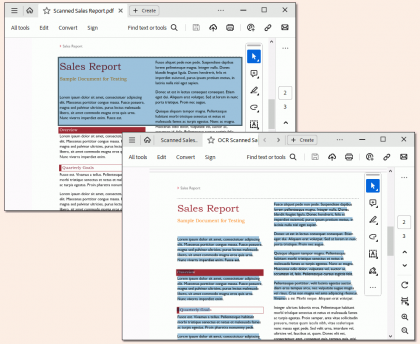
PDF Image Printer 7.0 allows you to create non-searchable Adobe® Portable Document Format documents. If you can print it, you can quickly and easily convert it into a PDF document ideal for archiving, email distribution, or posting to the web.
- Start your application and open the document you wish to convert to an Adobe PDF document.
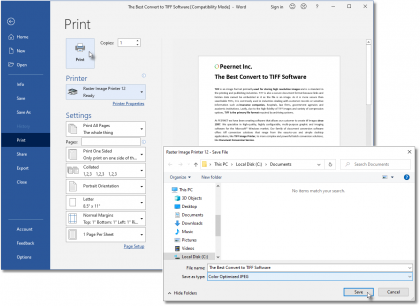
- Print your document, but instead of selecting your standard printer, select the PDF Image Printer 7.0 printer.
- When prompted, select where to save the Adobe PDF document and you're done!
It's just that easy.
Once converted into Adobe PDF documents, you can distribute them electronically or (automatically) attach them to an email message as a virus-free attachment.
No extra applications are required to create Adobe PDF documents using this driver. However, the Adobe Acrobat Reader or equivalent is required to view PDF documents.
Start creating Adobe PDF documents today!
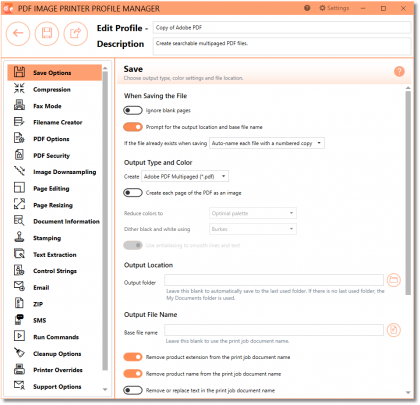
With the PDF Image Printer you can customize the settings to create the exact Adobe PDF document you require:
For more information, see the PDF Image Printer's extensive list of features
The following guides and FAQ's are also available for further assistance.
- Quick Start Guide
- User Guide
- PEERNET Forum, search our knowledge base of frequently asked questions.
If you still have questions please email your issues to support@peernet.com or call us at 1-800-883-7980 or 613-224-6894 to speak to a support representative directly.
Click and download samples to see how to:
Print without user interaction
Change settings on the fly
Integrate your own custom processing
- Microsoft Visual Basic example showing how to convert Word documents from one folder to another folder.
- Microsoft C# .NET example that listings to Word documents being dropped into one folder and converts them to PDF and places results in another folder.
- Microsoft MFC C++ example show how to convert Word documents from one folder to another folder.
- UserExits example of how to write User Exits.
We pride ourselves on providing the best support and the fastest response time in the industry, generally responding on average within 2 hours. Please submit the support request form or email your issues to support@peernet.com or call us at 1-800-883-7980 or 613-224-6894 to speak to a support representative directly.
PEERNET technical personnel are available to answer your questions from 09h00 to 17h00, Monday through Friday, Eastern Standard Time (excluding statutory holidays).
Free unlimited support is provided for the full evaluation period and 60 (sixty) days from the date of purchase. For a minimal extra fee On-Going Support (OGS) can optionally be bought at the time of purchase. OGS provides unlimited telephone and email support as well as automatic access to all minor and major releases including upgrades for the term of the agreement. The terms of your OGS contract is found on your purchase confirmation.
If you are Registered User, please include your serial number in any support request, this will facilitates the support process.
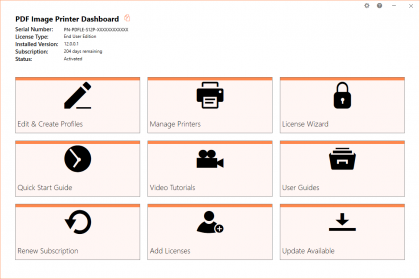
How do I find my serial number?
To locate your serial number please go to the Start menu:
Download the latest update from the link below.
http://www.peernet.com/download/PNPDFSetup.php
PDF Image Printer 7.0.015 - February, 2008
The installation of an update will not affect your existing license.
| Windows 7 - Ready | ![]() |
![]() |
![]() |
|
| Windows 2008 R2 - Ready | ![]() |
![]() |
![]() |
|
| Windows 2008 | ![]() |
![]() |
![]() |
|
| Windows Vista (SP1) | ![]() |
![]() |
![]() |
|
| Windows Vista | ![]() |
![]() |
![]() |
|
| Windows 2003 (SP2) | ![]() |
![]() |
![]() |
|
| Windows 2003 (up to SP1) | ![]() |
![]() |
![]() |
|
| Windows XP (SP3) | ![]() |
![]() |
![]() |
|
| Windows XP (up to SP2) | ![]() |
![]() |
![]() |
|
| Windows 2000 | ![]() |
![]() |
![]() |
|
| Windows NT (up to SP6) | ![]() |
![]() |
![]() |
|
| Windows 95/98/ME | ![]() |
![]() |
![]() |
|
The PDF Image Printer 7.0 is the upgrade path for PEERNET.DRV ePDF 6.0.
As a registered owner of an earlier version you can purchase the latest version at a discounted price. To upgrade please sign into your account, PEERNET Store, if you don’t have an account (new since summer 2006) you will be required to set up a new account and register your existing product serial number or select "View the products I have registered or purchased" in order to be presented with the option to upgrade your existing product.
When your upgrade has been completed you will receive a new serial number and link to download the new version.
To view history and supported platform details on Version 6.0 click here.
Update PDF Image Printer 7.0.015 - February, 2008
Resolved issue when Microsoft .NET 3.0 framework is installed on Windows XP and Windows 2000 operating systems prior to installing the PDF Image Printer. Installing the PDF Image Printer after .NET 3.0 framework caused XPS Printer to stop working.
Improved speed of installation.
Update PDF Image Printer 7.0.014 - November, 2007
Minor release to support faster computers.
Update PDF Image Printer 7.0.012 and 7.0.013 - September, 2007
Enhanced support when printing in monochrome to improve readablity of black and white documents.
The Remove filename extension option of the [Save] section is now being processed when used in script file to control printer.
Update PDF Image Printer 7.0.010 and 7.0.011 - August, 2007
Urgent fix to resolve "out of virtual memory" in spoolsv.exe which is observed when printing a large number of word documents in one session. Also some minor changes to the installer.
Update PDF Image Printer 7.0.008 - 7.0.009 - July, 2007
With this release, the PDF Image Printer 7.0 processing model is now identical to the PEERNET.DRV ePDF 6.0 printing model. The default installation is back to spool document and start printing immediately.
When the PDF Image Printer 7.0 was first released, the printing model was changed to do not journal in order to support 64-bit platforms. However, customers moving from PEERNET.DRV ePDF 6.0 encountered great difficulty in upgrading do to this change in the printing model. We hope this move back to the ePDF 6.0 printing model will allow you, our customer, to finally take advantage of everything the PDF Image Printer 7.0 has to offer.
Update PDF Image Printer 7.0.005 - 7.0.007 December, 2006
|
PDF Image Printer fully supports Windows Vista both 32-bit and 64-bit editions.
PDF Image Printer fully supports Windows Office 2007.
PDF Image Printer fully supports Internet Explorer 7 including the newprotected mode.
Update PDF Image Printer 7.0.004 - September, 2006
In order to support Windows x64 operating systems, the printing architect from ePDF 6.0 to PDF Image Printer 7.0 was changed. The impact of this is that the jobs process immediately as they are printed. The side effect of this was that when customer who already did automation for ePDF 6.0 or tried to automate conversion using the PDF Image Printer 7.0, found that their computer resource limits were being exhausted. In ePDF 6.0, jobs would be first queued to the print queue and then only one job at a time would execute. In PDF Image Printer 7.0, all printed jobs start executing immediately. In order, to control the number of jobs being converted at a time in PDF Image Printer 7.0, there is now a Set Max Jobs command. It sets a registry key value that controls the number of jobs that can be executed in parallel, there by preventing too many jobs from running at the same time.
This releases fixes the e-mail support. There was a bug in the 7.0.003 build preventing the e-mail modules from loading.
Released PDF Image Printer 7.0 - July, 2006
In this release, processing of printing and converting pages to PDF is controlled on the printer's properties Advanced tab. All print spooling options are supported.
- When you selected "Print directly to the printer",the conversion process is completely synchronous. So when you print, the printing and conversion process will not return until the job is completely finished. This mode makes it easier to automate the conversion process and to know when the PDF files have finished being created.
- When you select "Start printing when last page is spooled", the conversion process will not start until all pages have been spooled.
- When you select "Start printing immediately", the conversion process start immediately. This is the default.
Adds support for Windows XP Professional x64 Edition and Windows 2003 x64 Edition that supports both AMD64 and Intel Extended Memory 64 Technology (EM64T). This product does not support Itanium-based Systems (IA64).
Adds the following variables to provide information users entered on the Print Dialog in order to support conversion processes where this information is required:
$(Copies) - Number of copies
$(Collate) - 0 for FALSE, 1 for TRUE
$(Duplex) - 1 for Simple (Not Duplex), 2 for Vertical Duplex, 3 for Horizontal Duplex
All processing of strings and file names are now fully UNICODE compliant throughout the architecture. This resolves several issues on Chinese and Japanese Windows as well as other version of Windows using UNICODE languages.
The print process has been architected to support printing without the possibility of the print queue locking up or users blocking each other when printing at the same time from within a terminal server client session.
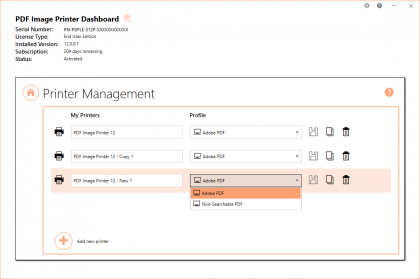
Added a Copy Printer program that supports creating copies of the PDF Image Printer 7.0 and makes it a breeze to create copies of the printer with different default settings.
A new name, PDF Image Printer was chosen to replace PEERNET.DRV ePDF in order to better reflect the main purpose of the application and to highlight the fact this driver does not support older versions of the Microsoft Windows operating systems. Owners of PEERNET.DRV ePDF can upgrade to the PDF Image Printer at a discount.
PDF Image Printer supports Windows 2000 and up. It does not support older Microsoft Windows versions such as NT 4.0, Windows 95, 98, 98 SE and ME.
PDF Image Printer 7.0 was developed for and supports Microsoft® Windows Vista, Windows 2003 (up to SP2), Windows XP (up to SP2) and Windows 2000 (up to SP4)Rollup#1.
PDF Image Printer 7.0 can be licensed on Microsoft® Windows Vista, Windows 2003, Windows XP and Windows 2000.
|
||||||||||||||||||||||||
|
For organizations with a large number of users, or running Citrix Servers or Terminal Servers, we highly recommend a Site or Enterprise license be purchased in order to eliminate individual activations. Please submit a price request and a PEERNET Sales Representative will contact you with a pricing proposal. Site Edition Permits the activation of an unlimited number of users on computers that are physically situated at a single address (site). Enterprise Edition Permits the activation of an unlimited number of users on computers throughout one (1) Enterprise regardless of the number of users and/or site locations. |
Upgrades and Support
All purchases currently include Free unlimited support for 60 (sixty) days from the date of sale. For a minimal extra fee On-Going Support (OGS) can optionally be bought at the time of purchase. OGS provides unlimited telephone and email support as well as automatic access to all minor and major releases including upgrades for the term of the agreement. The terms of your OGS contract is found on your purchase confirmation.
As a registered owner of an earlier version you can purchase the latest version at a discounted price. To upgrade please sign into your account, PEERNET Store, if you don’t have an account (new since summer 2006) you will be required to set up a new account and register your existing product serial number or select "View the products I have registered or purchased" in order to be presented with the option to upgrade your existing product.
When your upgrade has been completed you will receive a new serial number and link to download the new version.
PDF Image Printer 7.0 evaluation version operates for 30 days on all supported platforms. All features are fully functional with the exception that all outputs are stamped with the phrase "Evaluation Copy".
To remove the Evaluation Copy stamp, you must purchase the product.
Press the Start Download button below to start your download.
When installed the Quick Start Guide for PDF Image Printer will appear on your desktop. This guide will provide you instructions on how to work with and license the PDF Image Printer.