Convert Excel to TIFF with TIFF Image Printer
Convert your spreadsheets from Excel to TIFF in just a few clicks!
As easy as printing, TIFF Image Printer works with any Windows® application so you can quickly convert Excel to TIFF in seconds, making it the Excel to TIFF converter you will turn to time and again.
Why Convert Excel to TIFF?
Convert Excel to TIFF images to protect the information in your Excel files. TIFF images are very difficult to alter and can be viewed by virtually anyone. TIFF is a common format for faxing, and is often used in document imaging, document archiving and eDiscovery software.
How to Convert Excel to TIFF
1. Install TIFF Image Printer onto your computer. You will see the TIFF Image Printer icon on your desktop.
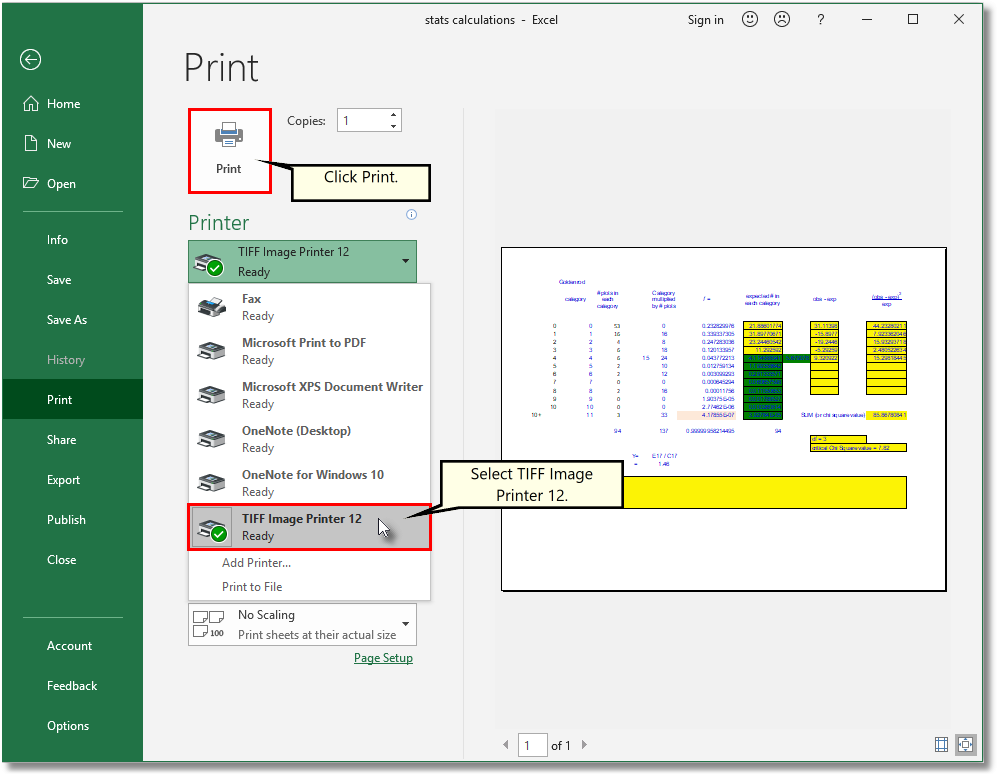
2. Open your spreadsheet in Microsoft Excel and click File-Print from the application menu.
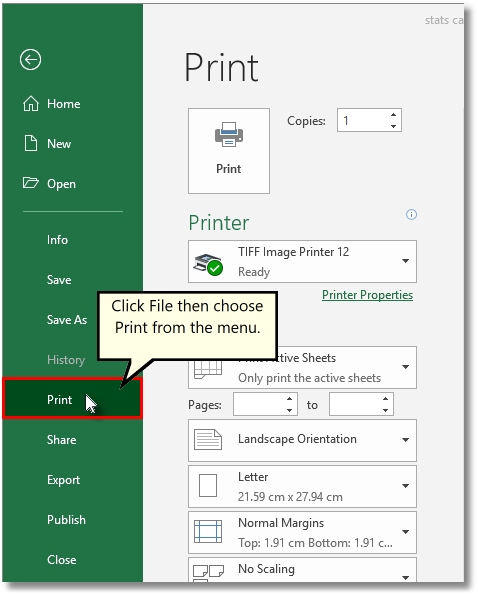
3. Choose TIFF Image Printer 12 from the list of printers and then click the Print button.
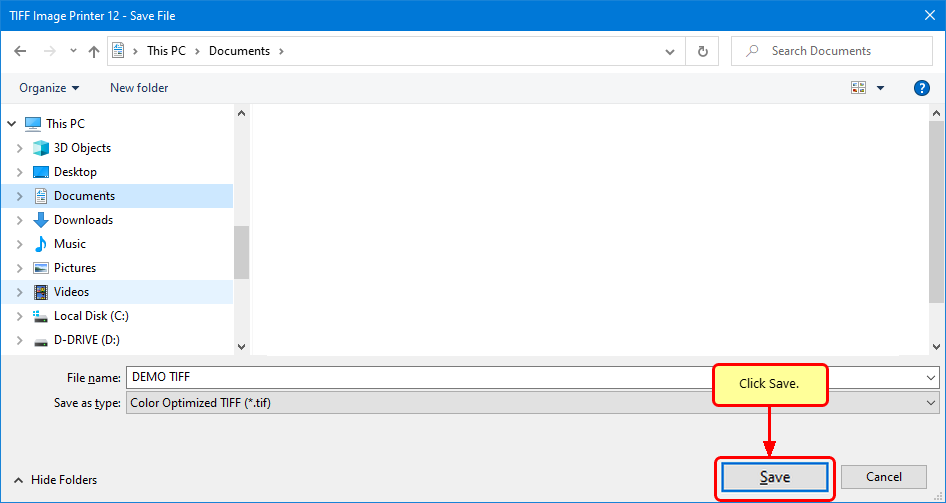
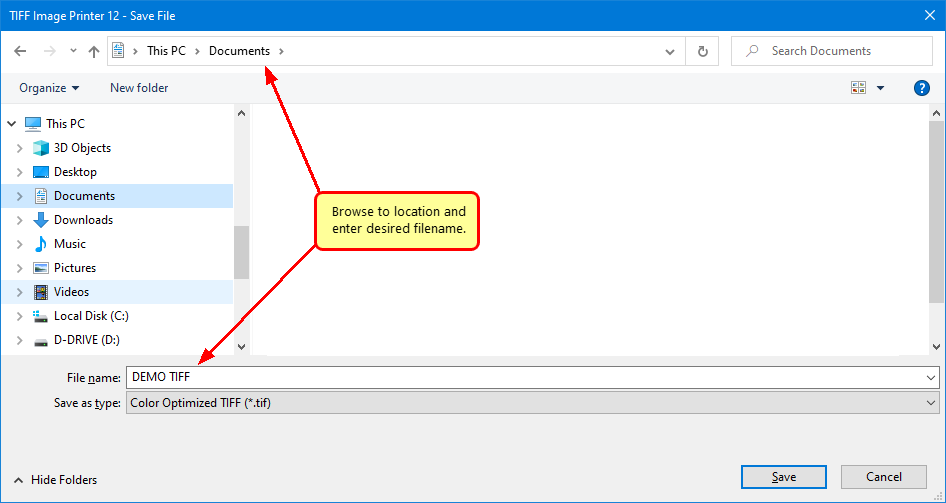
4. Enter the location and filename for the TIFF file.
5. Select the profile, group of settings, that you want applied to your output TIFF Image. For basic TIFF conversion we recommend the Color Optimized TIFF profile.
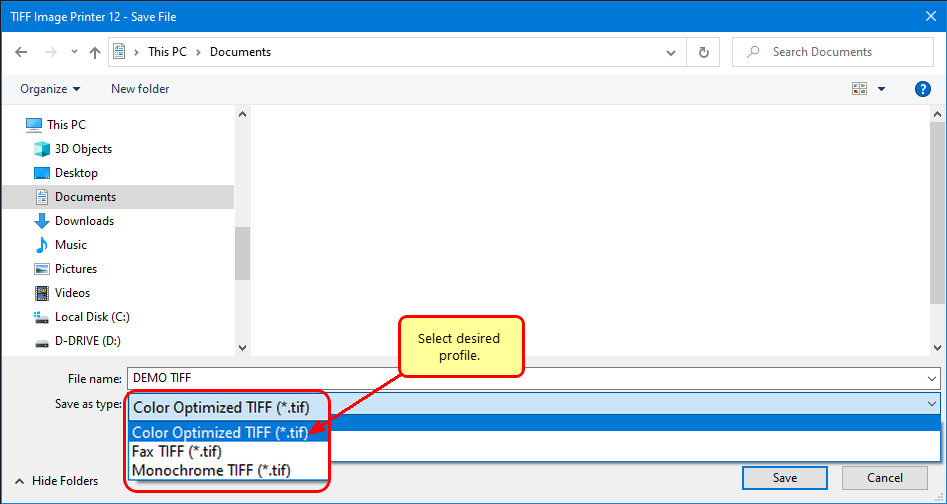
6. Click Save to create your TIFF image.