Watch Folder Service
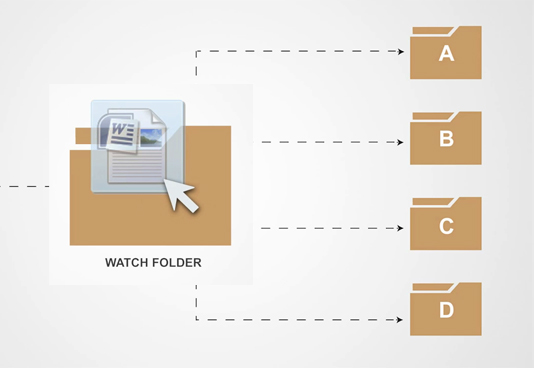
Monitor and automatically convert files from unlimited drop or hot folders.
Monitor and automatically convert files from unlimited drop or hot folders.
Call automated batch file conversion from scheduled tasks, batch files, or your own code.
Add automated document conversion to your existing C# or VB.NET application with our included SDK.
Batch convert PDF to TIFF, PDF to JPEG, Word to TIFF, Word to JPEG, Excel to TIFF, Excel to JPEG, etc. in the background, 24/7. Create vector (searchable) Adobe® PDF files with hyperlinks from Microsoft® Office, including Word to PDF, Excel to PDF, PowerPoint to PDF, and HTML (Web documents) to PDF.

Our built-in text, image, and PDF converters can transform your scanned PDF and images into searchable PDF files. Recognize English, French, Italian, German, Spanish, Arabic, Hebrew, and Hindu, with other languages easily added.
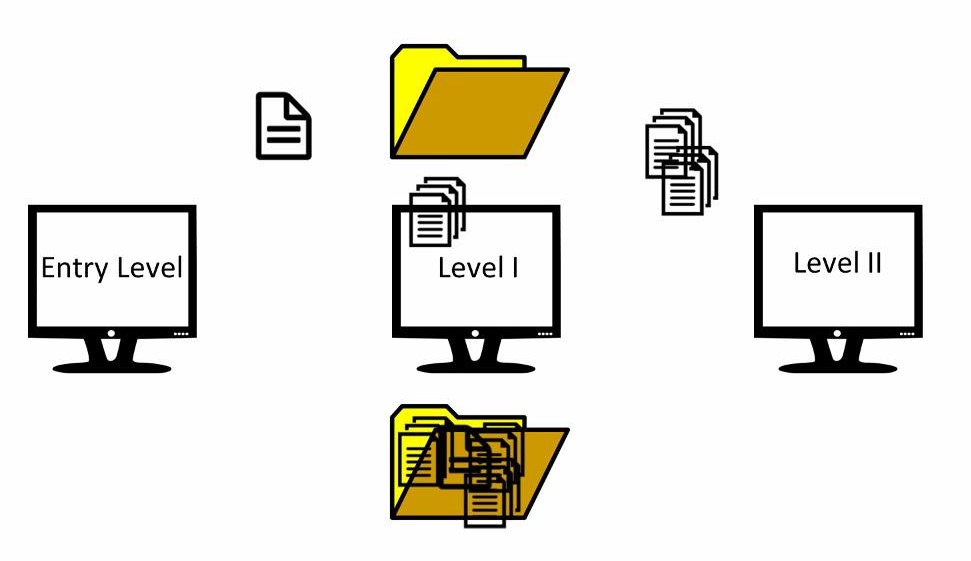
Improve document conversion performance while maintaining failover support by clustering servers. Clustering is highly recommended for users with a large volume of files as it provides better overall performance, is less CPU intensive, and delivers 100% conversion uptime.
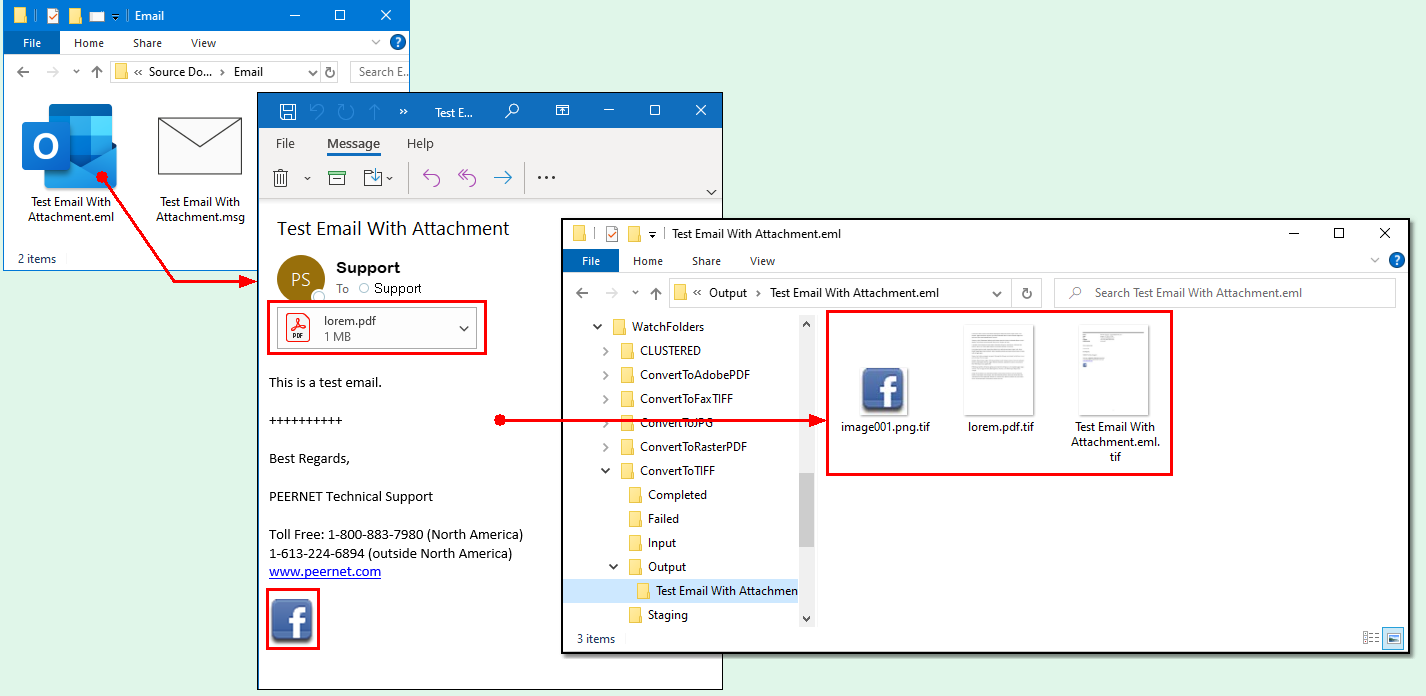
Document Conversion Service can extract and convert any supported file attachments from Outlook Email Message (*.msg) files and Electronic Email (*.EML) files while converting as the message itself. Use the convenient filtering features to control which attachments to convert.
Electronic data discovery often requires formatting changes to ensure all data is visible and readable in the created file. Find countless eDiscovery options, including revealing hidden columns/rows in Excel, adjusting page layout/headers/footers, and automatic field replacement in Word and other Office formats.
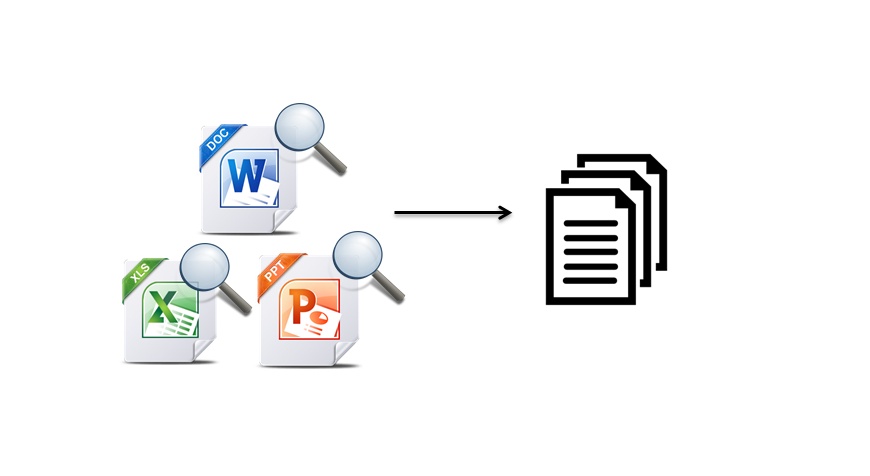

PEERNET offers the highest quality document fidelity achievable. Built-in converters for PDF, Images, Cadd, and others are fast and accurate without needing additional applications installed. When you want to use the document application to guarantee that the layout of the created file matches, we also have converters for that.
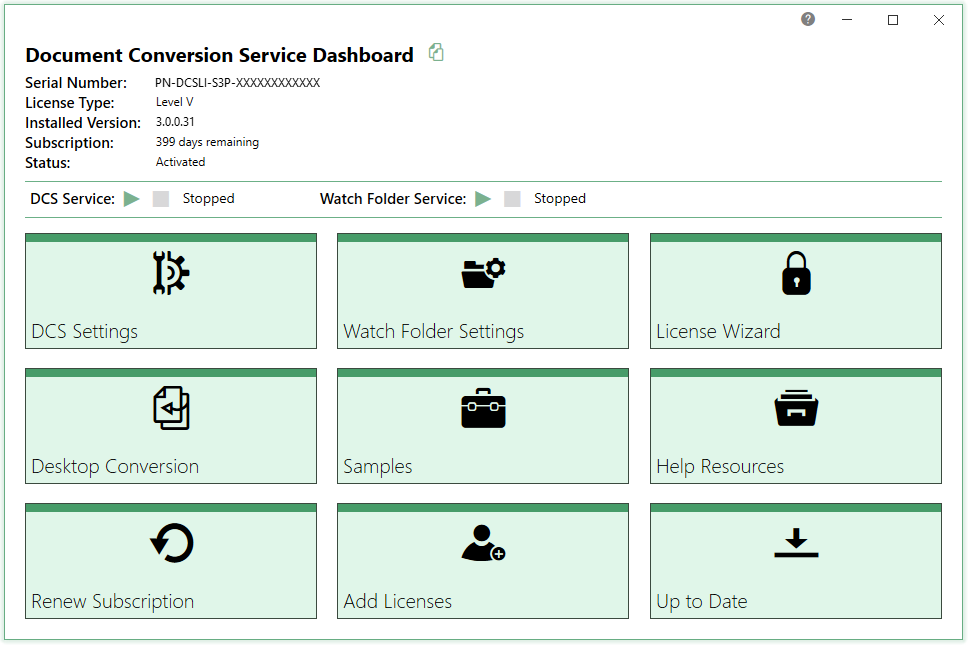
The DCS Dashboard brings all the tools for Document Conversion Service in one place. Quickly start and stop services, view conversion logs, and edit configurations in just a few clicks. The DCS Dashboard is also your hub for product activation, help resources, and notifications for new releases.
1-800-883-7980
Complete our contact form