

• Contact
  • Company
  • Login / My Account
  • Shopping Cart (0)
Document Conversion Made Easy!
Peernet Menu
  • Products
      • Virtual Printers
        • tiff-image-printer-iconTIFF Image Printer – Create TIFF Images
        • raster-image-printer-iconRaster Image Printer – Create TIFF, PDF, JPEG, etc.
        • pdf-image-printer-iconPDF Image Printer – Create Searchable PDF
      • PDF Editor
        • pdf-creator-plus-iconPDF Creator Plus – Merge, Edit, Create Searchable PDF
      • Batch Converters
        • document-conversion-service-iconDocument Conversion Service – Unattended 24/7 Batch Converter
        • file-conversion-center-iconFile Conversion Center – Desktop Batch Converter
      • Reporting Software
        • peernet-reports-iconPEERNET Reports – Barcode, Report and Label Software
      • enterprise-licensingEnterprise Licensing for your Corporation
      • discounts-multiple-licensesDiscounts for Purchasing Multiple Licenses
      • distribute-bundle-peernet-softwareDistribute PEERNET Software Bundled with your Product
  • Purchase
      • Purchase Virtual Printers
        • tiff-image-printer-iconTIFF Image Printer – Create TIFF Images
        • raster-image-printer-iconRaster Image Printer – Create TIFF, PDF, JPEG etc.
        • pdf-image-printer-iconPDF Image Printer – Create Searchable PDF
      • Purchase PDF Editor
        • pdf-creator-plus-iconPDF Creator Plus – Merge, Edit, Create Searchable PDF
      • Purchase Batch Converters
        • document-conversion-service-iconDocument Conversion Service – Unattended 24/7 Batch Converter
        • file-conversion-center-iconFile Conversion Center – Desktop Batch Converter
      • Purchase Reporting Software
        • peernet-reports-iconPEERNET Reports – Barcode, Report and Label Software
      • peernet-online-store-purchase-optionsPurchase Options
      • peernet-software-license-levelsLicense Levels
      • peernet-software-purchase-resellerFind Resellers
      • peernet-software-sales-faqsSales FAQ
  • Learn & Support
        • peernet-help-centerTutorials
          • Learn the Basics or Go Beyond with Video Tutorials, FAQs and Guides

            At PEERNET we pride ourselves on providing the best support and the fastest response times in the industry.
          • Select Software Tutorials:
              • tiff-image-printer-iconTIFF Image Printer
              • raster-image-printer-iconRaster Image Printer
              • pdf-image-printer-iconPDF Image Printer
              • pdf-creator-plus-iconPDF Creator Plus
              • document-conversion-service-iconDocument Conversion Service
              • file-conversion-center-iconFile Conversion Center
              • peernet-reports-iconPEERNET Reports
        • peernet-software-faqsSales FAQ
          • Popular Topics

            Find all the answers you need to our most frequently asked questions.
              • Download & Install
                • How do I download software I already purchased?
              • Purchasing & Renewing
                • How do I purchase PEERNET software?
                • What license level do I need?
                • How do I add licenses to an existing serial number?
                • How do I renew my annual subscription?
              • Licensing & Operating
                • How do I activate my new PEERNET software?
                • How do I activate my software without an internet connection?
                • Where do I find my serial number?
                • How do I move my software to a new computer?
                • How do I update/upgrade my software to the latest release?
            • Read all Sales FAQs
  • Blog
  • Menu Menu
tiff-raster-pdf-imageprinter-feature-image

Send Created Files Using Outlook

March 1, 2022/by Robert Massart

Learn how to create PDFs or images from any document and automatically send created files using Outlook. Reduce manual steps and streamline creating and emailing documents to customers or co-workers. TIFF Image Printer, Raster Image Printer, and PDF Image Printer all include the feature to send Outlook emails with the created images or PDFs attached individually or as a single ZIP file.

The steps below demonstrate using the integrated Email options to send an email with Outlook as part of the printing and file creation process. Below, we are demonstrating using TIFF Image Printer. The steps are identical for Raster Image Printer and PDF Image Printer.

When sending an email, you can include the created files as separate attachments or bundle them into a zip file and attach the zip file. After sending the email, you can choose to delete the created files. Automatically deleting unneeded files saves you time and disk space.

To send emails with attached files, you need to have installed Microsoft Outlook and set up an email account. If you do not have Outlook, you can alternatively use SMTP (Simple Mail Transfer Protocol) to send the files via email.

  • Create a Profile to Send Email Using Outlook
  • Send Created Files Using Outlook Templates
  • Prompt and Send Created Files Using Outlook

Create a Profile to Send Email Using Outlook

Here, we demonstrate creating a printing profile that takes the output files, bundles them into a zip file, and silently sends the email message to the email address provided. The To, Subject, and Message fields are pre-filled with the message details. We also configure Cleanup options to delete the created files after we send the email.

To begin, launch the Dashboard, then click Edit & Create Profiles to open the Profile Manager.
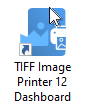
Open the image printer dashboard

You can edit an existing profile, create a copy of one, or use the Add a profile button to open a new one for editing.
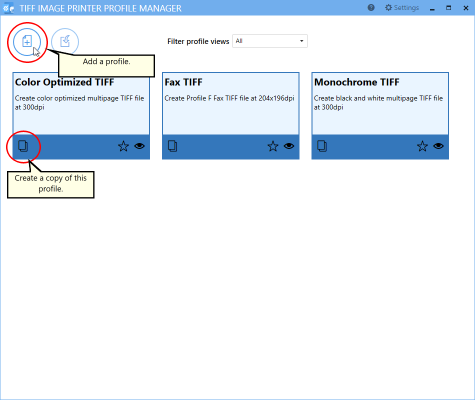
Create a new profile or copy or edit an existing one.

Give your new profile a name and a description, then select Email from the options list on the left. All options for sending created files using Outlook are here.

Next to the Use this mail service option, select Outlook from the list of mail services shown
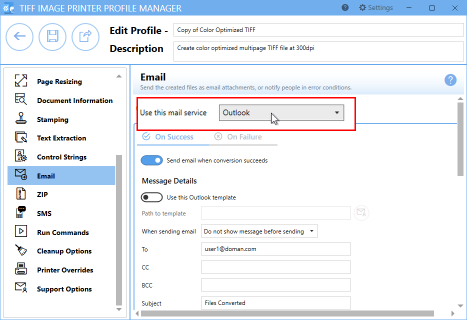
Set email options to send Created Files Using Outlook

Toggle on the option to Send email when conversion succeeds.
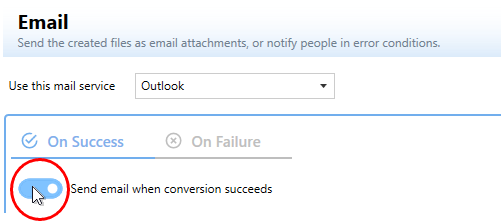
Send the email when the file conversion succeeds

Fill in the Message Details for the To (or CC, BCC), Subject, and Message fields. We use the information you enter in these fields to send all emails.
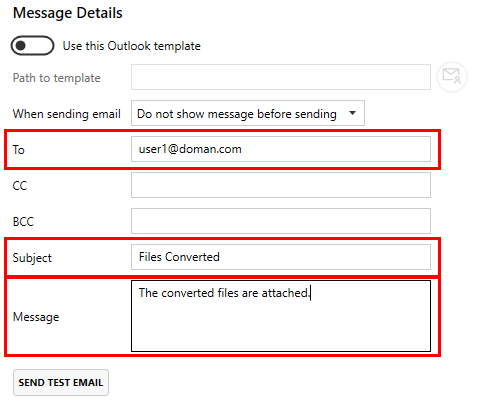
Set options for email addresses, subject and message body text.

Next, we want to send this email silently. Set the When sending email action to Do not show message before sending.
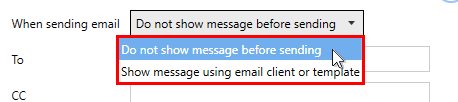
Turn off prompting to send the email silently.

Setting Email Attachment Options

To include our created files in the email as attachments, toggle the option Send created documents as email attachments.

There are additional settings to limit the email size, split oversized emails, and limit how many emails to send to help work within any email size limitations in your organization.
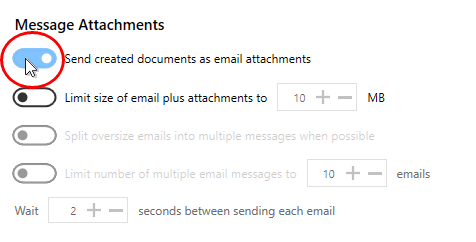
Attach created files when sending email from Outlook

We also want to zip our created files and attach the single zip file to the email.

Toggle ZIP the files before attaching to the email. Leave the folder options to the defaults to create an unstructured zip file with the created files at the root. See the email section in the user guide for full details on the type of ZIP file created, password-protected ZIP files, and other additional ZIP options.
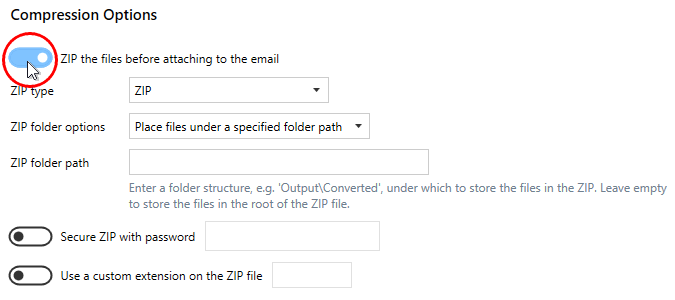
You can ZIP files together into one file before attaching

Using Cleanup Options with Email

The last step is to clean up the created files after sending the email. Skip this step if you need to keep the files you created and emailed. If you don’t need to keep your created files, this step automatically deletes the files for you to keep your hard drive clutter-free.

To set up the auto-delete option, select Cleanup Options in the list on the left-hand side. Toggle on the option to Delete generated output files and set the action to take place on success.
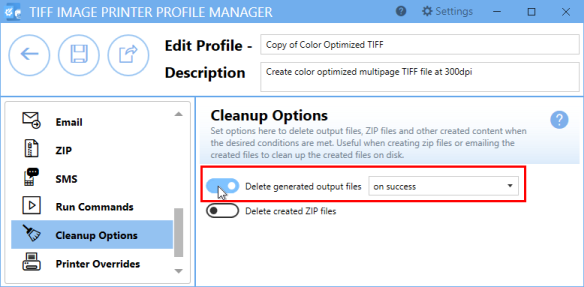
Cleanup options take care of deleting files on disk that you have email and no longer need.

Click Save and then Back to return to the main screen of the Profile Manager. We now have a profile that zips any created files, attaches the zip file to an email, and sends that email silently. All you have to do is choose this new profile when printing any document.

Send Created Files Using Outlook Templates

When you need more control over the email message body format, such as formatted text, signatures, and other features, Outlook templates are your answer. Instead of setting the email fields in the profile, set the initial content of the email fields From, To, CC, BCC, Subject, and Body in a template and set the profile to use the template.

Toggle Use this Outlook template and select the mail icon to browse to and choose an Outlook template to use when sending email.
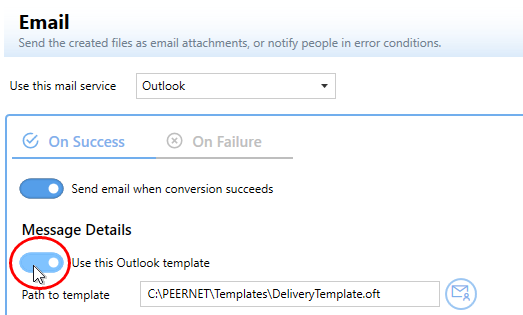
Send created files using Outlook templates to get formatted text and email signatures.
*A folder named Templates has been provided in the product installation folder (C:\Program Files\TIFF Image Printer 12\Templates). You can place any Outlook templates used for emails here. When you use a template from this folder, the template location is stored in the profile using a macro, allowing you to deploy the template and profile to any computer without worrying about hard-coded folder paths.

You can also combine an Outlook template with data entered in the email fields in the profile. Text entered for the Subject and Body fields on the email tab settings will override the Subject and Message contents in the template. When sending the email, we will combine any addresses in the template with any addresses from the To, CC, and BCC fields in the profile.

Prompt and Send Created Files Using Outlook

We showed above how to send emails and the created files silently to the same email account. If you use the email feature as part of a manual workflow, you may need to edit a default email template each time before sending the email.

To prompt before sending the, change the When sending email action to Show message using client email or template.

prompt and send created files using outlook

Choosing this will show the Outlook email template, with the files or zip file attached to the email, ready to edit and send.

https://www.peernet.com/wp-content/uploads/tiff-raster-pdf-imageprinter-feature-image.jpg 800 800 Robert Massart https://www.peernet.com/wp-content/uploads/peernet-logo.png Robert Massart2022-03-01 11:12:002024-07-03 16:34:09Send Created Files Using Outlook
  • Document Conversion Service
  • TIFF Image Printer
  • Raster Image Printer
  • PDF Image Printer
  • PDF Creator Plus
  • File Conversion Center
  • PEERNET Reports
Search Search

Recent Posts

  • PNSrv11Lib to PNSrv12Lib: Migration Made Easy
  • Migrating to Version 12: Compatibility Mode Quick Start Guide
  • Well Logs: Stitch PDF Pages into a Continuous TIFF Image
  • Dynamic Stamp Content
  • Convert to PDF: The Power of On-Premise PDF Creation

INTERESTING LINKS

Below are some interesting links for you! Enjoy your stay :)

RSS Feed Logo RSS Feed Logo Subscribeto RSS Feed

OUR PRODUCTS

  • Document Conversion Service
  • TIFF Image Printer
  • Raster Image Printer
  • PDF Image Printer
  • PDF Creator Plus
  • File Conversion Center
  • PEERNET Reports

LATEST NEWS

  • PNSrv11Lib to PNSrv12Lib: Migration Made EasyMarch 14, 2025 - 2:10 pm
  • Migrating to Version 12: Compatibility Mode Quick Start GuideMarch 14, 2025 - 2:09 pm
  • Well Logs: Stitch PDF Pages into a Continuous TIFF ImageMarch 14, 2025 - 2:08 pm
  • Dynamic Stamp ContentNovember 4, 2024 - 4:47 pm

BUSINESS INFORMATION

Toll Free: 1-800-883-7980 North America

Tel: 1-613-224-6894

Our office hours are Monday to Friday, from 0900 hrs to 1700 hrs, Eastern Standard Time.

Email Address: [email protected]
Copyright © 1997-2026. All rights reserved. Terms and Conditions | Disclaimer | Privacy Policy | Trademarks.
PEERNET® is a registered trademark of PEERNET Inc.
  • Link to Youtube
  • Link to Rss this site
  • Products
  • Purchase
  • Company
  • Contact
Link to: Email Created files using SMTP Link to: Email Created files using SMTP Email Created files using SMTPtiff-raster-pdf-imageprinter-feature-image Link to: Why use the Cleanup Options Link to: Why use the Cleanup Options tiff-raster-pdf-imageprinter-feature-imageWhy use the Cleanup Options
Scroll to top Scroll to top Scroll to top