

• Contact
  • Company
  • Login / My Account
  • Shopping Cart (0)
Document Conversion Made Easy!
Peernet Menu
  • Products
      • Virtual Printers
        • tiff-image-printer-iconTIFF Image Printer – Create TIFF Images
        • raster-image-printer-iconRaster Image Printer – Create TIFF, PDF, JPEG, etc.
        • pdf-image-printer-iconPDF Image Printer – Create Searchable PDF
      • PDF Editor
        • pdf-creator-plus-iconPDF Creator Plus – Merge, Edit, Create Searchable PDF
      • Batch Converters
        • document-conversion-service-iconDocument Conversion Service – Unattended 24/7 Batch Converter
        • file-conversion-center-iconFile Conversion Center – Desktop Batch Converter
      • Reporting Software
        • peernet-reports-iconPEERNET Reports – Barcode, Report and Label Software
      • enterprise-licensingEnterprise Licensing for your Corporation
      • discounts-multiple-licensesDiscounts for Purchasing Multiple Licenses
      • distribute-bundle-peernet-softwareDistribute PEERNET Software Bundled with your Product
  • Purchase
      • Purchase Virtual Printers
        • tiff-image-printer-iconTIFF Image Printer – Create TIFF Images
        • raster-image-printer-iconRaster Image Printer – Create TIFF, PDF, JPEG etc.
        • pdf-image-printer-iconPDF Image Printer – Create Searchable PDF
      • Purchase PDF Editor
        • pdf-creator-plus-iconPDF Creator Plus – Merge, Edit, Create Searchable PDF
      • Purchase Batch Converters
        • document-conversion-service-iconDocument Conversion Service – Unattended 24/7 Batch Converter
        • file-conversion-center-iconFile Conversion Center – Desktop Batch Converter
      • Purchase Reporting Software
        • peernet-reports-iconPEERNET Reports – Barcode, Report and Label Software
      • peernet-online-store-purchase-optionsPurchase Options
      • peernet-software-license-levelsLicense Levels
      • peernet-software-purchase-resellerFind Resellers
      • peernet-software-sales-faqsSales FAQ
  • Learn & Support
        • peernet-help-centerTutorials
          • Learn the Basics or Go Beyond with Video Tutorials, FAQs and Guides

            At PEERNET we pride ourselves on providing the best support and the fastest response times in the industry.
          • Select Software Tutorials:
              • tiff-image-printer-iconTIFF Image Printer
              • raster-image-printer-iconRaster Image Printer
              • pdf-image-printer-iconPDF Image Printer
              • pdf-creator-plus-iconPDF Creator Plus
              • document-conversion-service-iconDocument Conversion Service
              • file-conversion-center-iconFile Conversion Center
              • peernet-reports-iconPEERNET Reports
        • peernet-software-faqsSales FAQ
          • Popular Topics

            Find all the answers you need to our most frequently asked questions.
              • Download & Install
                • How do I download software I already purchased?
              • Purchasing & Renewing
                • How do I purchase PEERNET software?
                • What license level do I need?
                • How do I add licenses to an existing serial number?
                • How do I renew my annual subscription?
              • Licensing & Operating
                • How do I activate my new PEERNET software?
                • How do I activate my software without an internet connection?
                • Where do I find my serial number?
                • How do I move my software to a new computer?
                • How do I update/upgrade my software to the latest release?
            • Read all Sales FAQs
  • Blog
  • Menu Menu
tiff-raster-pdf-imageprinter-feature-image

Adjust Page Brightness and Remove Grey Backgrounds

January 1, 2021/by Robert Massart

Page brightness refers to how dark or light your image appears. When you adjust page brightness you are lightening or darkening the images and text on your page. Darkening the page can help to make light-colored text more readable while lightening a page can make a dark image more visible. Lightening an image can also remove grey backgrounds that can occur with scanned documents.

Adjusting page brightness is often necessary to improve the quality, readability, and visual appeal of scanned documents, photos, and artwork. It is also an important step is preparing scanned files for document archival, digital forensics, and electronic evidence discovery systems.

Improve Readability with Page Brightness

Scanned documents can vary greatly in quality. Documents created from older or low-quality scanners can be too light or too dark or have uneven brightness levels. Adjusting page brightness can improve the readability of the text and content, and produce a more uniform image.

Remove Scanning Artifacts with Page Brightness

Historically, scanning a document to a digital image required placing a physical copy of the document onto the glass surface of a scanner. The scanner would use lights and sensors to capture an image of the document. Shadows, glares and smudges, and marks on the glass surface often cause unwanted artifacts to also be captured as part of the image. These artifacts can be removed or reduced by adjusting image brightness.

Prepare for OCR with Page Brightness

Document archiving and evidence discovery often require an OCR (Optical Character Recognition) step. This is where the printed or handwritten text on the image is recognized and converted into an editable and searchable text document. Adjusting the page brightness can make the text more distinct, easier to recognize, and improve accuracy.

Improve Faded Documents and Old Photos with Page Brightness

Paper documents and old photos can fade and yellow over time. If you have scanned copies of these documents, brightness adjustment can help with image clarity and enhance lost details.

How to Adjust Page Brightness

TIFF Image Printer, Raster Image Printer, and PDF Image Printer all use printer profiles to control what type of file to create, where to save it, and many other options including page brightness.

Here, we show how to create a printer profile that adjusts page brightness to remove a grey background from a Word document. This is a simple example but the same concept applies when working with scanned documents, photos, and other files. The images below are taken using TIFF Image Printer; the steps are the same for both PDF Image Printer and Raster Image Printer.

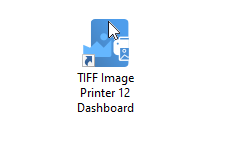
Start by opening the Dashboard using the desktop shortcut. The dashboard is the hub for everything for your printer. Creating profiles and printers, help resources, licensing, and more are all found here.
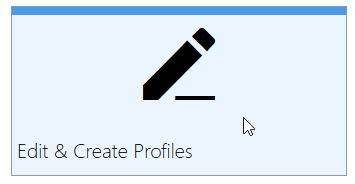
From the Dashboard, open the Profile Manager by clicking on the Edit & Create Profiles tile.
Creating and Editing Profiles

The profile manager is where you create and edit the profiles used by the printer. To make changes to adjust page brightness, you first need to create a new profile using the Add new profile button. You can also start with one you already have or make a copy using the copy icon on any of the profile tiles.
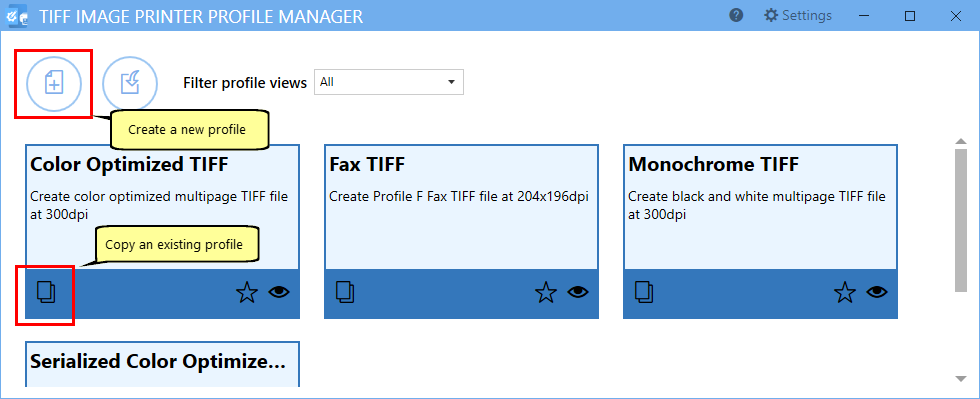
create new or edit existing profile

Set Options to Adjust Page Brightness

All of the settings in a profile are grouped in categories on the left. Options for the selected category are shown on the right. Select the Page Editing category and scroll down to the Adjust Page Brightness section at the bottom on the right.

Click on the toggle Lighten or darken each page with the following settings to turn on the page brightness option.
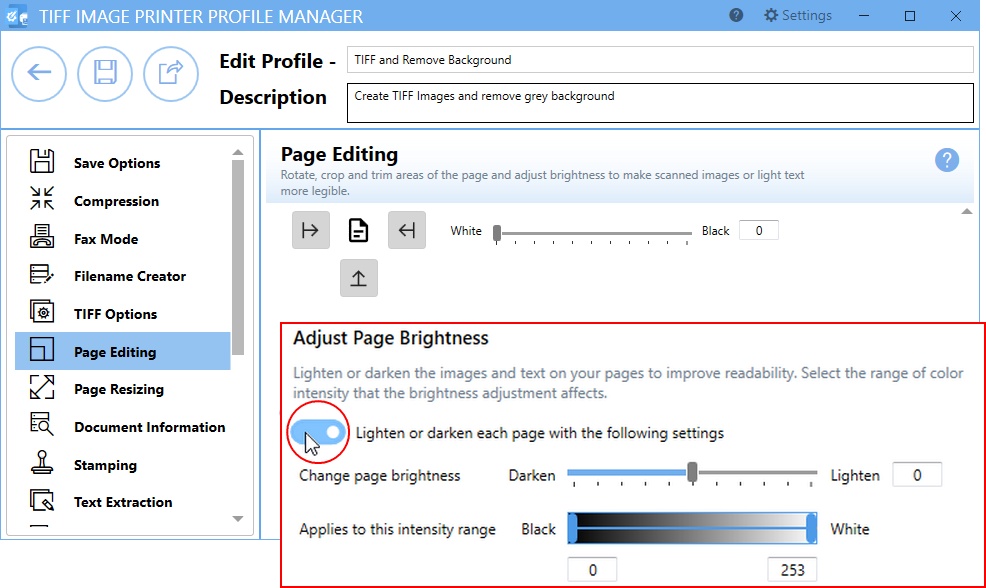
Turn on page brightness adjustment feature in the Page Editing options

The next step is to say what color to change the grey background. Since we want to remove it all, we’re going to change all the grey to white. To do this, drag the slider all the way to the right, or set the brightness to 100.
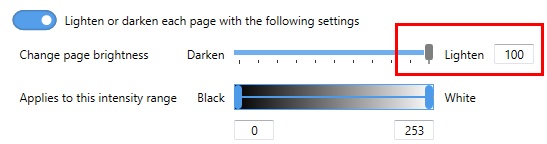
Set grey background to be replaced with white

Finally, we need to say what shades of grey to replace with white. You will want to keep this range narrow enough to only replace the grey background in the document. We do not want to remove any lighter-colored text or content that you want to keep. Our sample is a Word document with a single color so the range is quite narrow. With scanned documents, the background is not always the same color due to variations with scanning software, Use this range to adjust for these variations.
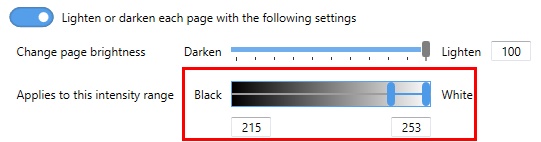
Use the intensity slider to choose what shades of color to replace.

Saving and Using the Profile

Once the Adjust Page Brightness settings are set, save the profile using the Save button in the upper left. You can now print your document to the printer using your new profile to remove the grey background.
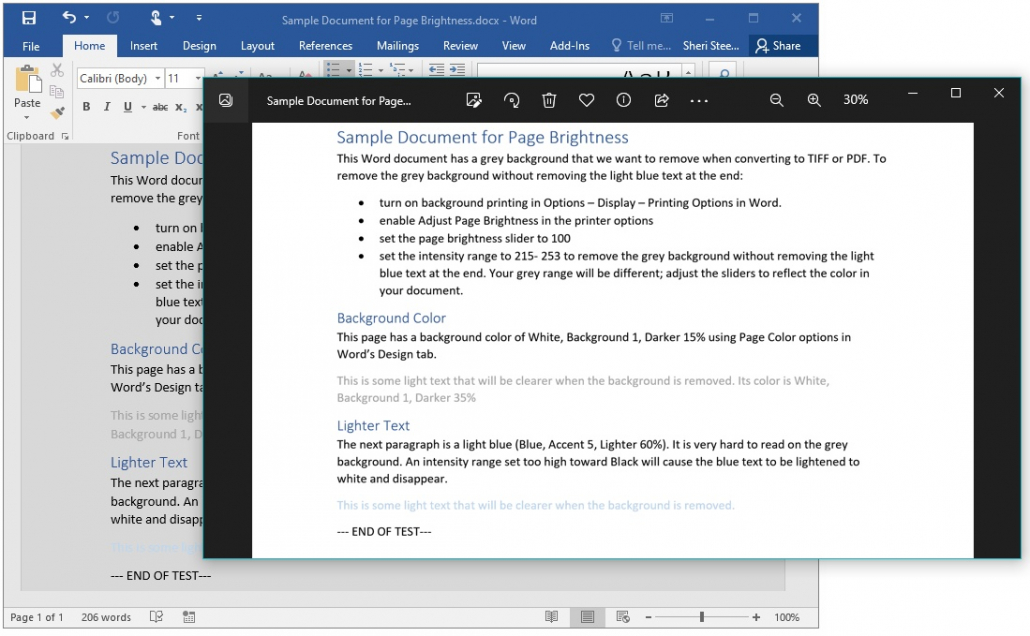
Results of adjust page brightness removed the grey background

Remember, each document may be different. Experiment with the intensity range and darkening and lightening. Here we have removed the grey background. Conversely, we can choose a different intensity range and darken those colors instead if we have a scanned document with very light text that needs to be darker for legibility.

And, as always, reach out to our support team with any questions, they’ll be happy to help you.

https://www.peernet.com/wp-content/uploads/tiff-raster-pdf-imageprinter-feature-image.jpg 800 800 Robert Massart https://www.peernet.com/wp-content/uploads/peernet-logo.png Robert Massart2021-01-01 12:00:002023-11-03 15:02:41Adjust Page Brightness and Remove Grey Backgrounds
  • Document Conversion Service
  • TIFF Image Printer
  • Raster Image Printer
  • PDF Image Printer
  • PDF Creator Plus
  • File Conversion Center
  • PEERNET Reports
Search Search

Recent Posts

  • PNSrv11Lib to PNSrv12Lib: Migration Made Easy
  • Migrating to Version 12: Compatibility Mode Quick Start Guide
  • Well Logs: Stitch PDF Pages into a Continuous TIFF Image
  • Dynamic Stamp Content
  • Convert to PDF: The Power of On-Premise PDF Creation

INTERESTING LINKS

Below are some interesting links for you! Enjoy your stay :)

RSS Feed Logo RSS Feed Logo Subscribeto RSS Feed

OUR PRODUCTS

  • Document Conversion Service
  • TIFF Image Printer
  • Raster Image Printer
  • PDF Image Printer
  • PDF Creator Plus
  • File Conversion Center
  • PEERNET Reports

LATEST NEWS

  • PNSrv11Lib to PNSrv12Lib: Migration Made EasyMarch 14, 2025 - 2:10 pm
  • Migrating to Version 12: Compatibility Mode Quick Start GuideMarch 14, 2025 - 2:09 pm
  • Well Logs: Stitch PDF Pages into a Continuous TIFF ImageMarch 14, 2025 - 2:08 pm
  • Dynamic Stamp ContentNovember 4, 2024 - 4:47 pm

BUSINESS INFORMATION

Toll Free: 1-800-883-7980 North America

Tel: 1-613-224-6894

Our office hours are Monday to Friday, from 0900 hrs to 1700 hrs, Eastern Standard Time.

Email Address: [email protected]
Copyright © 1997-2026. All rights reserved. Terms and Conditions | Disclaimer | Privacy Policy | Trademarks.
PEERNET® is a registered trademark of PEERNET Inc.
  • Link to Youtube
  • Link to Rss this site
  • Products
  • Purchase
  • Company
  • Contact
Link to: Ways to Reduce JPEG File Size Link to: Ways to Reduce JPEG File Size Ways to Reduce JPEG File Sizeraster-imageprinter-feature-image Link to: Create a secure Adobe PDF File Link to: Create a secure Adobe PDF File pdf-raster-imagerprinter-feature-imageCreate a secure Adobe PDF File
Scroll to top Scroll to top Scroll to top