Convert to EMF with PDF Creator Plus
Convert to EMF (Enhanced Metafile) from Word, Excel, CAD, and many other programs with this economical and easy-to-use file conversion software. With many built-in features, PDF Creator Plus is a complete solution for creating not only EMF files, but also Adobe PDF files, and JPEG, TIFF, and BMP images from any Windows application that can print.
Why Create EMF with PDF Creator Plus?
- Easily create EMF files suitable for embedding inside other documents, such as Word or Excel.
- EMF files are scalable even when embedded into another document, unlike images, which can become stretched or skewed.
- More than just EMF, PDF Creator Plus can also create PDF files and TIFF, JPEG, and BMP images.
How to Convert to EMF
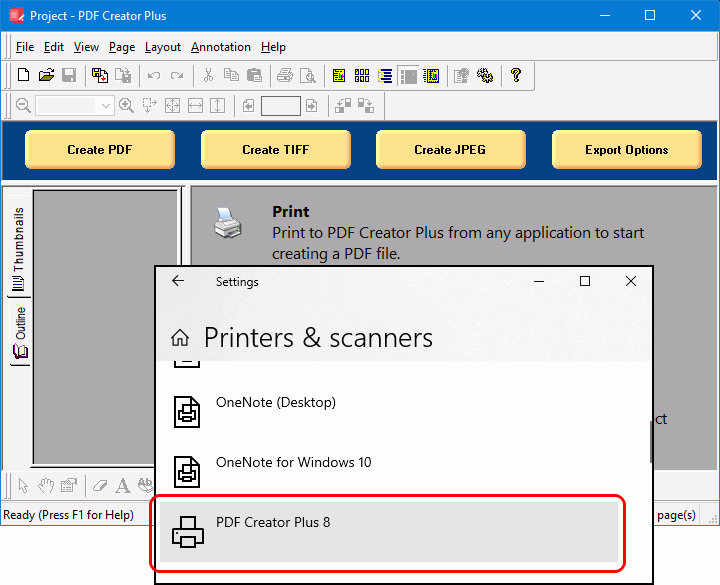
If you’re wondering how to create EMF, download and install a free trial. If you already own PDF Creator Plus, install and activate your purchased copy. This installs the PDF Creator Plus app and PDF Creator Plus 8 virtual printer to your computer.
Print Your File
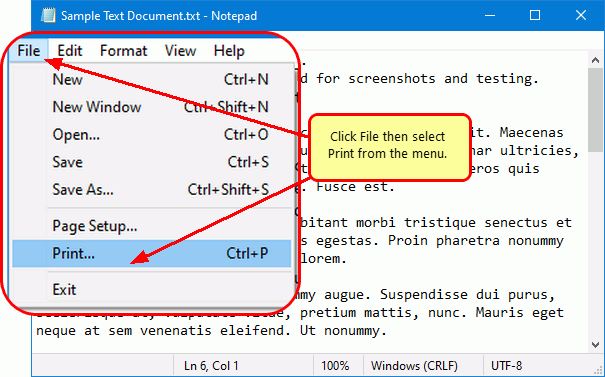
Open your document in the appropriate application. For example, open a text file in Notepad, as shown below, a Word document in Microsoft Word, or a PDF in Adobe Reader. Once open, select File – Print from the application’s menu.
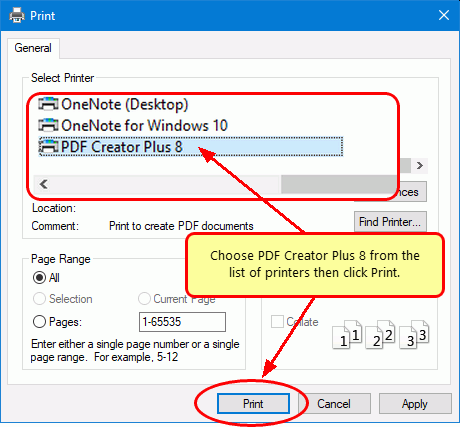
In the Print dialog, select PDF Creator Plus 8 from the list of printers and then click Print.
Collect and Edit the Pages to Convert to EMF
The PDF Creator Plus 8 printer sends the pages of your printed document to the PDF Creator Plus app. In the app, you can move or delete pages or use the markup tools to add text, shape, and image annotations to your pages.
You can now convert your pages to the Enhanced Metafile (EMF) format or continue printing additional documents to add more pages before creating your EMF file.
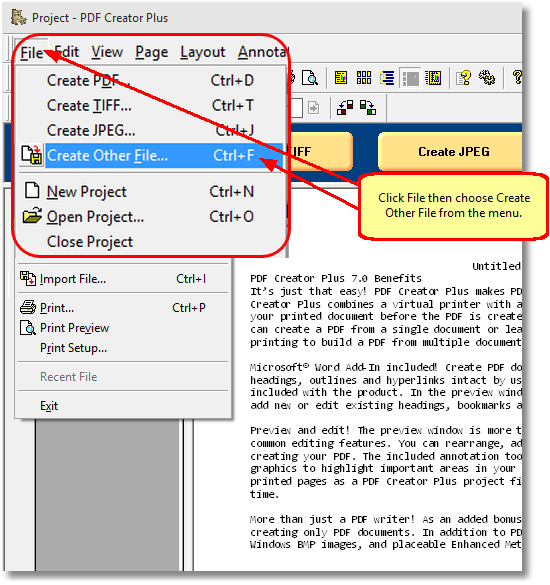
After collecting all your pages, go to the File menu and select Create Other File from the menu.
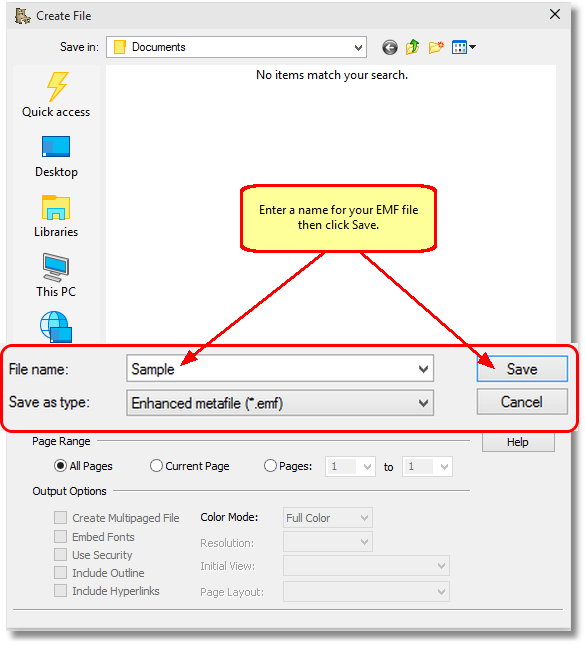
In the Create File dialog, edit the name for your new EMF files and choose where to save them.
Next, select Enhanced metafile (*.emf) as the Save as type. Click the Save button to convert to Enhanced Metafile format (EMF).
Creating the EMF Files
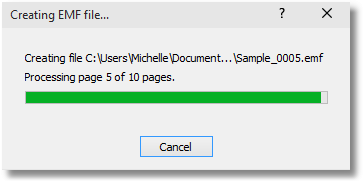
A progress dialog displays as PDF Creator Plus saves a separate EMF file image for each page of your document. A sequential numbering sequence names each EMF file by appending a suffix of _0001, _0002, etc. to each image name.