• Contact
  • Company
  • Login / My Account
  • Shopping Cart (0)
Document Conversion Made Easy!
Peernet Menu
  • Products
      • Virtual Printers
        • tiff-image-printer-iconTIFF Image Printer – Create TIFF Images
        • raster-image-printer-iconRaster Image Printer – Create TIFF, PDF, JPEG, etc.
        • pdf-image-printer-iconPDF Image Printer – Create Searchable PDF
      • PDF Editor
        • pdf-creator-plus-iconPDF Creator Plus – Merge, Edit, Create Searchable PDF
      • Batch Converters
        • document-conversion-service-iconDocument Conversion Service – Unattended 24/7 Batch Converter
        • file-conversion-center-iconFile Conversion Center – Desktop Batch Converter
      • Reporting Software
        • peernet-reports-iconPEERNET Reports – Barcode, Report and Label Software
      • enterprise-licensingEnterprise Licensing for your Corporation
      • discounts-multiple-licensesDiscounts for Purchasing Multiple Licenses
      • distribute-bundle-peernet-softwareDistribute PEERNET Software Bundled with your Product
  • Purchase
      • Purchase Virtual Printers
        • tiff-image-printer-iconTIFF Image Printer – Create TIFF Images
        • raster-image-printer-iconRaster Image Printer – Create TIFF, PDF, JPEG etc.
        • pdf-image-printer-iconPDF Image Printer – Create Searchable PDF
      • Purchase PDF Editor
        • pdf-creator-plus-iconPDF Creator Plus – Merge, Edit, Create Searchable PDF
      • Purchase Batch Converters
        • document-conversion-service-iconDocument Conversion Service – Unattended 24/7 Batch Converter
        • file-conversion-center-iconFile Conversion Center – Desktop Batch Converter
      • Purchase Reporting Software
        • peernet-reports-iconPEERNET Reports – Barcode, Report and Label Software
      • peernet-online-store-purchase-optionsPurchase Options
      • peernet-software-license-levelsLicense Levels
      • peernet-software-purchase-resellerFind Resellers
      • peernet-software-sales-faqsSales FAQ
  • Learn & Support
        • peernet-help-centerTutorials
          • Learn the Basics or Go Beyond with Video Tutorials, FAQs and Guides

            At PEERNET we pride ourselves on providing the best support and the fastest response times in the industry.
          • Select Software Tutorials:
              • tiff-image-printer-iconTIFF Image Printer
              • raster-image-printer-iconRaster Image Printer
              • pdf-image-printer-iconPDF Image Printer
              • pdf-creator-plus-iconPDF Creator Plus
              • document-conversion-service-iconDocument Conversion Service
              • file-conversion-center-iconFile Conversion Center
              • peernet-reports-iconPEERNET Reports
        • peernet-software-faqsSales FAQ
          • Popular Topics

            Find all the answers you need to our most frequently asked questions.
              • Download & Install
                • How do I download software I already purchased?
              • Purchasing & Renewing
                • How do I purchase PEERNET software?
                • What license level do I need?
                • How do I add licenses to an existing serial number?
                • How do I renew my annual subscription?
              • Licensing & Operating
                • How do I activate my new PEERNET software?
                • How do I activate my software without an internet connection?
                • Where do I find my serial number?
                • How do I move my software to a new computer?
                • How do I update/upgrade my software to the latest release?
            • Read all Sales FAQs
  • Blog
  • Menu Menu

How To Create and Print RFID Labels – PEERNET Reports

Trial Download
View Product

In addition to printing standard labels and reports, PEERNET Reports Designer lets you create Radio Frequency Identification (RFID)-enabled versions of many popular label formats.  All you need is stock that has an embedded RFID tag, a printer that can encode the RFID tag, and you’re ready to produce professional-grade industry standard RFID labels and reports quickly and easily.

If you want to get started producing RFID labels right away without having to go through the hassle of setting up the paper stocks required, you can download an RFID Label Sample Project that contains all of the industry standard label label formats for automobile, shipping and transportation applications that you can modify to meet your needs.

Printing RFID labels – Configuring the Paper Stock

  1. The first part of RFID support is to determine the type of RFID Tag that is embedded in the label stock; this information should be available from your supplier(s).
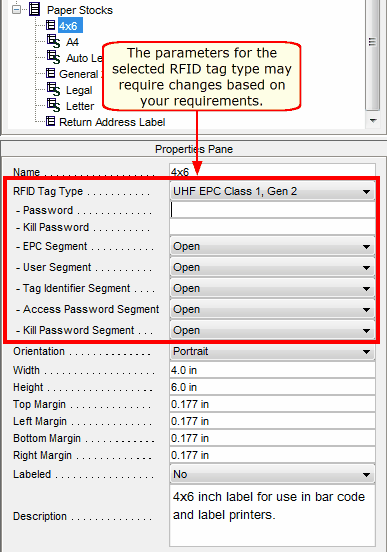
  2. Once you know the type of RFID tag that you will be using, you need to setup a Paper Stock with this information, as it is used to determine the format of the RFID information that can be associated with a label or report.  Select the appropriate paper stock item in the Project Pane, and select the appropriate RFID tag from the RFID Tag Type drop-down list.
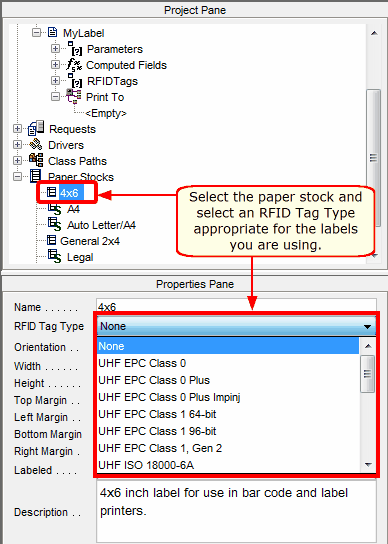
    paper_stock_select_RFID_tag_type

  3. Each RFID Tag Type has different configuration options that may have to be changed, depending on your requirements.  Once you select an appropriate RFID tag, any configurable properties for that tag will be presented below the RFID Tag Type drop-down list for you to modify if necessary.
    paper_stock_RFID_tag_type_properties

Printing RFID labels – Configuring the Label

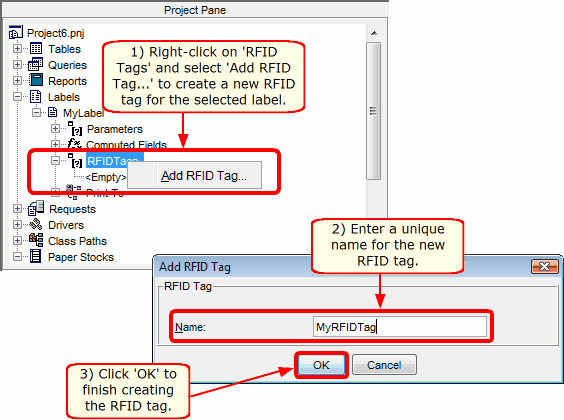
  1. Select the label that you wish to enable RFID encoding on, and select the ‘RFID Tags‘ node within the label in the Project Pane.  Double-clicking or right-clicking and selecting ‘Add RFID Tag…‘ on the ‘RFID Tags‘ node will allow you to add a new RFID tag to the selected label.  Click here for information on how to create a new label.
    label_create_RFID_tag

    Each label or report can have multiple RFID tags associated with it; the only limitation is that each RFID tag defined must refer to a unique RFID tag type.  This allows a single label or report format to be encoded and printed on different RFID-enabled stock on different printers without having to re-create the label or report layout for each RFID tag type.

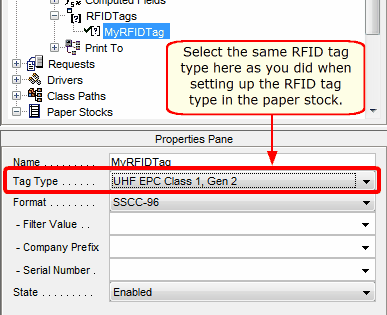
  2. Select the RFID tag that you just created for the label.  In the Properties Pane, select the same RFID tag type from the ‘Tag Type‘ drop-down list that you defined in the paper stock in Step 2.  This ensures that the tag defined in the label format is the same as the tag defined in the paper stock being used to print the label.
    label_RFID_tag_select_type

  3. Each Tag Type requires different field data within the RFID Tag and this is based on the format of the RFID Tag.  Select the appropriate format for the RFID tag from the ‘Format‘ drop-down list, and configure any parameters that are required by the format.
    label_RFID_tag_format_parameters

Printing RFID labels – Configuring the Bar Code Printer

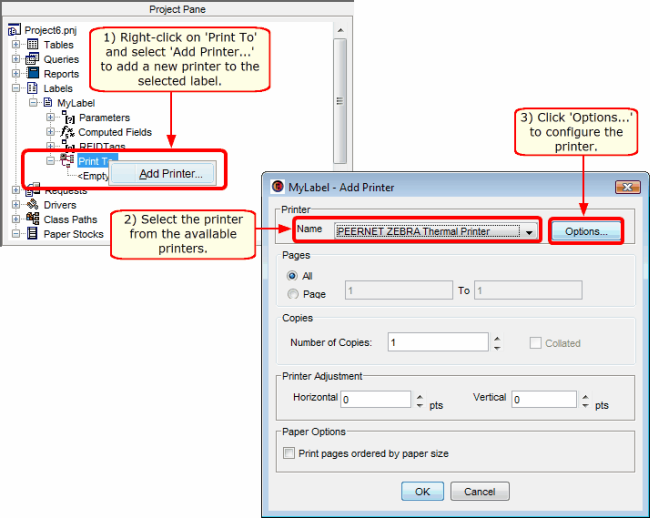
  1. You can configure the printer when you print the label, or you can configure the printer before you print the label by adding the printer to the ‘Print To‘ node within the label in the Project Pane. Double-clicking or right-clicking and selecting ‘Add Printer…‘ on the ‘Print To‘ node will display the Add Printer dialog and allow you to add a new printer to the selected label.  Select the appropriate printer from the ‘Name‘ drop-down list.  Once you have selected a printer, click on the ‘Options‘ button to configure the selected printer.
    label_create_print_to

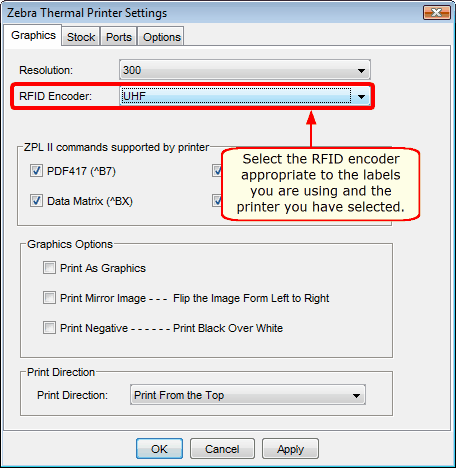
  2. On the ‘Graphics‘ tab, select the appropriate RFID encoder from the ‘RFID Encoder‘ drop-down list.  The encoder that you select must be installed in the printer in order to successfully encode RFID tags when printing.
    configure_printer_select_RFID_encoder

  3. Click ‘OK‘ to accept the changes.
  4. Click ‘OK‘ on the Add Printer dialog to add the printer to the available printers for this label format.
Printing RFID labels – Printing and Encoding the Label

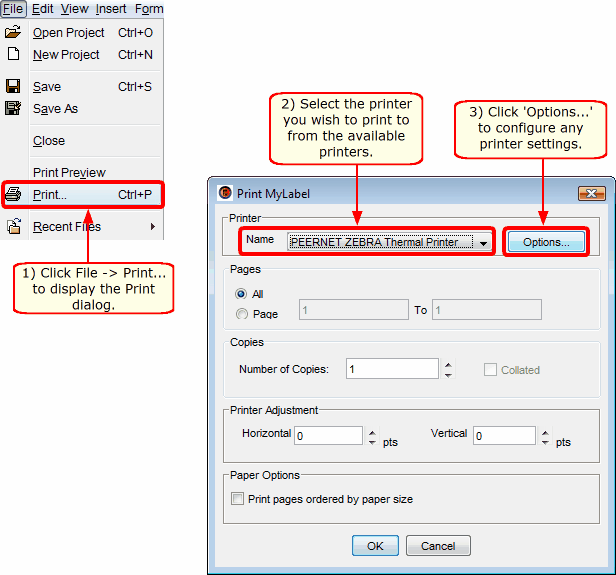
  1. If you have not added a printer to the ‘Print To‘ node in the label format, you can print the label by selecting File -> Print… from the menu bar to print the label that you have created.  When the Print Dialog appears, select the bar code printer that you wish to print to from the list of available printers and click on the ‘Options‘ button.
    printing_using_file_menu_print

  2. Perform the operations outlined in Steps 8, 9 and 10 above.
  3. Click ‘OK‘ on the Print Dialog to print the label to the printer.
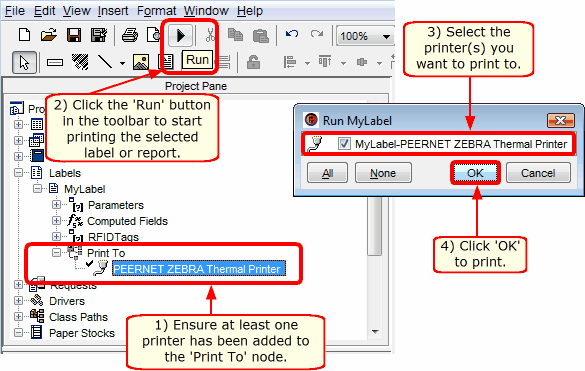
  4. If you have added a printer to the ‘Print To‘ node in the label format, simply select the label and click the ‘Run‘ button in the toolbar.  This will display the Run Label dialog, which will display all of the printers that have been added to the currently selected label.  Select the one or more printers that you want to print to by enabling the check box next to the appropriate printer(s) and click ‘OK‘.  This will print the label to the printer(s) that you selected using the settings that you configured in Step 9.
    printing_using_run

Once you have created an RFID label design, you can print it to any printer that PEERNET Reports Designer supports without having to create a new design for each type of printer (although there is nothing stopping you from doing that – PEERNET Reports Designer is very flexible).

The same label or report definition can also be made available over the web, allowing anyone in your organization to take advantage of PEERNET Reports “design once, print anywhere” philosophy.

The ability to support any user-defined paper stock and hundreds of Avery® paper stocks, as well as the ability to connect to many different types of data sources allows you to tie PEERNET Reports easily into your existing infrastructure and extend the functionality and usefulness of any label or report designs that you create.

Try PEERNET Reports for free on-line and start producing RFID labels!

https://www.peernet.com/wp-content/uploads/reports-label-printer-post.png 600 900 Robert Massart https://www.peernet.com/wp-content/uploads/peernet-logo.png Robert Massart2013-07-10 19:13:012019-08-09 08:56:52How To Create and Print RFID Labels – PEERNET Reports
  • Document Conversion Service
  • TIFF Image Printer
  • Raster Image Printer
  • PDF Image Printer
  • PDF Creator Plus
  • File Conversion Center
  • PEERNET Reports
Search Search

Recent Posts

  • PNSrv11Lib to PNSrv12Lib: Migration Made Easy
  • Migrating to Version 12: Compatibility Mode Quick Start Guide
  • Well Logs: Stitch PDF Pages into a Continuous TIFF Image
  • Dynamic Stamp Content
  • Convert to PDF: The Power of On-Premise PDF Creation

INTERESTING LINKS

Below are some interesting links for you! Enjoy your stay :)

RSS Feed Logo RSS Feed Logo Subscribeto RSS Feed

OUR PRODUCTS

  • Document Conversion Service
  • TIFF Image Printer
  • Raster Image Printer
  • PDF Image Printer
  • PDF Creator Plus
  • File Conversion Center
  • PEERNET Reports

LATEST NEWS

  • PNSrv11Lib to PNSrv12Lib: Migration Made EasyMarch 14, 2025 - 2:10 pm
  • Migrating to Version 12: Compatibility Mode Quick Start GuideMarch 14, 2025 - 2:09 pm
  • Well Logs: Stitch PDF Pages into a Continuous TIFF ImageMarch 14, 2025 - 2:08 pm
  • Dynamic Stamp ContentNovember 4, 2024 - 4:47 pm

BUSINESS INFORMATION

Toll Free: 1-800-883-7980 North America

Tel: 1-613-224-6894

Our office hours are Monday to Friday, from 0900 hrs to 1700 hrs, Eastern Standard Time.

Email Address: [email protected]
Copyright © 1997-2026. All rights reserved. Terms and Conditions | Disclaimer | Privacy Policy | Trademarks.
PEERNET® is a registered trademark of PEERNET Inc.
  • Link to Youtube
  • Link to Rss this site
  • Products
  • Purchase
  • Company
  • Contact
Link to: Printing to a Barcode Label Printer Link to: Printing to a Barcode Label Printer Printing to a Barcode Label Printer Link to: Adding Custom Designer Paper Link to: Adding Custom Designer Paper Adding Custom Designer Paper
Scroll to top Scroll to top Scroll to top