The Run Commands tab holds all settings related to specifying a specific command or running a program while printing to TIFF Image Printer. There is are three stages at which commands can be run:
•at start of the printing process
•after a successful or failed print
•at the end of the printing process
Multiple commands of each type can be added to chain together custom actions as needed. Commands can be enabled or disabled individually, and will run in the order set within each stage by moving them up or down in the grid view. Commands are run sequentially in the order given, with each command finishing before moving on to the next one.
The commands that run on a successful or failed print automatically create a text file containing a list of files generated. This text file can contain zero or more lines, with each line being the full path to a file generated by TIFF Image Printer. You can use this list of files for further processing as needed. TIFF Image Printer will pass the full path of this text file (pnf-<GUID>.txt) as the last argument when executing the success or failure command if the option Append file list to command parameters is enabled. If no files are generated, neither the success or the failed commands are run.
Commonly used run commands have been provided in the RunCommands folder in the product installation folder, and custom run command files (.bat, .exe. or .com) can be created to meet specific requirements. When using a command from the RunCommands folder under the product setup, the location of the command is stored in the profile using a macro. This allows the profile to work on any computer, no matter where the product is installed. It also allows users the freedom to add their own commands to this folder as part of deployment and they will automatically be found.
See the topics Using the Run Commands for examples of using the provided commands.
For advanced users and programmers automating the printer, environment variables and registry keys can be used to specify all or part of the paths and parameters for the commands. The run commands can also be used to signal events in other programs. For examples of this see the following topics:
•Using Environment Variables and Registry Keys
•Signaling Events Using Run Commands
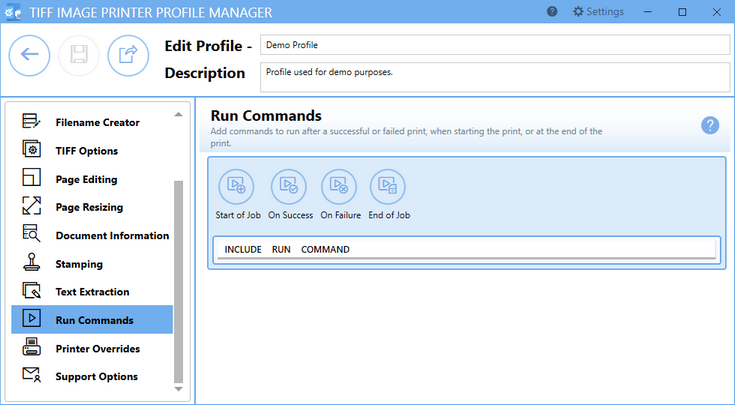
Using the Command Editor
The Command Editor allows users to add new commands for each stage, move the commands up and down for each stage, delete commands, edit existing commands. and change which stage a command runs.
To edit a command, hover over the command in the list until it is highlighted, and click to edit its details.
|
•Start of Job - Adds a command that will run when the print job starts. This command is always run. |
|
•On Success - Adds a command that will run when the print completes and is successful. This command optionally passes a path to a text file containing a list of files generated as the last argument of the command. This can be disabled. |
|
•On Failure - Adds a command that will run when the print job fails, such as when out of disk space. This command optionally passes a path to a text file containing a list of what files were generated before failure occurred. This is always passed as the last argument and can be disabled. |
|
•End of Job - Adds a command that will run when the print job completes. This command is always run. |
|
•Collapse Row - Use the close arrow icon to hide the command details |
|
•Move Up/Down - The arrow icons are used to change the order or the commands within each group. |
|
•Delete - Click the trash bin to delete unwanted commands. |


Editing Command Details
Enable this command
When a new command is added, this setting starts out disabled. Enabling this setting means TIFF Image Printer will run the command at its designated stage when printing.
Append file list to command parameters
Appears for Success and Failure commands. New commands will have this option enabled. When enabled, a text file containing a list of the files created is always passed as the last argument of the command. The text file follows this naming style, pnf-<GUID>.txt. Disable this option if you do not need to process the list of files.
Run command on
This is the stage during the print cycle at which the command will be run, one of Start of Job, Success, Failure, or End of Job.
Run this command
Enter the full path to the command you want to run. If this string is left empty, a warning message will appear when printing,
Select the run icon to browse to your desired run command or enter in the absolute path (for example, C:\My Files\RUNCOMMAND.exe) of the run command to be used. Environment variable like %userprofile%, %username%, and %systemroot% can be used in the command string.
The most common run commands are executable files (.exe) or batch files (.bat), but TIFF Image Printer will accept run commands with any file extension including .com, .cmd, or PowerShell files. TIFF Image Printer will attempt to execute any run command entered. If the command is not runnable, you will receive any error indicating that it could not be run.
A command preview will appear for anything entered in the command string, including any possible expansion of environmental variables and run command macros.
Use these parameters
Type any parameters you need to send to your application.
When entering parameters:
•Use blank spaces to separate parameters.
•Enclose parameters that contain spaces in double quotation marks.
Environment variable like %userprofile%, %username%, and %systemroot% can be used as parameters. Run command macros can also be used.
The On Success and On Failure commands will automatically add the full path to a generated text file (pnf-<GUID>.txt) as the very last parameter when executing the command if the option Append file list to command parameters is enabled. This text file can contain zero or more lines, with each line being the full path to a file generated by TIFF Image Printer. TIFF Image Printer. If no files are generated, neither the success or the failed commands are run.
Starting folder for command is
You can specify a default working directory for your application. Select the folder icon to browse to your desired working directory or enter in the absolute path (for example, C:\My Files) of the directory to be used. If the path entered does not exist, the folder will not be automatically created and therefore the driver will not run the command. Environment variable like %username%, %systemroot% can be used in the starting folder.
Although designating the starting folder is not frequently required, you may need to designate the starting folder if your run command requires that the working folder be a specific folder.
After running command
This option determines what happens to the print job after you run your command.
•Wait for completion - The print job is not completed until the command terminates.
•Wait with exit code - The print job is not completed until the command terminates. If the command exits with an error code, the print job will be canceled.
•Do not wait - Select this option if you do NOT want the print job to wait until the command terminates. This is the default for new commands.
•Prompt to continue - Select this option if you want to be prompted to continue once the command has executed. This feature allows you to review the results before accepting them. If you choose No from this prompt, the print job will be canceled. You can enter customized prompting text in the field below.
Show Command window as
Use this drop-down list to specify the window setting for the command you are running. Note that some applications do not allow their default window settings to be overridden.
•Normal - the application is displayed in its normal state. If the window is already open, and minimized or maximized, its original size is restored. This is the default for new commands.
•Maximized - the application is displayed as a maximized window.
•Minimized - the application is displayed as a minimized window; its icon is visible on the task bar.
•Hidden - the application is launched hidden from the user.
Bring window to foreground
This option tells TIFF Image Printer to try and bring to the foreground (activated) the window in which your application or command runs. This may not work for all applications. If you are running the application as a hidden window, this option does nothing.
Run Command Macros
These macros can be used in the command, parameter and starting folder fields. They are automatically expanded to their values when the command is run.
Output Variables
$(FileGUID)
A GUID (Globally Unique Identifier) for this file, this alphanumeric number is unique.
$(JobGUID)
Current job GUID (Globally Unique Identifier) maintained by the driver, this alphanumeric number is unique.
$(JobID)
Current job ID maintained by the driver for this printer. Increments for every print job. This number is shared across all copies of the TIFF Image Printer printer and stored as a UInt64 with a maximum value of 18,446,744,073,709,551,615.
$(JobStatus)
1 indicates success, 0 indicates failure
$(OutputDir)
The output directory where the files are created. The directory string is passed in quotes.
$(OutputDirNoQuotes)
Same as $(OutputDir), but without quotation marks.
$(OutputFileName)
The name of the output file name. This does not include file extension.
$(OutputFileNameNoQuotes)
Same as $(OutputFileName), but without quotation marks.
$(SavedFilePath)
Deprecated. This value is still set, recommend updating this value to $(OutputFileName) instead.
The final output file path of the created file. This is the last file if you are creating a serialized sequence of files.
$(SavedFilePathNoQuotes)
Deprecated. This value is still set, recommend updating this value to $(OutputFileNameNoQuotes) instead.
Same as $(SavedFilePath), but without quotation marks.
$(PageOrientation)
The orientation of the first page of the output pages, either "Portrait" or "Landscape".
$(PrintJobID)
The job ID from the print queue; this job id increments for every print job. It is not unique and numbers can be repeated.
$(PrintJobName)
This is the print job name submitted to the print queue by the printing application. It can be different from $(OutputFileName) if you have set a base file name in the Save Options tab.
$(PrintJobNameNoQuotes)
Same as $(PrintJobName), but without quotation marks.
$(PrintedPageNumber)
The current number of this page in the document.
$(PrintedPageCount)
The number of pages printed.
Date and Time Variables
$(Year)
The year the job was started.
$(Month)
The month the job was started, two digits, 01-12.
$(Day)
The day the job was started, two digits, 01-31.
$(Hour)
The hour the job was started, two digits, 24-hr format, 00-23.
$(Minute)
The minute the job was started, two digits, 00-59.
$(Second)
The second the job was started, two digits, 00-59
Other Variables
$(PrinterName)
Name of the printer that printed the file.
$(Copies)
The number of copies chosen in the print dialog. This number is not used, just passed on as information.
$(Collate)
Any collation settings chosen on the print dialog.
•0 if collate was not checked
•1 if it was checked
$(Duplex)
Any duplex settings chosen on the print dialog.
•1 = No duplex
•2 = flip page on long edge
•3 = flip page on short edge
$(Color)
The color setting used when printing the document.
•1 = Black and White
•2 = Color
$(UserName)
Name of user that submitted the print job.
$(MachineName)
Name of computer where the print job was submitted.
$(IPAddress)
The IP Address of the computer where the print job was submitted.
$(Var0) ... $(Var9)
In addition to the predefined variables listed above, ten variables (Var0 - Var9) are made available to you for personal use during print jobs. You can use the printer script file or control strings to assign values to these variables (see the "Using Control Strings" and "Automating the Printing Process" sections of this document for more information).