If you need to migrate existing applications that use earlier versions of TIFF Image Printer and the COM automation interface, the following steps outline what you need to change in your code.
Version 11 Compatibility Mode
Beginning with version 12.0.027, a new compatibility mode feature has been added to PNSrv12Lib. and the COM methods and events that were originally removed in version 12 are back in place. This allows migrating to the latest version with minimal code changes on your part.
1. Updating the References in Your Application
The first step is to update the references in your application to PNSrv12Lib.
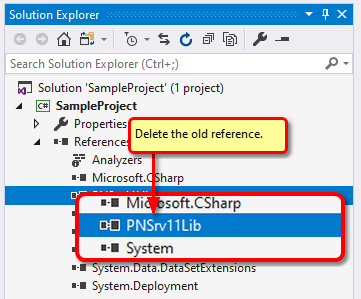
1.Find and delete the old reference from your project.
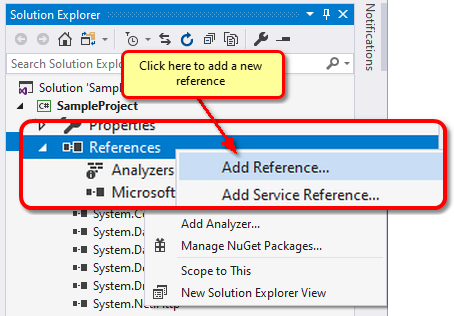
2.Right click on the References node and select Add Reference...
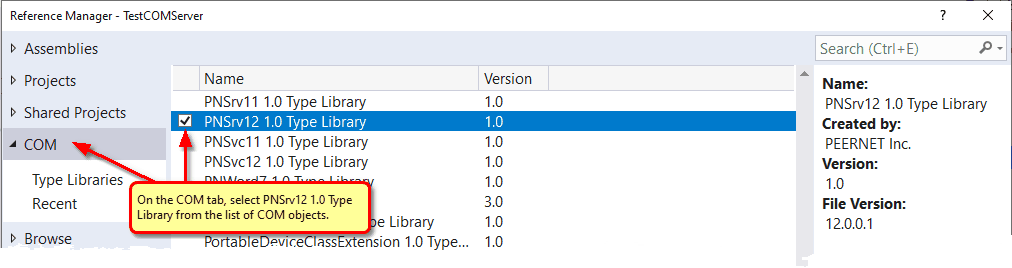
3.From the Add Reference dialog, select PNSrv12 1.0 Type Library.
2. Update any using Statements
Any using statements (for C#) or Imports statements (for VB) must be updated to reference PNSrv12Lib.
C#
// Update to use the new version |
Visual Basic
' Update to use the new version |
3. Updating Using Version 11 Compatibility Mode
With version 12.0.027 and later, a compatibility mode between version 12 and version 11 has been introduced. This compatibility mode allows PNSrv12Lib to support save options, file naming, and advanced file naming formatting settings from previous versions of the print driver. Support for many of the methods and classes from previous versions are now back in the COM API. This allows migrating to the latest version with minimal code changes on your part.
If you were calling SetFileNamingOptions, SetSaveOptions, or setting any of the following properties using the SetProperty, we recommend you enable version 11 compatibility for faster migration.
•Save;Overwrite
•Save;Use JobID"
•Any of the Advanced File Naming settings
To update your existing version 11 code to work under compatibility mode, you need to do the following:
•Update the SetSessionPrinter method to use the new printer name and pass the processID and printer name prefix arguments added in version 12.
oA process ID must now be passed to SetSessionPrinter. It is used to monitor the running process to ensure all COM objects, references and printers are cleaned up if the current owner process unexpectedly crashes or is terminated.
oAn optional printer name prefix can be used when naming the GUID-named printers in the printer pool for easy recognition.
oThe last argument, a conversion profile, is optional. For migration you can ignore it.
•Add the call to SetV11CompatibilityModeEnabled.
•Add optional call SetPrinterWaitForJobCompletion. This call causes the print job to stay in the print queue until the file is created, to match the print queue behavior of previous versions.
•Change SetSaveOptions to SetV11SaveOptions.
•Add an optional call to turn off antialiasing using the SetProperty call. Antialiasing smooths the edges and reduces the jagged look of lines, shapes, letters and images. Turn this off to create similar results to the output created in version 11. Note also that antialiasing can add extra information in the output which can cause larger files.
C#
PNSession session = new PNSession(); int pID = Process.GetCurrentProcess().Id;
// Migrating from version 11 without a profile session.SetSessionPrinter(pID, "TIFF Image Printer 12", 2, "Converter-","");
// Turn on compatibility mode session.SetV11CompatibilityModeEnabled(true);
// Change the print queue to keep the print job until file creation session.SetPrinterWaitForJobCompletion(true);
// set the print job properties // Reduce to black and white, dithering set to Halftone, use G4 compression // set name and save location, create multipage tiff and append all into // a single file. Don't use jobid, don't prompt, always overwrite //session.SetSaveOptions("C:\Output", "Report", session.SetV11SaveOptions("C:\Output", "Report", pnOutputFileFormatTIFFMultipaged, true, pnColorReductionBlackAndWhite, pnDitheringHalftone, false, false, true, true, true, false);
// Turn off font antialiasing to reproduce version 11 font rendering session.SetProperty("Save", "AntialiasingEnabled", 0);
|
Visual Basic
Dim session As PNSession = New PNSession Dim pID As Integer = Process.GetCurrentProcess().Id
' Migrating from version 11 without a profile session.SetSessionPrinter(pID, "TIFF Image Printer 12", 2, "Converter-","")
' Turn on compatibility mode session.SetV11CompatibilityModeEnabled(True)
' Change the print queue to keep the print job until file creation session.SetPrinterWaitForJobCompletion(True)
' set the print job properties ' Reduce to black and white, dithering set to Halftone, use G4 compression ' set name and save location, create multipage tiff and append all into ' a single file. Don't use jobid, don't prompt, always overwrite 'Session.SetSaveOptions("C:\Output\", "Report", _ session.SetV11SaveOptions("C:\Output", "Report", _ pnOutputFileFormatTIFFMultipaged, True, _ pnColorReductionBlackAndWhite, pnDitheringHalftone, _ False, False, True, True, True, False)
'Turn off font antialiasing to reproduce version 11 font rendering session.SetProperty("Save", "AntialiasingEnabled", 0)
|
4. Updating to Version 12 and Conversion Profiles
If your code uses a set of base settings and you are only changing perhaps the name or the output location as you process each file, you can update your code to use a conversion profile. The conversion profile contains your conversion settings, including any custom formatting for file names, the type of file to create, compression, and other settings.
If you need to save your output in a particular location, and/or with a set file name, that information too, is part of the conversion profile.
You can set the conversion profile at the start using the SetSessionPrinter method. When it is not passed in SetSessionPrinter the driver uses its default settings to start. You can set a profile separately using the SetPrinterProfile method, or set any individual settings by calling any of the property methods.
If you were calling SetFileNamingOptions, SetSaveOptions, we recommend you enable version 11 compatibility for faster migration.
C#
PNSession session = new PNSession(); int pID = Process.GetCurrentProcess().Id;
// Using a new conversion profile from version 12 to store all non-dynamic settings session.SetSessionPrinter(pID, "TIFF Image Printer 12", 2, "Converter-", "C:\Profiles\FaxTIFF.pntifprofile");
...
// Set the output directory and file name session.SetSaveOptionsOutputLocationAndOutputFileName("C:\Output", "Report");
|
Visual Basic
Dim session As PNSession = New PNSession Dim pID As Integer = Process.GetCurrentProcess().Id
' Using a new conversion profile from version 12 to store all non-dynamic settings session.SetSessionPrinter(pID, "TIFF Image Printer 12", 2, "Converter-", "C:\Profiles\FaxTIFF.pntifprofile")
' Set the output directory and file name session.SetSaveOptionsOutputLocationAndOutputFileName("C:\Output", "Report")
|
5. Updating and Replacing Methods
With the original release of PNSrv12Lib, many IPNSession and INPrintSession methods were removed or changed, as well as other classes and enumerations. You may find that your code will no longer compile with the earlier versions of PNSrv12Lib.
With version 12.0.027 and later, a compatibility mode has been introduced and many methods and classes added back into the COM API. This allows migrating to the latest version with minimal code changes on your part.
See the section Getting Started With PNSrv12Lib to learn how to create and use conversion profiles, set custom names and output locations for each file, and determine when the file is finished. The included C# samples show the programing changes introduced with PNSrv12Lib.
The following list contains links to what has changed. If your code does not compile, look here first to see what has changed.