• Contact
  • Company
  • Login / My Account
  • Shopping Cart (0)
Document Conversion Made Easy!
Peernet Menu
  • Products
      • Virtual Printers
        • tiff-image-printer-iconTIFF Image Printer – Create TIFF Images
        • raster-image-printer-iconRaster Image Printer – Create TIFF, PDF, JPEG, etc.
        • pdf-image-printer-iconPDF Image Printer – Create Searchable PDF
      • PDF Editor
        • pdf-creator-plus-iconPDF Creator Plus – Merge, Edit, Create Searchable PDF
      • Batch Converters
        • document-conversion-service-iconDocument Conversion Service – Unattended 24/7 Batch Converter
        • file-conversion-center-iconFile Conversion Center – Desktop Batch Converter
      • Reporting Software
        • peernet-reports-iconPEERNET Reports – Barcode, Report and Label Software
      • enterprise-licensingEnterprise Licensing for your Corporation
      • discounts-multiple-licensesDiscounts for Purchasing Multiple Licenses
      • distribute-bundle-peernet-softwareDistribute PEERNET Software Bundled with your Product
  • Purchase
      • Purchase Virtual Printers
        • tiff-image-printer-iconTIFF Image Printer – Create TIFF Images
        • raster-image-printer-iconRaster Image Printer – Create TIFF, PDF, JPEG etc.
        • pdf-image-printer-iconPDF Image Printer – Create Searchable PDF
      • Purchase PDF Editor
        • pdf-creator-plus-iconPDF Creator Plus – Merge, Edit, Create Searchable PDF
      • Purchase Batch Converters
        • document-conversion-service-iconDocument Conversion Service – Unattended 24/7 Batch Converter
        • file-conversion-center-iconFile Conversion Center – Desktop Batch Converter
      • Purchase Reporting Software
        • peernet-reports-iconPEERNET Reports – Barcode, Report and Label Software
      • peernet-online-store-purchase-optionsPurchase Options
      • peernet-software-license-levelsLicense Levels
      • peernet-software-purchase-resellerFind Resellers
      • peernet-software-sales-faqsSales FAQ
  • Learn & Support
        • peernet-help-centerTutorials
          • Learn the Basics or Go Beyond with Video Tutorials, FAQs and Guides

            At PEERNET we pride ourselves on providing the best support and the fastest response times in the industry.
          • Select Software Tutorials:
              • tiff-image-printer-iconTIFF Image Printer
              • raster-image-printer-iconRaster Image Printer
              • pdf-image-printer-iconPDF Image Printer
              • pdf-creator-plus-iconPDF Creator Plus
              • document-conversion-service-iconDocument Conversion Service
              • file-conversion-center-iconFile Conversion Center
              • peernet-reports-iconPEERNET Reports
        • peernet-software-faqsSales FAQ
          • Popular Topics

            Find all the answers you need to our most frequently asked questions.
              • Download & Install
                • How do I download software I already purchased?
              • Purchasing & Renewing
                • How do I purchase PEERNET software?
                • What license level do I need?
                • How do I add licenses to an existing serial number?
                • How do I renew my annual subscription?
              • Licensing & Operating
                • How do I activate my new PEERNET software?
                • How do I activate my software without an internet connection?
                • Where do I find my serial number?
                • How do I move my software to a new computer?
                • How do I update/upgrade my software to the latest release?
            • Read all Sales FAQs
  • Blog
  • Menu Menu

PNSrv11Lib to PNSrv12Lib: Migration Made Easy

March 14, 2025/by Robert Massart

Should I migrate my code from PNSrv11Lib to PNSrv12Lib? Jumping to a new software version can feel like a leap into the unknown. You weigh the allure of new features, updated security, and performance enhancements against the time and cost of upgrading software, changing existing code, and retesting workflows.

With this in mind, our latest TIFF Image Printer, PDF Image Printer, and Raster Image Printer, version 12.0.027, includes targeted changes to the PNSrv12Lib COM API to make it easier to update to the new version.

First, we added a new compatibility mode flag to the API. This new mode tells the printer driver to behave exactly like the previous version, version 11. The printer ignores the conversion profiles and file naming changes introduced in version 12 when in this mode. Second, we reinstated most COM API calls we initially deprecated in version 12, further reducing any code changes needed. When moving from PNSrv11Lib to PNSrv12Lib, these updates are crucial.

The rest of this article outlines the steps needed when migrating from PNSrv11Lib to PNSrv12Lib. The first step is to update your project references in your code. After that, we have two sections. The first will walk you through migrating to PNSrv12Lib using the version 11 compatibility mode. In the second, we discuss updating your code to use the conversion profiles and take advantage of the new features introduced in version 12.

What You’ll Learn:

  • Updating PNSrv11Lib Project References and using Statements
  • Migrating with Version 11 Compatibility
    • Do I Need to Use the PNSrv11Lib Compatibility Mode?
    • Update SetSessionPrinter
    • Add SetV11CompatibilityModeEnabled
    • Lock the Print Job in the Print Queue
    • Change SetSaveOptions to SetV11SaveOptions
    • Turn Off Antialiasing
    • Update NewPrintSessionEx to NewPrintSession
  • Updating PNSrv11Lib to PNSrv12Lib with Conversion Profiles
    • Creating a Conversion Profile
    • Setting the Profile with SetSessionPrinter
    • Changing Settings Using PNSrv12Lib and Profiles
    • Changing the Output File Name and Location
  • Further Reading

Updating PNSrv11Lib Project References and using Statements

After installing TIFF Image Printer 12 (etc.), your first step is to replace your reference to PNSrv11Lib with PNSrv12Lib in your project or solution. You can leave both references in the project if you have both versions of the printer installed and want to compare and refer to the older code as you go, aiding in the migration from PNSrv11Lib to PNSrv12Lib.

How you delete a reference from your project will depend on your project type. Here, we show a sample project written in C# in Visual Studio. Again, skip this step to allow your program to switch between the two versions for comparison as you migrate.

To add the new PNSrv12Lib COM API to your C# project, right-click the References node and choose the Add Reference option from the context menu.

The Reference Manager lists assemblies, projects, and COM objects you can add and use in your programs. PNSrv12Lib is a COM API, so choose COM and search for and add PNSrv12 1.0 Type Library.

The last step to connect with the new COM API is adding or replacing your using or import statements to reflect the latest version.

// Update to use the new version
//using PNSrv11Lib
using PNSrv12Lib;

We are now ready to decide whether to keep our current code and use the compatibility mode or fully update PNSrv11Lib to PNSrv12Lib.

Migrating with Version 11 Compatibility

Introduced with version 12.0.027, this is the fastest migration path with the least amount of code change for users with existing code. This mode will enable you to move from PNSrv11Lib to PNSrv12Lib and supports save options, file naming, and advanced file naming formatting settings from the earlier versions of the printer.

Do I Need to Use the PNSrv11Lib Compatibility Mode?

f you were calling any of the following methods, we recommend using the compatibility mode to upgrade.

  • SetFileNamingOptions
  • SetSaveOptions (this is now SetV11SaveOptions)
  • Setting any of the following properties using the SetProperty method:
    • Save;Overwrite
    • Save;Use JobID
    • Any settings in the Advanced File Naming section

Update SetSessionPrinter

SetSessionPrinter has several new arguments, and it now needs to use the name of the version 12 printer instead of version 11.

The first new argument you need to pass is the process ID of your application. The PNSrv12Lib object uses this to track your running process and ensures clean up of all references to the COM objects your application creates if your process unexpectedly crashes.

The second new argument is optional. For easy recognition, you can now add a custom prefix to the GUID-named printers in your PNSrv12Lib printer pool. Pass this as an empty string to keep the same GUID-named printer pool as in PNSrv11Lib.

The last new argument is the path to a version 12 conversion profile. For this migration path, we can ignore this and pass it as an empty string.

PNSession session = new PNSession();
int pID = Process.GetCurrentProcess().Id;

// Migrating from version 11 without a profile
session.SetSessionPrinter(pID, "TIFF Image Printer 12", 2, "Converter-","");

Add SetV11CompatibilityModeEnabled

Next, we must enable compatibility mode by calling SetV11CompatibilityModeEnabled and passing true. When enabled, the printer looks for and uses the file naming defaults and settings from version 11 instead of the enhanced file naming styles introduced in PNSrv12Lib.

PNSession session = new PNSession();
int pID = Process.GetCurrentProcess().Id;

// Migrating from version 11 without a profile
session.SetSessionPrinter(pID, "TIFF Image Printer 12", 2, "Converter-","");

// Turn on compatibility mode
session.SetV11CompatibilityModeEnabled(true);

Lock the Print Job in the Print Queue

In PNSrv12Lib, the default behavior is to have the print job leave the queue as soon as possible. Previously, the print job stayed in the print queue while creating the file. If your automation coding relies on or looks for the print job to be in the print queue, use the SetPrinterWaitForJobCompletion method to switch back to the old queueing behavior.

PNSession session = new PNSession();
int pID = Process.GetCurrentProcess().Id;

// Migrating from version 11 without a profile
session.SetSessionPrinter(pID, "TIFF Image Printer 12", 2, "Converter-","");

// Turn on compatibility mode
session.SetV11CompatibilityModeEnabled(true);

// Lock print job in the print queue while creating file
session.SetPrinterWaitForJobCompletion(true);

Change SetSaveOptions to SetV11SaveOptions

The method SetSaveOptions was changed in PNSrv12Lib to use the new options for handling overwrite scenarios where a file of the same name already exists for the file you are creating. For clients using this method in PNSrv11Lib, we added SetV11SaveOptions to provide the same behavior. To update your code, it’s a simple find and replace action to change to the new name.

PNSession session = new PNSession();
int pID = Process.GetCurrentProcess().Id;

// Migrating from version 11 without a profile
session.SetSessionPrinter(pID, "TIFF Image Printer 12", 2, "Converter-","");

// Turn on compatibility mode
session.SetV11CompatibilityModeEnabled(true);

// Lock print job in the print queue while creating file
session.SetPrinterWaitForJobCompletion(true);

// set the print job properties
// Reduce to black and white, dithering set to Halftone, use G4 compression 
// set name and save location, create multipage tiff and append all into
// a single file. Don't use jobid, don't prompt, always overwrite
//session.SetSaveOptions("C:\Output", "Report", pnOutputFileFormatTIFFMultipaged, true,
//                     pnColorReductionBlackAndWhite, pnDitheringHalftone, false, false,
//                     true, true, true, false);
session.SetV11SaveOptions("C:\Output", "Report", pnOutputFileFormatTIFFMultipaged, true,
                          pnColorReductionBlackAndWhite, pnDitheringHalftone, false, false,
                          true, true, true, false);

Turn Off Antialiasing

Antialiasing smooths the edges and reduces the jagged look of lines, shapes, letters, and images. This is a feature that is new for version 12, and is on by default. To create images similar to version 11, you may need to turn this feature off. Note also that antialiasing can add extra information in the output file, which can cause larger files. You can control this option by setting the property using the SetProperty method.

// Turn off font antialiasing to reproduce version 11 font rendering
session.SetProperty("Save", "AntialiasingEnabled", 0);

Update NewPrintSessionEx to NewPrintSession

This change is not specific to enabling version 11 compatibility mode, but you may see compilation errors if your code calls NewPrintSessionEx. We removed NewPrintSessionEx and replaced it with NewPrintSession with an updated argument list.

IPNPrintSession _printSession = null;

// The method has been removed.
//_printSession = _session.NewPrintSessionEx(5000, 60000, 5000, 0);

// Use NewPrintSssion instead, it has the same arguments now.
_printSession = _session.NewPrintSession(5000, 60000, 5000, 0);

Updating PNSrv11Lib to PNSrv12Lib with Conversion Profiles

New in PNSrv12Lib, a conversion profile is similar to our printer script file in that it contains all your conversion settings, from custom file names and desired output type to compression and many other options. Unlike the script file, it is not editable on the fly. A conversion profile provides a custom set of base settings.

Creating a Conversion Profile

You can create custom conversion profiles using the Profile Manager and export them to use in your program. Conversion profiles include many features new for version 12, including the following:

  • Filenames using unique IDs, prefix and suffix terms, page numbers, and date and time strings as part of the name.
  • Stamping to add text, images, page numbering, and date and time information to your pages.
  • Use our new Email and SMS notifications to alert you of successful or failed operations.
  • Built in ZIP action to compress all created files into a single archive.

When your PNSrv11Lib code processes files with mostly identical settings, a conversion profile in PNSrv12Lib will simplify your code. Instead of setting all your conversion properties through calls using multiple methods, you only need to provide a conversion profile containing your base settings when you call SetSessionPrinter.

Setting the Profile with SetSessionPrinter

In addition to taking the path to a conversion profile, SetSessionPrinter has two new arguments: the process ID of your application and an optional custom prefix to use when creating the printers in the PNSrv12Lib printer pool.

The PNSrv12Lib session object requires your application process ID to track all COM object references you create and provide proper garbage collection and cleanup if your application crashes unexpectedly. This argument is not optional.

When supplied, the optional printer name prefix can make recognizing printers that are part of your application’s printer pool easier, especially when you have more than one application automating printing and converting using our PNSrv12Lib COM API. You can pass an empty string if you do not want to add a prefix to the printer names.

The last new argument is the path to your version 12 conversion profile. To use the printer’s default settings, pass an empty string.

PNSession session = new PNSession();
int pID = Process.GetCurrentProcess().Id;

string _pathToFaxProfile = @"C:\PEERNETFiles\FaxTIFF.pntifprofile";

// V11 printer to V12 Set printer, printer pool prefix and use base conversion profile
// _session.SetSessionPrinter( PrinterName, 1, null, false ) ;
session.SetSessionPrinter(pID, "TIFF Image Printer 12", 2, "Converter-", _pathToFaxProfile );

Changing Settings Using PNSrv12Lib and Profiles

You can have additional profiles, flip between them using the new SetPrinterProfile method, and update individual properties using the IPNSession property methods just as you did in PNSrv11Lib.

PNSession session = new PNSession();
int pID = Process.GetCurrentProcess().Id;
string _pathToFaxProfile = @"C:\PEERNETFiles\FaxTIFF.pntifprofile";
string _pathToColorProfile = @"C:\PEERNETFiles\ColorTIFF.pntifprofile";

// V11 printer to V12 Set printer, printer pool prefix and use base conversion profile
// _session.SetSessionPrinter( PrinterName, 1, null, false ) ;
session.SetSessionPrinter(pID, "TIFF Image Printer 12", 2, "Converter-", _pathToFaxProfile );

if ( bColorMode ) {
    session.SetPrinterProfile(_pathToColorProfile);
}

Changing the Output File Name and Location

In conversion automation, the conversion settings are often the same, with only the output folder and/or the file name changing each time you convert a file. The SetSaveOutputLocationAndOutputFileName method allows you to dynamically change the output folder and/or filename when printing and converting files.

PNSession session = new PNSession();
int pID = Process.GetCurrentProcess().Id;
string _pathToFaxProfile = @"C:\PEERNETFiles\FaxTIFF.pntifprofile";
string _pathToColorProfile = @"C:\PEERNETFiles\ColorTIFF.pntifprofile";
string _reportsDir = @"C:\PEERNETFiles\Reports";
string _scansDir = @"C:\PEERNETFiles\Scans";

// V11 printer to V12 Set printer, printer pool prefix and use base conversion profile
// _session.SetSessionPrinter( PrinterName, 1, null, false ) ;
session.SetSessionPrinter(pID, "TIFF Image Printer 12", 2, "Converter-", _pathToFaxProfile );

if ( bColorMode ) {
    session.SetPrinterProfile(_pathToColorProfile);
}

if ( bSaveToReports ) {
    session.SetSaveOptionsOutputLocationAndOutputFileName(_reportsDir, "");
}
else {
    session.SetSaveOptionsOutputLocationAndOutputFileName(_scansDir , "");
}

Further Reading

This article has covered the most common migration scenarios for our users. While these examples are a good jumping-off point, more in-depth topics are available at the links below.

  • Using .NET and COM API to Automate Printing
  • What’s New in PNSrv12Lib
  • Getting Started With PNSrv12Lib
  • Migrating to PNSrv12Lib
  • PNSrv12Lib Object Reference

We also encourage you to explore the sample code included with your printer installation. These automation samples show our recommended best practices and can help you leverage the full power of the PNSrvLib COM API.

The included sample projects are in the COMSamples folder under the printer installation folder. A pre-built demo of each sample is available in a \Demo folder under each project. Happy Coding!
https://www.peernet.com/wp-content/uploads/V11-Compatibility-PNSrv12-COM-API.jpg 800 800 Robert Massart https://www.peernet.com/wp-content/uploads/peernet-logo.png Robert Massart2025-03-14 14:10:212025-03-25 15:48:49PNSrv11Lib to PNSrv12Lib: Migration Made Easy

Migrating to Version 12: Compatibility Mode Quick Start Guide

March 14, 2025/by Robert Massart

Migrating to a new software version can be daunting. The old saying, if it ain’t broke, don’t fix it, is often quoted when deciding whether or not to upgrade. While this seems like it saves time, it is better to invest the time to go through the migration process when it ain’t broke, instead of scrambling later to get a production system back up and running.

Quick start guide to migrating to the latest version with our new compatibility option.

Many of our clients use our printer script file to control the printing process. Each printer version looks for its version of the script file: PNTIF12S.INI for version 12, PNTIF11S.INI for version 11, and so on. The script file can contain custom settings used for each print. These are often settings for file type, where to save the file, and any automated commands to run after file creation. The settings in the script file override all other settings, making migrating more streamlined when everything is configured properly.

You can use the script file in one of two ways:

  • The script file contains custom settings used to override all settings for each print.
  • It integrates with a custom process that uses the script file to change settings on the fly when automating printing.

Below, we will show how to migrate from an earlier version of our TIFF, PDF, or Raster Image Printer for both scenarios.

Quick Links

  • Migrating PNTIF11S.INI Using Compatibility Mode
    • How To Tell If You Are Using a Script File
      • Look in the Windows TEMP Folder
      • Check the Windows Registry
      • Dynamic Script Files
  • Turn On Compatibility Mode in the Script File
    • Locking the Print Job into the Print Queue
  • Turn On Compatibility Mode on the Printer
    • Changing the Printer Name
    • Changing the Path or Name Of the Script File
  • Making Migrating Easy

Migrating PNTIF11S.INI Using Compatibility Mode

Upgrading to the latest version is now easier with our new Version 11 compatibility mode feature in Version 12.0.25. If you control the Image Printer with a PNTIF11S.ini script file and want to move to the latest version and ‘just have it work’, this new feature is for you. This new feature facilitates the process of migrating your settings smoothly.

How To Tell If You Are Using a Script File

We often encounter clients wanting to upgrade who are unfamiliar with how their file conversion process uses our printer. This occurs for various reasons, such as when the individual who developed the software is no longer with the company or if the integration was outsourced to a contractor. Here are a few quick ways to check if you use the PNTIF11S.ini script file with version 11 before migrating.

Look in the Windows TEMP Folder

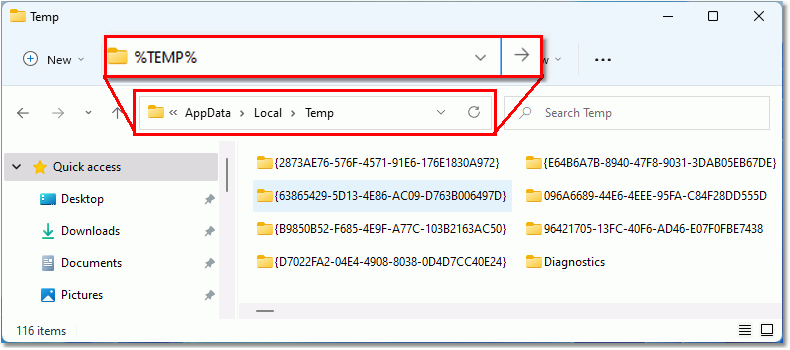
The Image Printers check the Windows TEMP folder for a script file each time you print. If the printer finds one, it reads it and uses the settings in the script file to create the output file. The printer performs this check every time you print.

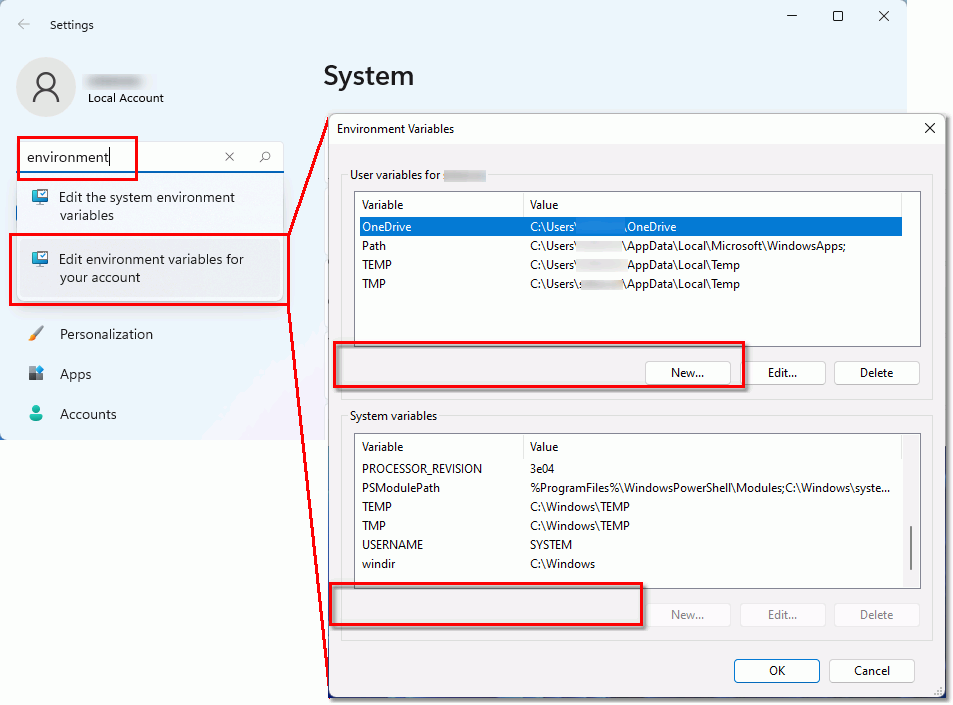
There are two TEMP folders. Printing applications will use the user TEMP folder of the account they are running under. Windows services and scheduled tasks running under SYSTEM would use the system TEMP folder. Look in both folders to see if a script file exists in one of them.

To open the temp folder, type %TEMP% into the address bar at the top of a File Explorer window.

Use the TEMP environment variable to quickly find the Windows temp folder

To find your TEMP paths, go to Windows Settings, and type the word environment in the search bar. Select the appropriate user or system settings.

Go to System Settings to find or edit TEMP and TMP environment variables.

Check the Windows Registry

The script file can be a custom name instead of our default PNTIF11S.INI. This is often the case when you have multiple copies of the Image Printer, and each printer needs to read settings from a separate script file.

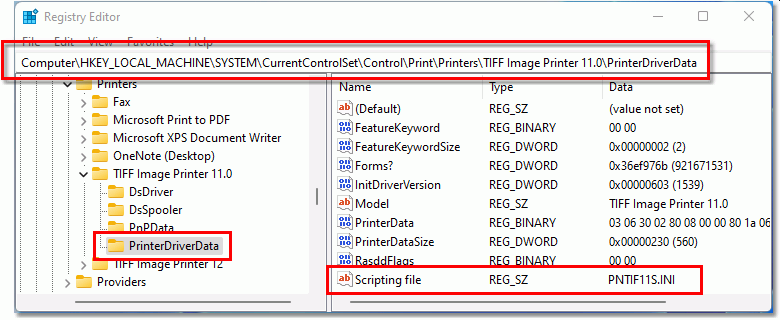
When you need to set a custom script file for one or more Image Printers, the Windows Registry stores this information in a per-printer key in the following location:

HKEY_LOCAL_MACHINE\SYSTEM\CurrentControlSet\Control\Print\Printers\

Each printer key contains a subkey, PrinterDriverData. Under this key, adding a registry string value, Scripting file, allows you to specify the name of the script file in the Windows TEMP folder or the full path to the script file in a different location. This is the second place the printer looks when checking for a script file after looking in the TEMP folder.

The Scripting file registry key tells the printer the name of the script file in the temp folder, or a full path to a script file in a different location.

Dynamic Script Files

Dynamic script files provide on-the-fly printer settings when automating printing to the image printer from another process. The automation process actively creates, uses, and removes script files. This means they are not always physically present on the disk.

If this is the case, migrating using the compatibility mode still works. You only need to know the name of the script file. Truthfully, in most cases, the Windows TEMP folder and default names of PNTIF11S.INI, PNTIF10S.INI, etc., are what we see used most often. When migrating, this knowledge simplifies the transition.

Turn On Compatibility Mode in the Script File

For our clients who use the script file in the Windows temp folder, we’ve added a new script file setting to toggle compatibility mode on the printer through the script file. This approach works if you use the script file to lock the printer to preset options or update the script file with new settings each time you print.

When compatibility is enabled, the script file recognizes and uses settings from previous versions. This allows most users to rename their PNTIF11S.INI (or earlier) script file to PNTIF12S.INI, add the new setting, save the file, and be done with the migration.

If you used any script file settings listed below, they were initially deprecated or replaced with new features in version 12. This compatibility mode brings them back, easing your migration to this latest version.

  • Advanced File Naming
  • Save;Prompt
  • Save; Overwrite
  • Run; RunAtStart command
  • Run;RunAtEnd command
******************************* Save settings
[Save]
;
; NEW in v12 build 12.0.027 and up
;  V11 compatibility mode was introduced for customers migrating from v11 to v12
;  When set to 1, this switches the file naming style back to v11 from v12 allowing
;  existing v11 style script files to be used as well as getting the same naming
;  as configured in v11.
;
V11CompatibilityModeEnabled=1	

Locking the Print Job into the Print Queue

The other compatibility setting you may need to add to your script file is to lock the print job in the print queue until the file is created. The default behavior in version 12 is that the print job leaves the queue as soon as it is spooled but before we create the file. In version 11, the print job was locked in the print queue until the output file was created. Enabling this setting will lock the print job in the queue, just like previous versions.

[Devmode settings]
Resolution=300
Printer Profile=
Orientation=
Color=1
Paper size=

;
; NEW in v12 build 12.027 and up
;  Wait For Job Completion set to 1 indicates the 
;  Microsoft Print Subsystem will wait for the job to complete
;  converting all printed pages to images before the print job
;  is removed from the printer's queue.
; Default is 0, which means don't wait.
;
Wait For Job Completion=1

Turn On Compatibility Mode on the Printer

We want to make migrating to the latest version as easy as possible. To that end, we made it as simple as toggling on an option to run the printer in compatibility mode.

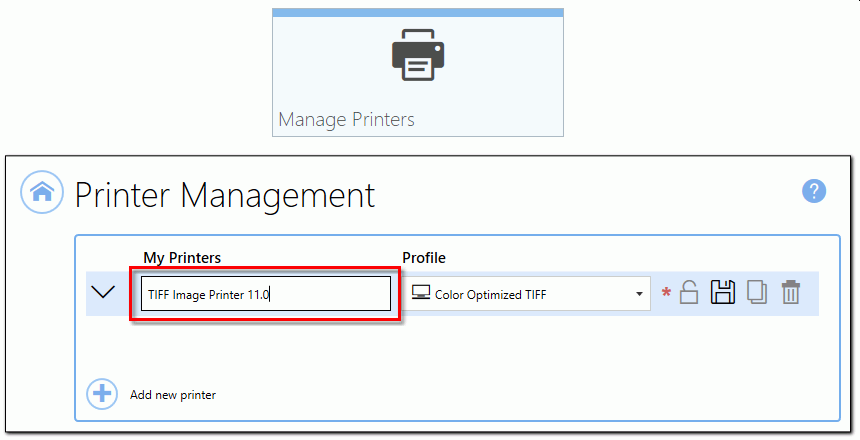
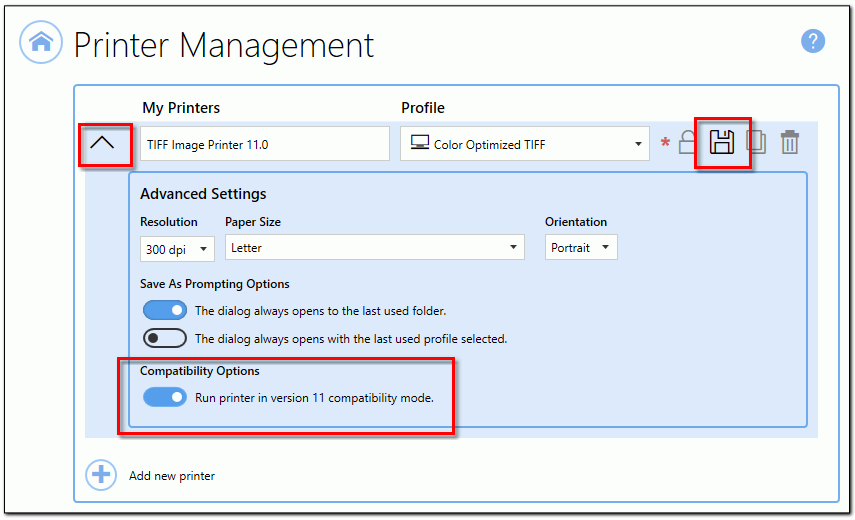
This option is located in the Dashboard under Manage Printers. This is where you can rename the printer, add and delete printers, and change printer settings. It is also where to go to enable compatibility mode individually for each printer. While we show the TIFF Image Printer below, the process is the same for our Raster and PDF Image Printers.

Changing the Printer Name

The first step is renaming the printer, TIFF Image Printer 12, to TIFF Image Printer 11.0, the previous version. This is especially important if you automate the printing process. Existing automation processes are often hard-coded to print to TIFF Image Printer 11.0. To emulate a version earlier than 11, change the printer name to match that version instead of 11. If the previous version is still installed, you must uninstall it before you can complete this step.

Alternatively, some clients use a custom name for the printer. This name reflects the task and is easier for a user to recognize, such as TIFF Archiver. In that case, you would rename the printer to your custom name.

When you are not automating using a specific printer name, or are simply printing files to the printer to convert them, you do not need to rename the printer.

A common step when migrating to version 12 is to rename the printer to look like the previous version.

The second step is to enable compatibility mode from the advanced settings section of the printer. Click the down arrow next to the printer name to show the advanced settings.

Under the Compatibility Options section, toggle on Run printer in version 11 compatibility mode.

Migrating to version 12 from previous versions is easy with the new compatibility mode that can be enabled on each printer in the Dashbaord.

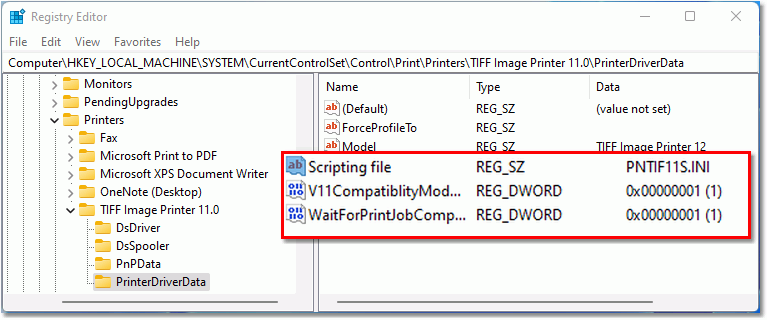
Enabling compatibility mode creates the Scripting file registry key for the printer. This key directs the printer to look for and use a PNTIF11S.INI script file in the Windows Temp folder.

It also creates the V11CompatiblityModeEnabled key that directs the printer to look and act like version 11.

When compatibility mode is enabled, two registry keys, Scripting file and V11Compatibility mode tell the driver to run like previous versions.

Changing the Path or Name Of the Script File

The Windows TEMP folder is the default and most commonly used location for our PNTIF11S.INI script file. However, the Scripting file registry key gives you the flexibility to use a script file with a different name and to store the script file in a custom folder.

Clients with multiple copies of the TIFF image Printer, each with unique settings, will use this feature to direct each printer to its script file. Another use for script files in a custom location is to separate the printer settings when automating printing from more than one program.

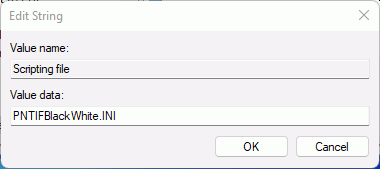
To change the name of the script file for a printer, edit the value stored in that printer’s Scripting file registry key. Turning on compatibility mode for the printer automatically creates this key for you. When the registry key contains only the name, we still look for the script file in the Windows TEMP folder.

The Scripting file registry can be set to a custom named script file in the TEMP folder, here PNTIFBlackWhite.INI.

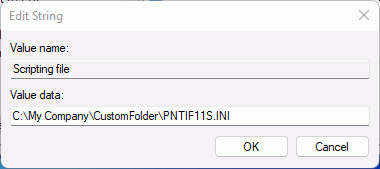
To look for the script file in a custom location, edit the Scripting file value to contain the full path to your custom location. Here the script file name can be the default of of PNTIF11S.INI or a name of your choosing.

The Scripting file registry key can be set to a script file in a custom folder instead of the TEMP folder.

Making Migrating Easy

We hope this new feature makes it easier for you, our client, to migrate to our latest version. There are many new features to discover that we hope you will find beneficial. We value your feedback, so please let us know what you think or reach out with any questions. As always, our Support Team is here to help guide you through your migration process.

https://www.peernet.com/wp-content/uploads/V11-Compatibility-Mode.jpg 800 800 Robert Massart https://www.peernet.com/wp-content/uploads/peernet-logo.png Robert Massart2025-03-14 14:09:502025-03-14 14:09:53Migrating to Version 12: Compatibility Mode Quick Start Guide

Well Logs: Stitch PDF Pages into a Continuous TIFF Image

March 14, 2025/by Robert Massart

Stitching a multiple-page well log into a continuous TIFF image leads to more straightforward analysis, simplifies data integration, and improves data visualization. We’ll show you how to use our TIFF Image Printer or Raster Image Printer, combined with Foxit Reader, and stitch a multi-page PDF into a single continuous TIFF image.

Quick Links

  • What are Well Logs?
  • Why Stitch PDF Pages Into a Single Continuous TIFF Image
  • What You Need To Stitch Your PDF Into a Continuous TIFF
  • Creating the Continuous TIFF Conversion Profile
    • Setting a Custom Paper Size
    • Trimming Extra Whitespace from the Continuous Image
  • Using the Profile in the Printer
  • Stitch PDF Pages into a Continuous TIFF With Foxit Reader
    • Setting the Continuous Mode Print Options
  • Summary & Tips

What are Well Logs?

A well log is like an EKG recording, except it measures information about rocks and fluids in the ground while drilling instead of the activity of your heart. It records this information as a series of curved lines. Each curve represents a different property. The type of rock, how porous or dense it is, and mineral composition are just a few properties a well log records.

Traditionally, a surface recording system would record the information from the well-logging tool onto a continuous roll of paper. These rolls of plotter, or well log paper, could be extremely long. They can reach up to hundreds of feet to accommodate recording the full depth of the drilling. These days, modern well logs record directly in digital formats. However, paper is often still used as a backup.

A digital well log is a single file that contains all the data as a continuous log. Log viewing software may break this data into pages when exporting to PDF or other formats. Older paper well logs digitized using scanning software can also end up as multi-page PDF files.

Why Stitch PDF Pages Into a Single Continuous TIFF Image

Stitching the pages of a PDF into a single continuous TIFF has several benefits:

  • Recognizing patterns and trends in the log data is much easier within a single continuous image.
  • Importing a single TIFF image into geological software avoids potential issues with page breaks and data gaps.
  • TIFF images are a popular format for archiving and long-term storage.

What You Need To Stitch Your PDF Into a Continuous TIFF

We combine Foxit Reader’s printing options for printing multiple pages per sheet with our Image Printer’s custom paper size and trimming features to create a single continuous TIFF.

  1. Download and install Foxit Reader if you do not have it installed.
  2. Download and install TIFF Image Printer or Raster Image Printer. We have fully functional trials for you to experiment with.
  3. Create an image printer conversion profile tailored to your well logs. We must set custom paper width, height, and page trimming options.
  4. Print your PDF from Foxit to our Raster or TIFF Image printer.

Creating the Continuous TIFF Conversion Profile

The following steps create a profile that will convert your well logs to TIFF. If you have our Raster Image Printer, you can create PDF, TIFF, and other images instead.

Before we start, you need to know the width of your well logs and the length of your longest log.

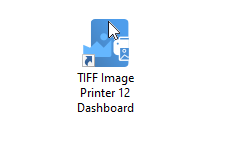
To create a conversion profile, double-click the Dashboard icon.

Open the image printer dashboard.

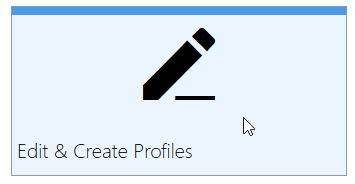
Then, select the Edit & Create Profiles button to open the Profile Manager.

Open the Profile Manager to create a new profile for printing your well log.

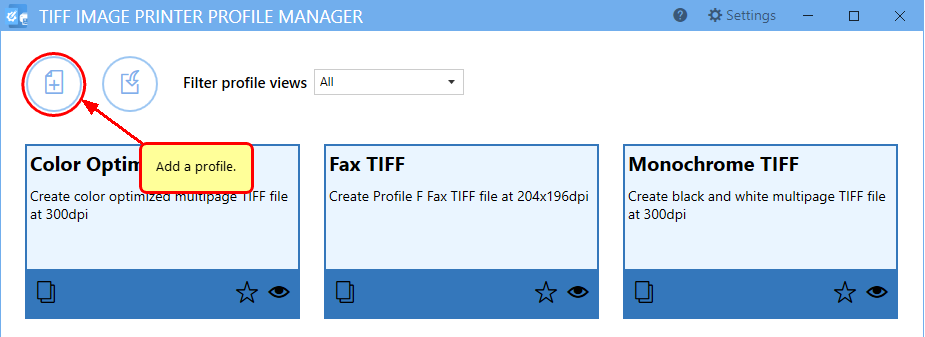
Click the Add Profile button in the upper left to create a new conversion profile.

Use the Add New Profile button to create a new profile.

Setting a Custom Paper Size

Give your new profile a name and a description, then select the Printer Overrides tab near the bottom left. Go to the Force Paper Size section and toggle the option to Use the following form or custom paper size.

Now, we can enter our custom page size to accommodate our well logs. In our example, we’ll use a page width of 8.5 inches. Your logs may be different.

As for page height, the length of well logs can vary. Therefore, you can have PDF well logs with differing page counts. In this scenario, estimate the maximum number of pages you might have and multiply that by the individual page height.

Our sample here has 16 Letter-sized pages. So, our custom page height is 11 inches x 16 pages = 176 inches. The stitching feature in Foxit removes the top and bottom margins when it stitches the PDF pages together. Without the margins, we end up with extra white space at the bottom of the new page. We will use our Page Trimming feature to remove this white space.

You can choose a larger paper height than you need since page trimming removes the excess. However, remember that the more white space to trim, the longer it takes to create your file.

Set the custom paper size needed to stitch the pdf pages of your well log in the Printer Overrides settings.

Trimming Extra Whitespace from the Continuous Image

Next, we’ll set up the page trimming feature to remove any extra white space from the end of our stitched PDF well log pages. Go to the Page Editing tab and scroll down to the Trim Existing Margins by Color Intensity section.

Click the bottom arrow to enable trimming of only the bottom part of the page. Set the color intensity scale to white. With these trimming options, the printer will trim your output file from the bottom of the page until it reaches the first pixel that is not white.

Use the page trimming feature in Page Editing to trim whitespace from the bottom of your stitched well log.

Using the Profile in the Printer

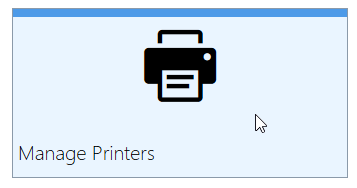
Now that we have our profile, we must tell the printer to use it when we print our PDF well log to stitch the PDF pages together. To make this new conversion profile the default profile for your printer, return to the Dashboard and select Manage Printers.

Go to Manage Printers to have TIFF image Printer use your new profile.

Select the new profile from the list in the Printer Management screen. Click the Save icon to save the new setting. You are now ready to print your PDF from Foxit Reader to create your continuous TIFF image.

Choose the new profile with our custom paper size large enough to stitch the pdf pages together.

Stitch PDF Pages into a Continuous TIFF With Foxit Reader

This final step is the trick that stitches the PDF pages together and removes the gaps between pages. This step is what allows us to create a single continuous TIFF image.

The Print options in Foxit Reader include a section on Page Handling. In this section, we use the Multiple Pages Per Sheet option. We customize the number of pages per sheet and the margin and page border settings so that it prints the log pages as a single extended image.

Setting the Continuous Mode Print Options

Open your PDF well log in Foxit Reader. Then go to File – Print (or Ctrl+P) to select your printing options.

  • First, select TIFF Image Printer 12 (or Raster Image Printer 12) as your printer. Foxit needs to use the custom paper information in our profile to determine how to print our pages.
  • Next, select Multiple Pages Per Sheet in the Page Handling section. To print all our pages as a single image, we tell Foxit to print 1 page wide with all our pages in that sheet. For our sample PDF shown here, we have 16 pages, so we entered 16. Enter the number of pages in your well log. This is what will stitch the PDF pages together
  • Set Page Order to Vertical, and uncheck Margins and Print Page Border. As you make your changes, you can see a preview of your well log as it would look when printed.

Below, the print preview shows our pages stitched and placed on an 8.5-inch x 176-inch page. The TIFF Image Printer uses the trimming features we set to remove the white space at the bottom of the page when we create the TIFF image.

Set Foxit reader print options to stitch PDF pages together.

Summary & Tips

In the real world, your well logs will have varying page lengths. Some will be longer, some shorter. Our example handles a specific number of pages at a specific page size, 16 8.5 inch x11 inch pages. Your pages may be Legal (8.5 inch x 14 inch) or any other page size. You may have 16 pages, or only 6, or 60.

When you create a conversion profile for printing well logs, consider the page size in your PDF well log. Also, consider the highest number of pages in your well logs. Use those values to calculate your custom paper size in the profile.

You have a maximum page length of 80,000 inches when using custom paper size. However, we do not suggest using that value as your page length. That much extra white space would create unnecessarily large TIFF images. The nonessential white space would significantly increase the time needed to trim extra white space from the bottom of the image. Your best approach is to use a page length based on your longest well logs or to create conversion profiles tailored for different well log lengths.

https://www.peernet.com/wp-content/uploads/stitch-pdf-well-log-into-single-tiff.jpg 800 800 Robert Massart https://www.peernet.com/wp-content/uploads/peernet-logo.png Robert Massart2025-03-14 14:08:562025-03-14 14:08:59Well Logs: Stitch PDF Pages into a Continuous TIFF Image

Dynamic Stamp Content

November 4, 2024/by Robert Massart

Dynamic stamp content is text content assembled from information that changes based on preset conditions or user input. Dynamic stamps display real-time, variable information that can change from page to page, document to document, and user to user.

Quick Links

  • What is Dynamic Stamp Content?
  • How to Use Dynamic Stamp Content
  • Run Command Macros
  • Environment Variables
  • Custom Registry Keys
  • Creating Dynamic Stamp Content
    • Adding the User and Company Information
    • Creating a Date Stamp
    • Adding a Unique ID
    • Adding the Case Code
  • Positioning the Dynamic Content Stamps
  • Conclusion

What is Dynamic Stamp Content?

Bates stamping is one of the most recognizable forms of dynamic stamp content due to its prevalent use by the legal industry for organizing and identifying documents. Other uses for dynamic stamping are:

  • Date and Time stamps
  • Page Numbering
  • User Information
  • Project and Client Names
  • Workflow and Document Status Labels
  • Document File Path
  • Paths to company logos and other images to watermark pages

TIFF Image Printer, Raster Image Printer, and PDF Image Printer include a stamping feature for adding image, text, page numbering, and date and time stamps on the pages of your created documents. Combined with PEERNET’s run command macros, environment variables, and registry keys, you can build dynamic stamp content to place on your pages.

How to Use Dynamic Stamp Content

You can use dynamic content in the image stamp path, custom text in a text stamp, and any text in page number, date, and time stamps. You can combine static text and dynamic content to create your final stamp result. For instance, you can add dynamic content like a unique ID, the name of the user who created the file, and date and time information to a header or footer on a created file for tracking purposes.

Document converted to TIFF image with dynamic stamp content in the footer.

There are three ways to supply dynamic content: PEERNET’s run command macros, environment variables, and custom registry keys you create.

Run Command Macros

The Image Printers define these variables, or macros, as we call them. Initially created for use in the Run Commands, you can also use them to build dynamic stamp content. A PEERNET run command macro is specified using the syntax $(VariableName), where VariableName is one of the predefined macros.

The macro is a placeholder and is replaced with its dynamic value when placing the stamp on your page. The collection of macros includes print job information about the document you printed to create your file, unique ID numbers generated by the image printers, print job information, and the file name of the created file.

Create dynamic stamp content using run command macros to auto-generate information

Environment Variables

Environment variables are key-value pairs where the key is the variable name, and the value is the associated data. They are part of the operating system. Any running program can ask for the value of an environment variable by name. An environment variable is referenced by placing a % sign before and after the variable’s name. The use of environment variables enhances the flexibility of dynamic stamp content.

The Windows operating system defines several well-known environment variables, such as %TEMP%, %USERNAME%, and %COMPUTERNAME%. You can create new custom environment variables for your user account or all users through the System Properties window.

A typical use of an environment variable might be to store the path to company logos or other watermarking images. This path might differ between users, but if we use the environment variable name to specify the value in the path to a watermark image stamp, we’ll always be able to find the image.

Environment variables can be used to create dynamic stamp content based on the current user.

Custom Registry Keys

Registry keys are similar to environment variables. Stored in the Windows Registry, they contain information that can later be retrieved and used as dynamic stamp content.

You can manually add registry keys, or more often the case, they are created and updated by another program that integrates TIFF or PDF creation using our Image Printers.

The Windows Registry stores configuration settings and options for the Windows operating system and keeps track of information and settings for installed software and hardware devices. Editing the registry can be risky if you make incorrect changes. For this reason, only advanced users or administrators should modify it directly.

Use the special syntax, $[registry key], when using a registry key in a stamp. Replace the name ‘registry key’ with the complete path to the registry key with the value name as that last item.

Registry keys created and updated by another program can be queried to fill in text in dynamic stamps.

Creating Dynamic Stamp Content

To show you the power of dynamic stamp content, we’re adding stamps to a printer profile that adds the following to the bottom of each page for tracking purposes:

  • A text stamp displaying the user and company name using values obtained from environment variables.
  • The date we create the file using the built-in date/time stamp.
  • A unique ID for the file, using the predefined run command macro $(FileGUID).
  • A text stamp containing the case code for identification using information retrieved from a registry key.

Adding the User and Company Information

A well-known environment variable containing the current user name already exists as %USERNAME%. There isn’t one for the company name, so we will create a custom system environment variable, %COMPANYNAME%, to use as dynamic stamp content in our new stamp. Here, we’ve set it to our company name, PEERNET Inc..

After adding the new environment variable, we can use both values in our dynamic text stamp.

Creating a Date Stamp

The built-in date and time stamp makes adding date and time information stamps easy. Add your custom text before or after the date, and choose from a selection of date, time, and date and time formats.

Adding a Unique ID

The printers will generate a unique ID each time you print a file. You can reference this ID using the run command macro $(FileGUID). Here, we’ve added some static text at the start, followed by the macro as a line in our footer text.

Adding the Case Code

A case code in the footer of a document is a dynamic stamp value that another program could create as part of a workflow that integrates with the Image printers. You can manually create and edit registry keys using the Windows regedit program, but take care when editing and deleting values. The Windows registry is a critical part of the operating system; incorrect changes and deletions can be catastrophic.

Now that we have a registry key with dynamic content, we can use it in a stamp. To use the registry key in the stamp text, use the syntax $[path to registry value]. Specify the full path to the key ending with the name of the value you want to retrieve.

Positioning the Dynamic Content Stamps

Now that we have our dynamic stamp content, the last step is to position each stamp to appear one after the other at the bottom left of the page.

The default placement of a stamp is always the center of a page. To position each stamp in the footer, we first need to change the alignment of each stamp to the bottom and left of the page.

To change the alignment, go to the Position tab for each stamp and set the horizontal alignment to the left and the vertical alignment to the bottom. This places all four stamps directly on top of each other in the bottom left.

Changing the alignment of the dynamic stamp from center of the page to the bottom left.

Next, we want to fine-tune the position of the stamps to be 0.25 inches from the left edge of the paper and offset each stamp vertically so that they line up one under the other. We move the position of each stamp up the page using an increasingly larger negative offset.

The first line of our footer has the highest negative offset. The offset values here work with the chosen font of Arial and a size of 8pt. When using different fonts or a larger size of Arial, adjust the offsets to account for the change in text size. For our sample, the offsets are -0.43, -0.32, -0.21, and -0.10 inches, respectively.

Setting each dynamic stamp vertical offset to line up each stamp under the previous one.

Conclusion

Dynamic stamp content is a powerful tool for cataloging documents and automating document management workflows. Whether adding contextual information, content storage data, or enforcing security measures and tracking information, dynamic stamps offer a flexible and efficient solution to meet your document needs.

https://www.peernet.com/wp-content/uploads/creating-dynamic-stamp-content.png 800 800 Robert Massart https://www.peernet.com/wp-content/uploads/peernet-logo.png Robert Massart2024-11-04 16:47:502024-11-04 16:47:53Dynamic Stamp Content

Convert to PDF: The Power of On-Premise PDF Creation

October 3, 2024/by Robert Massart

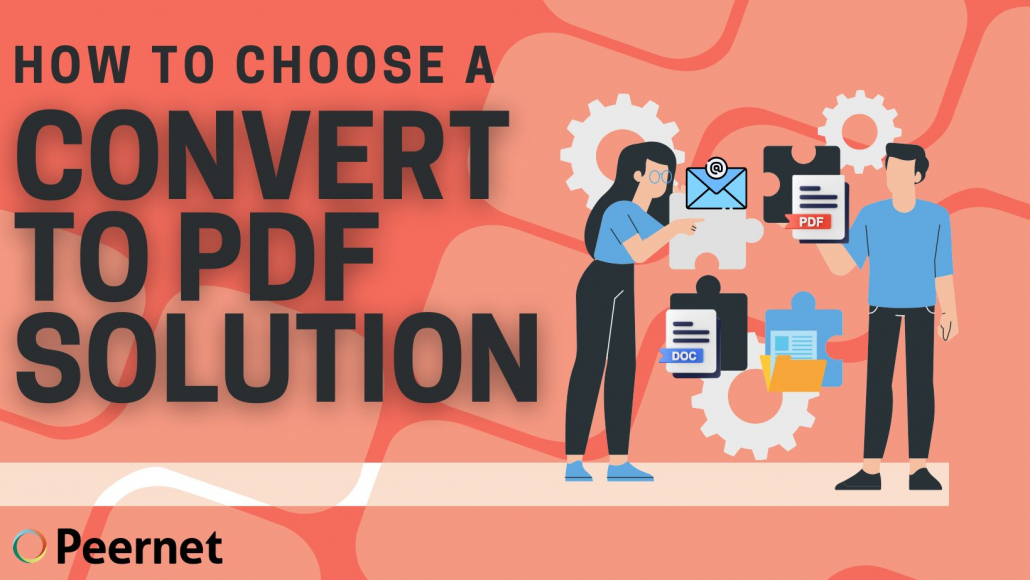
Understanding why, when, and how to convert to PDF is an essential skill set in today’s digital world. PDF is a document format that is viewable on almost any device and always looks the same. This flexibility has made PDF the de facto standard for many industries. This includes legal, finance, health care, government, and many more. If you need to submit a form or share a document, chances are you need it as a PDF. Keep reading to learn why PDF files are so popular and how our on-premises PDF conversion tools for creating, merging, and batch converting to PDF can work for you.

convert to pdf how to choose a solution

Quick Links

  • Common Convert to PDF Operations
  • History of PDF
  • Benefits When You Convert to PDF
  • Why Convert to PDF with PEERNET PDF Solutions
    • Data Control and Security
    • Meeting Regulatory Standards
    • Offline Access and Controllable Downtime
    • Up-Front Versus On-Going Costs
  • PEERNET’s Convert to PDF Solutions
    • Convert to PDF and Merge PDF with PDF Creator Plus
    • Convert to PDF with PDF Image Printer
    • Batch Convert to PDF with Document Conversion Service
  • Conclusion

Common Convert to PDF Operations

The common type of conversions that transform files to PDF.

  • Convert file to pdf
  • Convert jpeg to pdf
  • Convert jpg to pdf
  • Convert tiff to pdf
  • Convert word to pdf
  • Convert excel to pdf
  • Convert doc to pdf

History of PDF

PDF stands for Portable Document Format. Created by Adobe in 1993, the goal was to create a file format that looked the same when viewed on different operating systems and devices. In those days, this meant a file you could view on Windows, Unix/Linux, or MacOS computers and mainframes. Today, it means a file that looks the same when viewed on a computer, tablet, or smartphone, whether Windows, Mac, Unix, iOS, or Android.

Benefits When You Convert to PDF

In addition to universal compatibility, here are a few benefits of converting your documents to PDF.

  • Professional Presentation – Using PDF presents your contracts, reports, and other files as polished, professional documents that look consistent no matter where your clients or colleagues view them.
  • File Security and Digital Signing – Safely share sensitive and confidential documents using the security options offered by PDF to protect your data. Passwords, permission settings, and encryption protect your data and prevent editing, copying, and printing. Popular tools Adobe Sign and DocuSign require documents as PDFs to digitally sign them.
  • Smaller File Size – Image-heavy reports and presentations are often more compact when converted to PDF. PDF’s efficient image compression results in smaller files that are easier to email, share, and archive your documents.
  • Document Archiving – PDF files look and print the same everywhere and are viewable on any platform or device. This makes them ideal for long-term document archiving and content management systems. PDF/A is an optimized version of a PDF file for archiving and long-term storage. A PDF/A document includes all fonts and images in the file. It follows specific standards to ensure the document’s appearance and integrity over time.

Why Convert to PDF with PEERNET PDF Solutions

All PEERNET’s convert to PDF solutions are on-premise solutions that run on your computers and hardware. Despite the increased popularity of cloud-based convert to PDF solutions, on-premise solutions are still viable options for any business with data security or compliance requirements.

Your organization’s needs, security requirements, and operational capabilities will influence your choice between on-premise or cloud-based solutions for converting to PDF. Here are some key points to help you make that decision.

Data Control and Security

An on-premise solution gives you complete control over your files and where and how you store them. You can customize everything to meet your requirements, including file access, security protocols, and backups. Industries such as healthcare, insurance, and finance require on-premise storage to comply with regulations. Keeping your data in-house mitigates the risk of data breaches with third-party cloud PDF converters.

Meeting Regulatory Standards

Healthcare, finance, and other industries have strict requirements regarding where, how, and how much data is stored. They may also require that data be stored within a geographic location. The goal is to ensure sensitive information is protected while also enabling the flow of data to authorized recipients. Two common regulatory standards that often need to be followed are the Health Insurance Portability and Accountability Act (HIPAA) in the United States and the General Data Protection Regulation (GDPR) in the European Union. With an on-premises conversion and storage solution, you have complete control over your data, ensuring compliance.

Offline Access and Controllable Downtime

Cloud-based PDF converter services rely on having a stable internet connection. While not common, the number of day-long or more nationwide internet outages experienced by Microsoft, AT&T, Bell, or Rogers can be a consideration when deciding between a cloud or on-premises solution. On-premises solutions provide uninterrupted access to your files from a big city center to an area with limited data access.

An on-premises system also gives you control over scheduled downtime to perform maintenance, updates, and upgrades at your convenience. You control the maintenance schedule and manage your downtime.

Up-Front Versus On-Going Costs

Lower upfront costs and reduced need for infrastructure and IT personnel can make cloud-based PDF converters attractive at first glance. Over time, however, increased file conversion needs, changes in data transfer costs, subscription fees, and usage-based conversion pricing can cause that initial attractive price to skyrocket.

Despite its higher initial cost for hardware and setup, on-premises storage and conversion can offer cost savings for organizations with large-scale data conversion and storage needs. You control the software you install, access to your data, and how and where you store it.

PEERNET’s Convert to PDF Solutions

Our on-premises solutions range from user-oriented desktop products and mid-range solutions that can be customized to your specific needs to enterprise-level batch conversion services for large-scale convert to PDF requirements.

Convert to PDF and Merge PDF with PDF Creator Plus

When you need to convert any document to PDF and merge PDF files, our PDF Creator Plus solution is your answer. Designed for individual users and their daily needs to convert to PDF, it offers streamlined PDF creation on your local desktop.


convert to pdf and merge pdf with PDF Creator Plus
Trial Download
View Product
  • Create new PDF files by printing from any app to the PDF Creator Plus printer. Keep printing to gather all your pages for the final PDF.
  • Drag and drop PDF files onto the PDF Creator Plus app to quickly merge multiple PDF files. Drag and drop to seamlessly combine PDF files with pages from other documents.
  • Use the powerful page management features to reorder, rotate, copy, add, and delete pages in the page thumbnail view.
  • Add shapes, text, and images to any page before finalizing your PDF.

Convert to PDF with PDF Image Printer

If you need to integrate PDF conversion into your business workflow, our PDF Image Printer does just that. This powerful solution creates PDF files from any file you can print. Keep printing to append multiple files into a single PDF. Perfect for daily data capture when you need to create PDF files on the fly, with the power to be used behind the scenes in web services and other workflows.


convert to pdf for daily use and workflow integration with PDF Image Printer
Trial Download
View Product
Video Overview
  • Run custom scripts, commands, and other programs upon PDF creation to seamlessly integrate with document management processes.
  • Create searchable PDF documents from images or scanned PDFs with convenient OCR features.
  • Ensure consistency and efficiency by installing the printer with preconfigured settings for all users.
  • Use our Conversion API to add PDF conversion into custom applications, web services, and workflow processes. Tailor the PDF conversion to meet your specific requirements.

Batch Convert to PDF with Document Conversion Service

You are faced with the challenge of converting hundreds, thousands, or even more documents to PDF – what do you do? Where do you start?

Your first step is choosing the correct solution. You want a high-volume, multi-threaded, scalable batch conversion solution like our Document Conversion Service. Equally capable of handling one-time migration of a large volume of existing files, daily file conversion demands to convert to PDF, and scaling to meet your needs as your document volume grows.


batch convert to pdf using document conversion service
Trial Download
View Product
Video Overview
  • With the included hot folder (drop or watch folder) service, convert to PDF with little or no configuration needed. Drop the documents into the folder for automatic PDF conversion. Create multiple drop folders for different file types, departments, user groups, or whatever you need for your workflow.
  • Use our command line tools or .NET API to integrate PDF conversion into existing or new systems, web services, and scheduled tasks.
  • Create the exact file you need with our customizable conversion settings. There are settings for file compression, image quality, color, PDF security features for encryption and password, and much more.
  • This on-premises solution gives you control over your files – where they are stored, how they are converted, and where to send the final file. The software is installed and maintained on your servers, giving you complete control over your data.

Conclusion

Unlock the power of PDF conversion with our on-premises tools. Convert, merge, and batch convert to PDF – whatever your needs, we have a solution for you.

Each of the three software solutions discussed fulfills a different purpose, from basic PDF conversion and PDF merging and manipulating to large-scale unattended batch conversion to PDF. Enhanced data security, industry compliance, and complete workflow control and integration are but a few of the advantages of our on-premises tools.

Choosing the right tool for the task provides the reliability and flexibility to ensure your PDF conversion needs are met now and in the future.

https://www.peernet.com/wp-content/uploads/convert-to-pdf-feature.jpg 800 800 Robert Massart https://www.peernet.com/wp-content/uploads/peernet-logo.png Robert Massart2024-10-03 08:51:352025-01-14 09:32:07Convert to PDF: The Power of On-Premise PDF Creation

PDF to JPEG – Discover the Surprising Benefits

September 11, 2024/by Robert Massart

Convert PDF to JPEG with one of our fast and easy-to-use file converter applications. Whether you need to convert a single PDF to JPEG to share on social media or to convert many PDF files to JPEG images for document management, we have a solution for you.

The Many Uses of JPEG

There are many reasons to convert a PDF to JPEG. Your reason will depend on how you need to use or share the content.

  • Smaller File Size – Often smaller than PDF files, JPEGs are also easy to share via email and social media accounts and can help reduce the storage needed for large volumes of documents.
  • View Anywhere – JPEG is a widely supported image format that is easy to view and share on any system.
  • Image Editing – The number of image editors available makes editing a JPEG image easier than editing a page in a PDF file. With a JPEG, you can easily crop, annotate, or change colors on the page.
  • Flexibility – Add JPEG images to websites, insert them into presentations and other documents, use them to create engaging social media posts, and much more.
  • Extracting Pages – Converting all or selected pages in your PDF to JPEG images allows you to extract only your desired pages.

On-Premises PDF to JPEG Conversion: Your Data, Your Control

With so many free online PDF to JPEG converters available, how do you tell which are legitimate and which are fake PDF converters run by malicious cybercriminals looking to steal sensitive information? Sure, they all say they delete your data after a short period, but that brief window is all a hacker needs if they get unauthorized access.

What if your PDF files contain client or patient data that must remain confidential? We offer secure solutions that run on-premises to protect your data. All our products keep your files on your computers to provide you with complete control over your data security. When you need to safeguard sensitive, confidential data or comply with GDPR or HIPAA regulations, our PDF to JPEG solutions are your answer.

Online converters also give you little to no control over the JPEG file they create, and all promise to hand back high-quality JPEG. Our tools offer the flexibility to adjust the JPEG quality and compression. You are in control of the JPEG you create.

Beyond PDF: The Advantages of JPEG

Converting your PDF pages into JPEG images opens up a world of possibilities. In the following sections, we’ll talk about just a few of the many uses for JPEG across various digital platforms and for content management. We’ll also highlight which of our PDF to JPEG solutions matches each task.

Convert PDF to JPEG to Share on Social Media

Are you a content creator or an Instagram influencer? Are you hosting an awesome event you want to share with your followers? Or maybe you own a small business and want to highlight product information and brochures.

You can quickly convert highlights from a PDF file to JPEG images to create a visually appealing post for TikTok, LinkedIn, Instagram, Facebook, and other media apps. Create a short video using the JPG version of the PDF pages, direct followers to a link to the full PDF in your post, bio, or swipe-up link, and you’re done!

Creating JPEG from PDF is an easy task with our PDF Creator Plus. Drag your PDF onto the app and drop it to open and preview the pages. Click the Create JPEG button to create your images, and you’re ready to make your new post. It’s as easy as that!


pdf to jpeg with PDF Creator Plus

PDF Creator Plus (Home, Small Business)

  • Convert one, some or all pages in the PDF to JPEG images
  • Drag and drop PDF support
  • Merge PDF files before converting
  • Add simple annotations to any page
  • More…
Trial Download
View Product

Some other ideas for content creation where you can convert PDF to JPEG for eye-catching posts are:

  • Educational Material – Study guides and research papers often contain valuable information. Generate interest and start discussions by sharing highlights.
  • PDF Portfolios – For artists and graphic designers, pull out the best of your portfolio to showcase your work and generate interest.
  • DIY Projects and Tutorials – Share shortened versions or videos of the key points to draw in your followers.

JPEG: A Digital Workhorse for Presentations and Websites

Great presentations start with great content. But what do you do when you already have great content in an existing PDF file? Most presentation software, including Microsoft PowerPoint and Google Slides, cannot import PDF or PDF content but can easily import images such as JPEG.

Web designers may also need to convert PDF files to JPEG images for display on web pages. JPEG files are natively supported and fast to load in web browsers. You can make important information easy to find by showing a small JPEG thumbnail view of the first page of each PDF. Or convert the first few pages of each PDF to JPEG to create fast-loading page previews on desktop and mobile devices.

Our software makes short work of converting one, some, or all of the pages in your PDF file to JPEG images, making adding your desired content into presentations and websites easy.

For this, either our PDF Creator Plus or Raster Image Printer solution is a great choice to have as a tool for your toolbox. For simple conversion to JPEG, use PDF Creator Plus.

The Raster Image Printer offers more options to fine-tune the quality and compression of the JPEGs created. It also has additional features for adding text stamps on each page and resizing pages, to name a few. It also includes tools for integrating into automated workflows to save you time and streamline converting large volumes of PDF files to JPEG images.


raster-image-printer-icon

Raster Image Printer (Small Business, Enterprise)

  • Print PDF to create JPEG images
  • Fine-tune JPEG image size using compression options
  • Add text stamps, resize pages, and many other options
  • More…
Trial Download
View Product
Video Overview

PDF to JPEG: The Secret Weapon for Your Digital Content Storage

A primary advantage of converting PDF to JPEG is the potential for huge savings in file size. While this may not be true for all PDF files, JPEG images from scanned documents and PDF files containing many images are often much smaller. This file size difference is due to JPEG’s efficient compression algorithm.

As they require less storage space, JPEGs are particularly advantageous when storing and archiving extensive collections of documents. Whether destined as part of a content or document management system or for long-term document archiving, JPEGs can drastically reduce the storage used by these systems.

In addition to taking less space, a smaller file is faster to retrieve and view. Add this to the fact that JPEGs are typically compatible with most storage media and software applications, and you have a winning combination.


The next step is to get the documents into JPEG format. This step is where Document Conversion Service can help you. This flexible solution is a conversion service that runs 24/7 and can easily convert any daily volume of incoming documents or large collections of existing files. In addition to PDF to JPEG conversion, this versatile tool supports converting a wide range of everyday document formats into both images and PDF files.

Document Conversion Service runs on-premises, on your computers, keeping your documents safe and secure. Scalable to meet your needs now and in the future, numerous integration options are available to add to both current and new workflows. Drop folder support for on-the-fly conversion, Optical Character Recognition, command line tools, and a programmable API are all included.


document-conversion-service-icon

Document Conversion Service (Enterprise, Large Volume)

  • High-volume PDF to JPEG conversion
  • Converts Word, Excel, PDF, and many other formats to PDF, TIFF and more.
  • Scalable solution to handle any workload
  • Drop folders, command line tools, and an API for integration
  • More…
Trial Download
View Product
Video Overview

Our PDF to JPEG Solutions

The best PDF to JPEG converter is the one that does what you need it to do. Our PDF to JPEG solutions range from desktop solutions for home and small businesses to enterprise-level solutions for high-volume conversions and integration with other on-premises systems and workflows.

If you are mainly interested in creating and posting images to social media, start with our PDF Creator Plus. For website and archival use of JPEG images, including handling large numbers of PDF files, consider Raster Image Printer and Document Conversion Service.

We offer free trials of all our products to help you evaluate your needs and explore our options. Our Support Team is happy to answer any questions, help you meet your requirements, and ensure your images look their best.

https://www.peernet.com/wp-content/uploads/pdf-to-jpeg-feature.jpg 800 800 Robert Massart https://www.peernet.com/wp-content/uploads/peernet-logo.png Robert Massart2024-09-11 11:58:532024-09-11 11:58:58PDF to JPEG – Discover the Surprising Benefits

ARM64 Support For PEERNET Products

July 23, 2024/by Robert Massart

ARM64 support has arrived for our most popular products – TIFF Image Printer 12, Raster Image Printer 12, PDF Image Printer 12, and PDF Creator Plus 8.

These products now fully support Microsoft’s CoPilot+ PCs running Windows 11 ARM64 operating system. With ARM64 support added, these products also run under Fusion on Apple PCs and laptops.

ARM64 Support now available for PEERNET Image Printers and PDF Creator Plus.

What is Windows 11 ARM64?

The Windows 11 ARM64 platform is a version of Microsoft’s latest Windows operating system designed to run on ARM architecture processors. Before this, Windows operating systems traditionally ran on x86 (32-bit) and x64 (64-bit) processors from Intel and AMD. A significant leap forward in technology, ARM architecture brings the speed, power, and battery life of a smartphone or tablet to the Windows desktop and laptop markets.

Benefits of ARM64 PCs

All-Day Battery Life

ARM processors are energy efficient and consume less power than Intel or AMD processors. Renowned for their energy efficiency, ARM processors offer significantly longer battery life, making them perfect for on-the-go use.

Performance

Modern ARM processors can effortlessly handle everyday tasks, multitasking, and even your most demanding applications. The performance gap between traditional X86 or X64 processors, and ARM processors is quickly becoming a thing of the past. With the capability to run both ARM-specific and X86/X64 applications via emulation, you get extreme versatility with the performance of an ARM processor.

Data Protection

Businesses and individuals who value data protection will benefit from ARM architecture’s robust hardware, firmware, and virtualization-based security. ARM’s advanced security features provide a more secure computing environment and enhanced protection against various threats.

Why Buy a Windows 11 ARM64 CoPilot+ PC?

Superior Portability

For digital nomads, students, professionals, or anyone who needs a reliable device on the go, ARM64 processors offer smaller, lightweight devices with impressive performance that can last all day on a single charge.

Stay Connected with Ease

Many ARM64 devices have built-in LTE or 5G cellular connectivity. This allows you to stay connected wherever you go without relying on Wi-Fi. Also similar to smartphones, these devices offer an “always on” experience, making it easy to resume working without waiting for the system to boot up.

Ready for the Future

Stay ahead of the curve with a Windows 11 ARM 64 device. As more and more software, including ours, becomes available on ARM, you can enjoy the ease of programs you know with the benefits of smaller, energy-efficient, and connected devices.

Ready to Try It?

Embrace the future of computing and explore our software’s features on Windows 11 ARM64 and CoPilot+ PCs. Experience all the benefits of an ARM64 device while using the familiar programs you already know. Whether you’re using our software for work, creativity, or everyday tasks, it will run smoothly on your Windows 11 ARM64 device.

Download the latest version below.

TIFF Image Printer
Raster Image Printer
PDF Image Printer
PDF Creator Plus
https://www.peernet.com/wp-content/uploads/Windows-11-ARM64.jpg 800 800 Robert Massart https://www.peernet.com/wp-content/uploads/peernet-logo.png Robert Massart2024-07-23 11:24:542024-07-23 11:24:57ARM64 Support For PEERNET Products

PDF, Text and Cadd Converters, OCR Support, and a Dashboard for DCS

June 13, 2024/by Robert Massart

Our latest update to DCS, Version 3.0.031, introduces new built-in PDF, Text, and CADD converters that offer faster conversion speeds and eliminate the need for additional applications. Also added is a new built-in image converter with more features to replace our current image converter. Lastly, this version contains a new dashboard tool that places all DCS tools and resources in one easy-to-find place.

pdf text cadd converters and a dashboard - new features for DCS

PDF and Image OCR Support

The standout feature of the new PDF and Image converters is the incorporation of Optical Character Recognition (OCR) support.

Seamlessly batch convert scanned PDFs and images to searchable PDFs in English, French, Italian, German, Spanish, Hebrew, Hindu, and Arabic. For any other languages, you can download language data and add them to your DCS installation.

To learn how to make searchable PDF files, see our tutorial Batch OCR PDF – Make PDF Searchable for full details and step-by-step instructions.

Text to PDF and Image Conversion

We have significantly upgraded our text to PDF or image conversion capabilities. Previously, we used Microsoft Word to open and print text files to convert them to PDF and images. This approach works but sometimes requires manual steps to handle page size and text layout.

Our new text to PDF converter automatically detects font and paper size from the text in each document, giving you the optimal layout each time. If you want control over the page size, we also have options for custom paper sizes, fonts, and word wrapping to give you the flexibility you need when batch converting text to PDF.

See Batch Convert Text to PDF with Page Size Formatting for an in-depth explanation of our new converter and its options.

Our New DCS Dashboard

The DCS Dashboard is your hub for licensing and activation, starting and stopping DCS services, and access to updates, sample code, and help resources.

First and foremost, we’ve placed controls to start and stop both the Document Conversion Service and the Watch Folder Service at the top of the dashboard. No more scrolling through the Services list or checking the system tray.

We categorized all our start menu shortcuts and created quick access tiles for the DCS and Watch folder configurations, conversion logs, command line tools, and sample code. For our users who are used to the current Windows start menu shortcuts and the system tray icon, they are all still there as before.

Next, we added an easy way for you to turn on or off the file converters used by DCS. Initially, all converters are set to Auto, meaning we will try to start each one. You can reduce your startup time by turning off any file converters you know you are not using.

control pdf text cadd converters, and others from dashboard

Lastly, the DCS Dashboard replaces our previous Licensing application. Your current license status is always visible in the top left of the dashboard. The Activate Product/License Wizard tile on the top row is where you can activate your software and update or renew your license.

We Value Your Feedback

This comprehensive update specifically targets feature requests from our users. In addition to adding OCR support for PDF and images, we’ve reduced our need for third-party applications and improved conversion speed with our new PDF, Text, and Cadd converters. Our new text converter intelligently auto-detects font and page sizes for worry-free text to PDF conversion. Lastly, our new dashboard offers quick access to frequently used DCS tasks from a single location for your convenience.

We want your document conversion to be as effortless and reliable as possible. Download the new version and let us know what you think of these updates.

https://www.peernet.com/wp-content/uploads/pdf-text-image-cadd-dashboard-dcs-new-feature.jpg 800 800 Robert Massart https://www.peernet.com/wp-content/uploads/peernet-logo.png Robert Massart2024-06-13 14:00:372024-06-17 11:05:11PDF, Text and Cadd Converters, OCR Support, and a Dashboard for DCS

Batch OCR PDF – Make PDF Searchable

June 13, 2024/by Robert Massart

When you need to batch OCR multiple PDF files look no further than Document Conversion Service’s latest new feature – making PDF files searchable.

batch OCR PDF files

We’re excited to announce that batch OCR PDF is now available in Document Conversion Service. And the best part? You can say goodbye to the days of relying on Adobe Reader for your PDF conversions. Our new integrated PDF converter does more in less time without needing additional software.

We added new features to this release. Visit PDF, Text and Cadd Converters, OCR Support, and a Dashboard to see what other new features we added.

  • Part 1 – What is OCR?
  • Part 2 – Using the Adobe PDF – BuiltIn Convert to Batch OCR
  • Part 3 – How to Batch OCR PDF Using a Drop Folder
  • Part 4 – Changing the OCR Languages and Other Settings
  • Part 5 – Downloading New OCR Languages

Part 1 – What is OCR?

OCR is an acronym for Optical Character Recognition. This process interprets the text within images or scanned PDF documents and converts it into editable and searchable data. An invisible layer containing this text data is placed on top of each page in the PDF, making the file’s content both selectable and searchable.

OCR technology has advanced to the point where it can accurately process documents in multiple languages and various fonts, styles, and layouts. Document Conversion Service includes OCR support for English, French, Italian, German, Spanish, Hebrew, Hindu, and Arabic. Additional languages are available to download as needed.

Part 2 – Use the Adobe PDF – Builtin Convert to Batch OCR

Our new PDF converter, Adobe PDF- Builtin, is a pivotal piece of the batch OCR to PDF process. It supersedes our original PDF converters that used Adobe Reader and Ghostscript to convert PDF files.  

If you are new to Document Conversion Service, the Adobe PDF – Builtin converter is already enabled. Existing users can enable the converter in the DCS Dashboard. Set the Adobe PDF – Builtin converter to Auto or On to use it instead of Adobe Reader or Ghostscript. This converter must be on to batch OCR PDF files.

Batch OCR PDF files using the new built-in PDF converter that replaces Adobe Reader.

Part 3 – How to Batch OCR PDF Using a Drop Folder

To help you quickly start using this new feature, the Watch Folder Service included with the Document Conversion Service comes with a drop folder already set up to create searchable PDF files.

Go to the DCS Dashboard and start the DCS Service and the Watch Folder Service by clicking the green play icon. The services are started when you see the text Running and the square green stop icon is enabled.

Use the Drop folder in Watch Folder Service to batch OCR PDF files.

When both services have started, copy your scanned PDF files into the Input folder under the drop folder OCRtoAdobePDF to batch OCR them to searchable PDF files.

Drag and drop or copy files into the Input folder to batch OCR PDF files into searchable PDF.

The Watch Folder Service picks up your scanned PDF files and passes them to the Document Conversion Service to OCR. The new searchable PDF files are created in the Output folder under OCRtoAdobePDF.

The Watch Folder Service picks up your scanned PDF files and passes them to the Document Conversion Service to OCR. After the OCR process, it copies the new files to the Output folder under OCRtoAdobePDF and the original file to the Completed folder.

Searchable PDF files are copied to the Output folder, original files to the Completed folder.

Part 4 – Changing the OCR Language and Other Settings

We have included language support for eight prevalent languages: English, French, Italian, German, Spanish, Hebrew, Hindu, and Arabic. The OCRtoAdobePDF drop folder recognizes only English to start.

You can easily add others or change the language you want to use to run OCR on the page. Each language has a unique character chode, such as eng for English and fra for French.

To change languages, use the character code for your desired language. To run OCR for multiple languages at a time, list each code separated by a plus (+) sign. For example, to OCR both English and French text, you would say eng+fra.

You can add as many languages to this list as you want. However, the more languages you add, the longer the OCR process will take. A better practice is creating multiple drop folders where each targets a different language or a small subset of languages.

The other OCR setting is the ability to only OCR the first page instead of the whole document. Processing only the first page saves time and computing resources when all the necessary information is on the first page of your documents. Documents with cover pages containing all the information for indexing or technical documents with abstracts are examples of where you may only want to OCR the first page.

OCR settings for languages and first page or whole document can be changed

Part 5 – Downloading Addition OCR Languages

Additional languages not included with Document Conversion Service can be downloaded from Traineddata Files for Tesseract. This link also includes a table listing the language code for each traineddata file for each language. There are links to download complete sets of language files at the top of that page.

To add the new data files to Document Conversion Service, copy the *.traineddata files into the following folder.

%PROGRAMDATA%\PEERNET\Document Conversion Service\tessdata
https://www.peernet.com/wp-content/uploads/batch-ocr-to-searchable-pdf-dcs-feature.jpg 800 800 Robert Massart https://www.peernet.com/wp-content/uploads/peernet-logo.png Robert Massart2024-06-13 13:30:002024-06-13 15:24:06Batch OCR PDF – Make PDF Searchable

Batch Convert Text to PDF with Page Size Formatting

June 13, 2024/by Robert Massart

PEERNET is pleased to add a new batch convert text to PDF feature to Document Conversion Service. Our new converter intelligently detects the paper size and the ASCII, Unicode, or other character set needed for each text document. This ensures that the content is perfectly scaled and presented on the page. For those who require a more tailored approach, there are options for custom paper sizes, fonts, and word wrapping, providing flexibility and control over converting text to PDF.

  • Who Needs to Batch Convert Text to PDF?
  • Using the Text – Builtin Convert for Text Files
  • Convert Text to PDF When the Text File Has Formfeeds
  • Converting Text without Formfeeds to PDF
  • Setting the Text Page Size
  • Changing the Font and Font Size
  • Word Wrapping
  • Adding New Text File Extensions

Who Needs to Batch Convert Text to PDF?

Text documents are still a popular file format in use in the medical, legal, financial, and insurance fields. The need to batch convert these text documents to PDF is increasing as these industries transition to digital content and document management. This need will continue to grow as companies start incorporating AI and machine learning technologies for data and trend analysis and to facilitate administrative and other professional tasks.

Using the Text – Builtin Converter for Text Files

The new text converter, Text – Builtin, replaces our original technique that used Word to convert text files. This approach works but lacks customization. It can also require manual steps to handle non-standard page sizes and wide-format text files.

When you update to the latest version of Document Conversion Service, this converter is already enabled and ready to handle your text files. To check this, use the DCS Dashboard to go to DCS Settings, then Edit DCS Configuration. Set the Text – Builtin converter to Auto or On. If it was Off, you need to restart the Document Conversion Service to pick up the changes.

batch convert text to pdf with the built-in text converter in Document Conversion Service

Convert Text to PDF When the Text File Has Formfeeds

Text files have existed since the early days of computing and the advent of disk storage in the 1960s. They are still an essential way to store data today. During this era of dot matrix line printers, the need to manage printed output and be able to separate text content into pages led to the introduction of the ASCII form feed character.

This character, ASCII code 12 (0x0C in hexadecimal, FF in text editors), tells the printer to move to the top of the next page and continue printing. Form feeds became an integral part of operating systems, programming languages, and text editors for controlling the layout of printed text. It remains in use today.

When you convert text to PDF, the form feed character in your text file signals when to start a new page. Now that we know when to start a page, the next step is determining the page size needed to display our text.

Using the Courier New font at 10 points, we scan the text in the document to calculate the page size using the form feed as the end-of-page marker.  With our calculated page size, we look for the closest paper size match in the Document Conversion Service printer’s forms list. We use the matching page size when creating the PDF file. When no match is found, the default action is to use a Letter-sized page (8.5in x 11in) in the PDF file.

Convert Text to PDF For Text Without Formfeeds

When a text document has no form feeds, there is no indication of where a page break is supposed to be. In this case, the entire document is essentially a single page.

Using the Courier New font at 10 points, we scan the text in the document to calculate the closest matching page size in the Document Conversion Service printer’s forms list. Intelligent pre-sets control that this page size is not smaller than 8in x 8in. When there is no match, we split the text onto a Letter-sized (8.5in x 11in) page.

Setting the Text Page Size

The smart AutoDetect mode in our text converter means you don’t have to worry about the page size and cut-off text in your PDF files. Depending on the lines of text and how wide they are, we find a matching page size or default to a Letter-sized (8.5in x 11in) page.

In cases where you want to use a pre-defined page size, our UseSpecified mode allows you to set a custom page size, An additional mode, SizeToFit, uses the text and formfeeds, if any, to calculate a page size. There is no attempt to match a standard paper size with this setting.

Changing the Font and Font Size

The font and font size used to render your text to PDF affects your page size. The default font used is Courier New, and the default size is 10 points (about 1/14 of an inch tall). You can change both the font and the text size used.

Choose a fixed-width (monospaced) font for optimal results. Monospaced fonts use the same amount of space to display each character. Using the same space for each character is particularly useful for text documents containing tables and columns of data.

Word Wrapping

Word wrapping automatically shifts the remaining text to a new line after reaching the maximum number of characters per line. Three modes determine where the break in the text occurs when this shift happens.

  • None – Do not line wrap. When not line wrapping, any text that occurs past the maximum number of characters per line is truncated.
  • Plain – This wrap can occur in the middle of a word. There is no attempt to backtrack to find the last space between words to break at.
  • Word – wraps the text at the calculated number of characters per line. This mode backtracks to find the last space between words and breaks at the space when necessary.

Text documents that include form feeds wrap long lines of text using the None mode. A text document without formfeeds will default to Word mode. You can customize this to suit the format of your text files.

Adding New Text File Extensions

Most text documents have the file extension TXT, but many other types of files are also just text files. Log files, Excel Comma Delimited Files, XML files, HTML files, and programming source code are just a few types of files that are, in essence, just a text file. A good rule of thumb is if Notepad can open the file, it is a text file.

We’ve already mapped many common text file extensions to our Text – Builtin converter, and you can add as many more as you need.

To add a new text file extension mapping, go to the DCS Dashboard – DCS Settings – Edit File Extension Map. Scroll down to find the section of extensions for the Text – Builtin converter and add your new text file extension

What Do You Think?

Give it a try, and let us know what you think of our latest file converter. Your feedback is invaluable in helping us refine and perfect our software. We look forward to hearing from you!

We added several other goodies to this release. Visit PDF, Text and Cadd Converters, OCR Support, and a Dashboard to see what other new features we added.

https://www.peernet.com/wp-content/uploads/batch-convert-text-to-pdf-dcs-feature.jpg 800 800 Robert Massart https://www.peernet.com/wp-content/uploads/peernet-logo.png Robert Massart2024-06-13 13:00:002024-06-17 10:46:32Batch Convert Text to PDF with Page Size Formatting
Page 1 of 32123›»
  • Document Conversion Service
  • TIFF Image Printer
  • Raster Image Printer
  • PDF Image Printer
  • PDF Creator Plus
  • File Conversion Center
  • PEERNET Reports
Search Search

Recent Posts

  • PNSrv11Lib to PNSrv12Lib: Migration Made Easy
  • Migrating to Version 12: Compatibility Mode Quick Start Guide
  • Well Logs: Stitch PDF Pages into a Continuous TIFF Image
  • Dynamic Stamp Content
  • Convert to PDF: The Power of On-Premise PDF Creation

INTERESTING LINKS

Below are some interesting links for you! Enjoy your stay :)

RSS Feed Logo RSS Feed Logo Subscribeto RSS Feed

OUR PRODUCTS

  • Document Conversion Service
  • TIFF Image Printer
  • Raster Image Printer
  • PDF Image Printer
  • PDF Creator Plus
  • File Conversion Center
  • PEERNET Reports

LATEST NEWS

  • PNSrv11Lib to PNSrv12Lib: Migration Made EasyMarch 14, 2025 - 2:10 pm
  • Migrating to Version 12: Compatibility Mode Quick Start GuideMarch 14, 2025 - 2:09 pm
  • Well Logs: Stitch PDF Pages into a Continuous TIFF ImageMarch 14, 2025 - 2:08 pm
  • Dynamic Stamp ContentNovember 4, 2024 - 4:47 pm

BUSINESS INFORMATION

Toll Free: 1-800-883-7980 North America

Tel: 1-613-224-6894

Our office hours are Monday to Friday, from 0900 hrs to 1700 hrs, Eastern Standard Time.

Email Address: [email protected]
Copyright © 1997-2026. All rights reserved. Terms and Conditions | Disclaimer | Privacy Policy | Trademarks.
PEERNET® is a registered trademark of PEERNET Inc.
  • Link to Youtube
  • Link to Rss this site
  • Products
  • Purchase
  • Company
  • Contact
Link to: Migrating to Version 12: Compatibility Mode Quick Start Guide Link to: Migrating to Version 12: Compatibility Mode Quick Start Guide Migrating to Version 12: Compatibility Mode Quick Start Guide
Scroll to top Scroll to top Scroll to top