

Convert DWG to TIFF
Are you looking for a DWG to TIFF converter? You’ve come to the right place! Our TIFF Image Printer and Raster Image Printer work with any Windows® CAD program to convert your drawings to TIFF in seconds. Compatible with popular programs like Autodesk AutoCAD® and SolidWorks®, we make short work of the task of converting DWG to TIFF. Our image printers also work with other 2D or 3D CAD programs and free online viewers that can open and print DWG files.
Why Convert DWG to TIFF?
TIFF images are a popular choice for sharing DWG files with others. While not everyone has CAD software to view DWG files, TIFF is a widely supported image format viewable in many applications and devices.
Historically, TIFF is a popular format for faxing documents and is often used by printing shops, and in document archiving and eDiscovery software.
As a raster format that stores pixel data, TIFF images are difficult to alter. This makes them an excellent choice when you need to protect the information in your drawing.
What about DWG to PDF?
Adobe® PDF is another popular format for sharing DWG files. PDF files, like TIFF images, are viewable on any computer or device. Our Raster Image Printer can create TIFF images, PDF files, and various other image formats. If you need the flexibility of converting DWG to various formats, our Raster Image Printer can give you that.
How to Convert DWG to TIFF
You can use either the TIFF Image Printer or the Raster Image Printer to create a TIFF image from a DWG file. The steps below show how to do it with our TIFF Image Printer. The steps are the same if you have our Raster Image Printer.
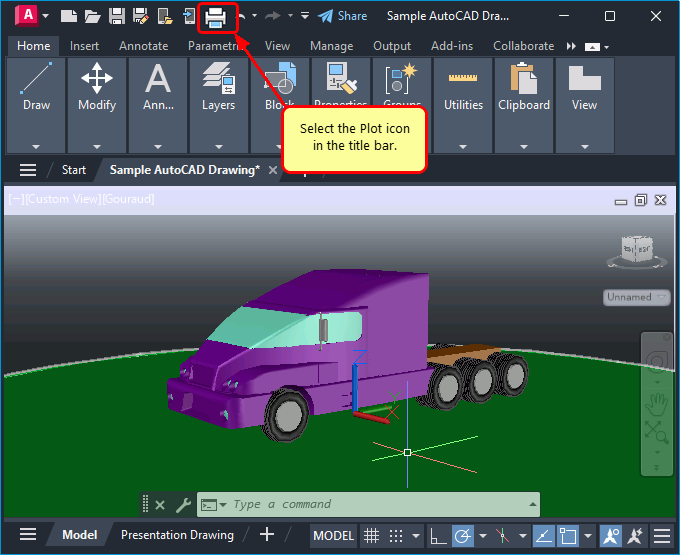
Open your DWG drawing in AutoCAD® or your CAD program of choice. The first step is to print your DWG to our printer. For AutoCAD users, printing a drawing is done by selecting the Plot icon from the top menu.
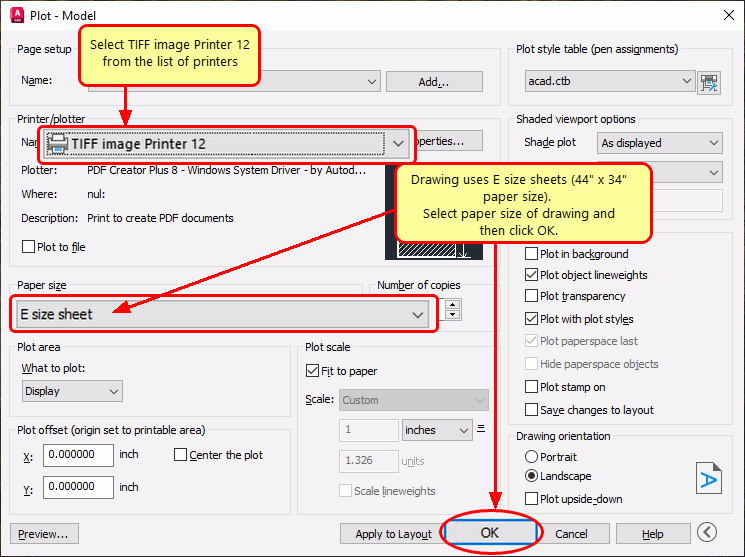
Set the Printer/plotter to TIFF Image Printer 12 printer to create a TIFF image. Click OK to plot your drawing.
Handling Large Paper Sizes When Converting DWG to TIFF
When plotting drawings on large or custom paper sizes, click the Properties button to set the matching paper size on the printer. If the paper size is not on the list, you can add custom paper sizes to create your TIFF at the correct dimensions.
Saving the New TIFF Image
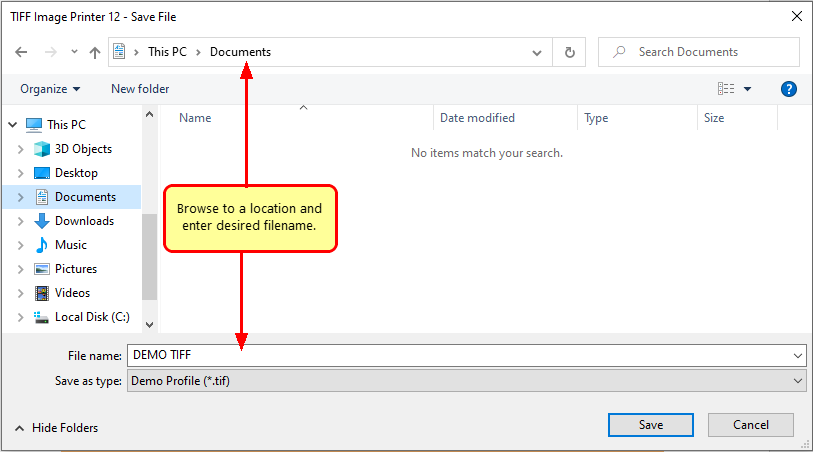
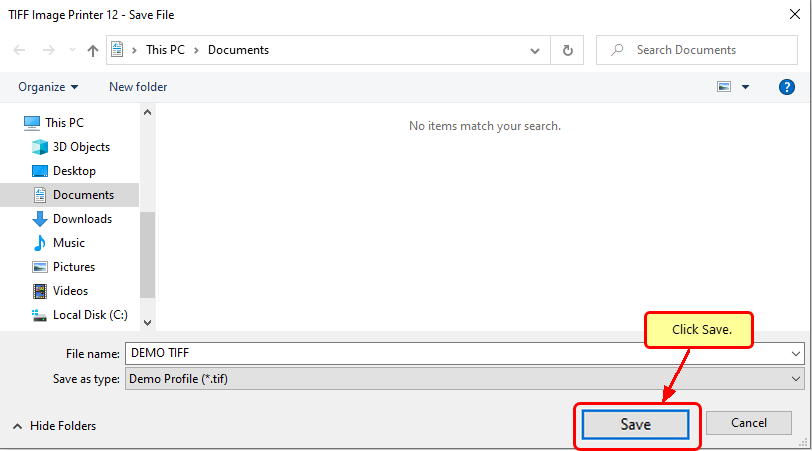
After printing, a Save File dialog appears. From here, choose where to save your new TIFF file and what to name it. The File name field is pre-populated with the name of your drawing. Edit the name here if you want a different name for your TIFF image.
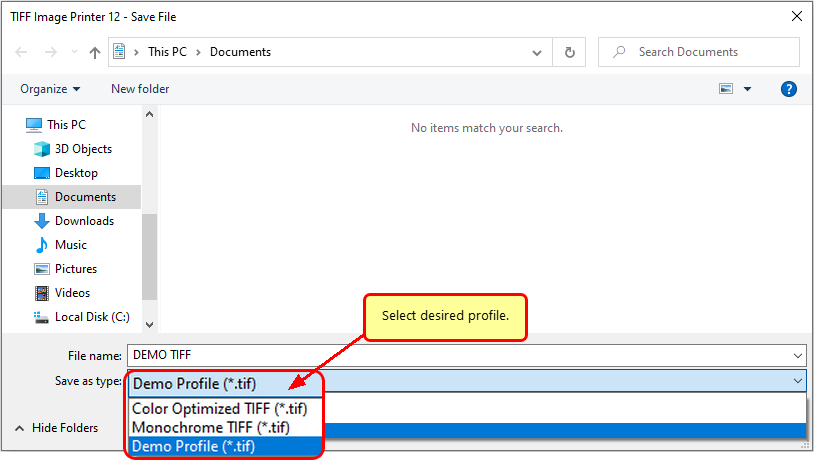
Next, in the Save as type drop box, select the printer profile you want to use to create your TIFF image.
A printer profile contains all the settings that we use to create your TIFF image. Image resolution (DPI), color mode, compression, and custom file naming are just a few things stored in a profile. You can create custom printer profiles using the Profile Manager available from the Image Printers Dashboard.
- If you’re uncertain, choose the Color Optimized TIFF profile. It produces a 300 dpi TIFF image and optimizes each page to use the minimum number of colors necessary.
- For a black and white TIFF image, choose Monochrome TIFF. This profile also creates 300 dpi TIFF images.
- A DWG drawing can store one or more layout tabs or sheets. To create a separate TIFF image for each sheet in your drawing, choose Serialized Color Optimized TIFF.
Finally, click Save to convert your DWG to a TIFF image.
When saving a Color Optimized TIFF or Monochrome TIFF and your DWG drawing has multiple layouts, you will create a single TIFF file. That TIFF file contains multiple images, one for each sheet in your drawing. Conversely, when saving using Serialized Color Optimized TIFF, your drawing is split into separate TIFF images, one for each sheet in your drawing.
Viewing your TIFF Images
If you used the Color Optimized TIFF profile and your DWG drawing has multiple layouts, you now have a single TIFF file with multiple images, one for each sheet in your drawing.
Not every image viewer application supports paging through the separate images in a multi-page TIFF file. Microsoft Photos does not, while Windows Photo Viewer, available since Windows 7, does support multi-page TIFF. Irfanview is another popular freeware image viewer that supports multi-page TIFF.
Useful Features for DWG to TIFF
Adding Watermarks or Copyright Information
When you convert a DWG to TIFF for submission or to send to clients, you may need to add a watermark or copyright information to each page. Copyright information helps identify you or your firm as the author of your work and helps protect your intellectual property.
You can add text and image watermarks to your pages using the Stamping tools available in TIFF Image Printer and Raster Image Printer.
You can create a text or image watermark or both. Layer text over an image by adding multiple stamps. Position each stamp anywhere on the page using the versatile format, rotation, and placement options.
Tutorials and Help Resources
After installing the TIFF Image Printer, the TIFF Image Printer Dashboard icon appears on your desktop. The dashboard is your go-to for licensing, creating profiles for the printer, and quick access to video tutorials and help resources. You can learn more about the dashboard in the Image Printers Version 12 Dashboard Overview tutorial.


