Convert JPG to PDF with PDF Creator Plus
Easily convert JPG to PDF files with this economical PDF creation software. With many built-in features, PDF Creator Plus is a complete solution for converting JPG and JPEG images to PDF. Moreover, the PDF Creator Plus virtual printer makes it easy to create and merge printable documents into a PDF.
PDF Creator Plus Feature Highlights
- Merge multiple JPG or JPEG images together into a single PDF for easy sharing with clients or family.
- Drag and drop PDF files to quickly add your JPG image to an existing PDF file.
- Preview, add, organize, and delete unwanted pages before creating your PDF.
- More than just PDF, PDF Creator Plus can also create TIFF and BMP images
JPG or JPEG – Is There a Difference?
There is no difference. Both “.jpeg” and “.jpg” files contain the same image data and use the same compression techniques. The “.jpg” file extension stems from older versions of Windows when only three characters were allowed in a file extension. Although JPEG is the official extension for Joint Photographic Experts Group images, JPG and JPEG are interchangeable.
How to Convert JPG to PDF
Download and install a free trial to try it out, or install and activate your purchased copy. The setup program will install the PDF Creator Plus app and PDF Creator Plus 8 virtual printer to your computer.
PDF Creator Plus creates PDF files by simply printing any document to the PDF Creator Plus 8 virtual printer instead of your regular printer.
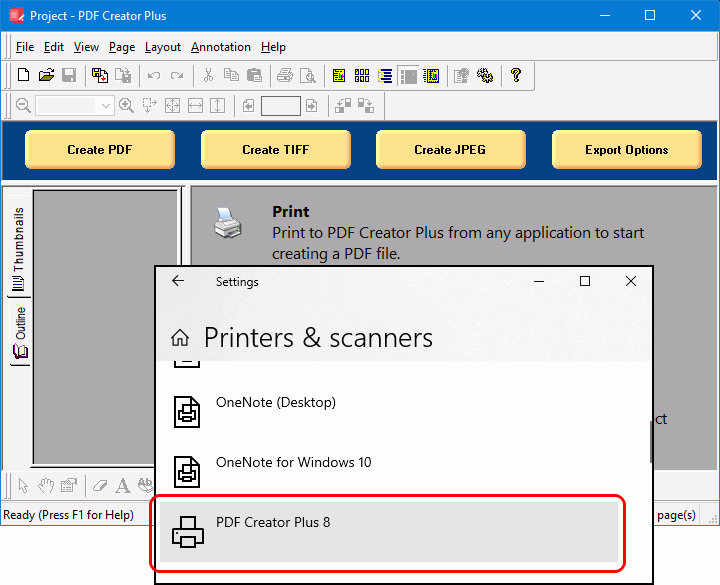
You can open, view, and print JPEG images using Windows Photos, Windows Paint, or other photo editing software installed on your computer. Another popular and free image viewer is IrfanView.
Each program has different printing options for margins and scaling the JPG image to the page. While we’ve used Windows Photos below to print our JPG, the steps are similar for most image editors.
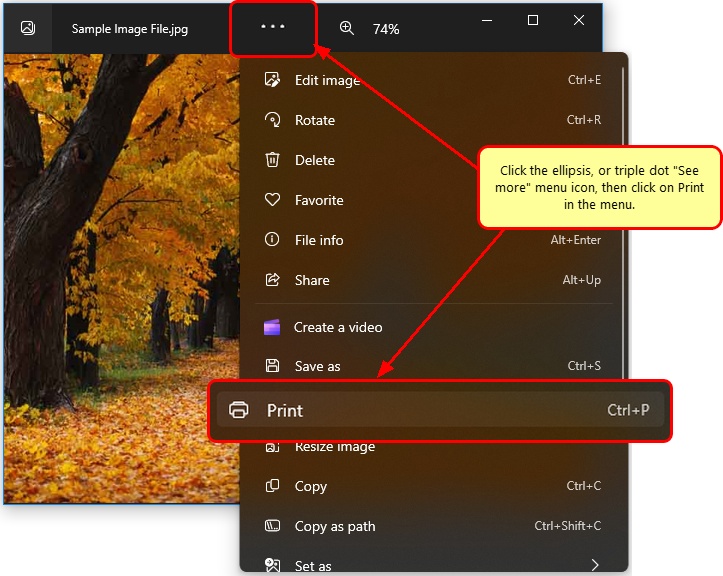
Open your JPG image, click the triple dot (…) icon to show the drop-down menu, and then select the Print action.
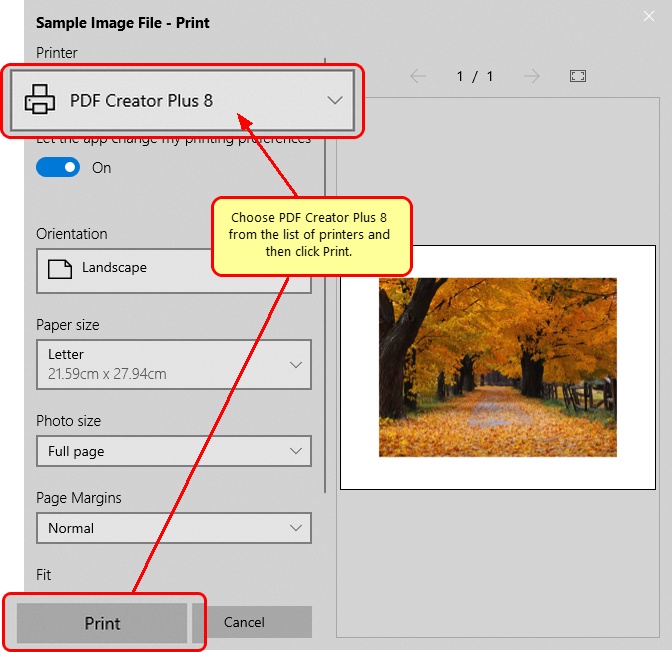
In the Print dialog, select the PDF Creator Plus 8 from the list of printers and then click Print.
The PDF Creator Plus 8 printer sends your printed JPG image to the PDF Creator Plus app. In the app, you can move or delete pages. There are also tools to mark up pages with text, shape, and image annotations.
You now have two options: create your PDF or add more pages by printing additional JPG images or from Word and other apps.
Once you have all your JPG images and other pages in the PDF Creator Plus app, it is time to create your new PDF file. To begin, select the Create PDF button in the task window.
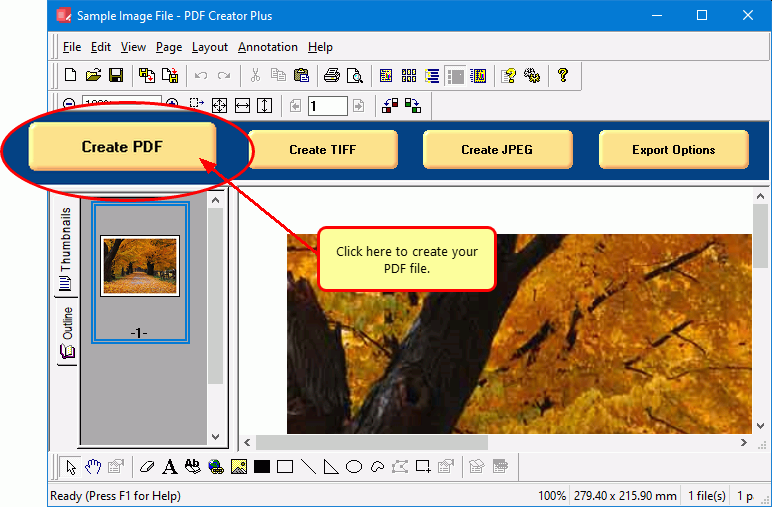
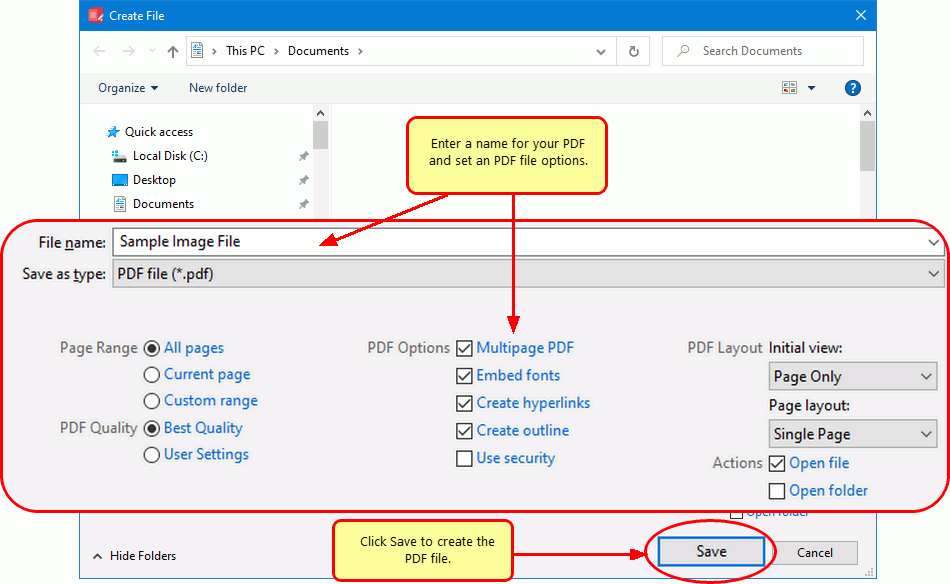
In the Create File dialog, edit the name for your new PDF file and choose where to save it. The next step is to choose options for your PDF file:
- Select PDF file(*.pdf) as the Save as type.
- Check the Multipaged PDF and Embed fonts options.
- If you added hyperlinks or outline information annotations by hand, check the options for Create hyperlinks, Create outlines, or both.
Click the Save button when you are ready to convert your JPEG image to PDF.
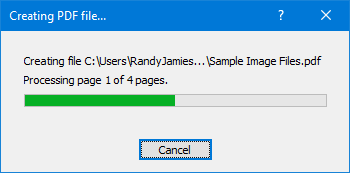
As PDF Creator Plus converts your JPG to PDF a progress dialog will pop up. If you wish to change the PDF, click the Cancel button to halt the process. Make any desired adjustments and start again.