
Supports password protection, 40-bit/128-bit/256-bit encryption, and permission levels to restrict access to files.
PDF Image Printer
Convert to Searchable PDF from any Windows document or application
Create searchable PDF, non-searchable PDF, and OCR images to searchable PDF with our preconfigured system profiles. Personal profiles can be created and customized with our many output settings.
Integrate PDF conversion in your workflow by creating copies of the printer, assigning default profiles, and using our simple automation SDK.
Fast & Easy PDF Conversion
Open – Print – Convert, it’s just that simple!
If you can print your file to a printer, then PDF Image Printer can convert it into PDF and create PDF files. As a virtual printer installed in the Devices and Printers folder, PDF Image Printer can be accessed from any Windows application.
1
2
3
4
5
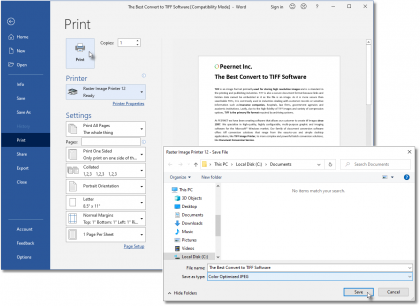
1
Select File-Print
2
Select PDF Image Printer 12
3
Click Print
4
Select profile
5
Click Print
1
2
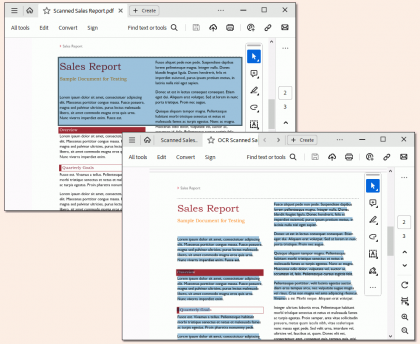
1
Print your scanned PDF or other document
2
Create your searchable PDF file
Optical Character Recognition (OCR)
Create Searchable Text from Scanned Documents and Images
Transform images into searchable PDF documents. Create hOCR, ALTO, and Text files in addition to your PDF. Recognize English, French, Italian, German, Spanish, Arabic, Hebrew, and Hindu, with additional languages easily added.
Edit & Create Profiles
Create the exact PDF image format that you need.
PDF Image Printer specializes producing the both searchable Adobe PDF files as well as non-searchable PDF files suitable for archiving, emailing, or posting to the internet. All PDF files can be read by standard PDF viewers such as Adobe® Reader. Edit your output settings using Profile Manager to create a personal profile to apply during conversion.
1
2
3
4
5
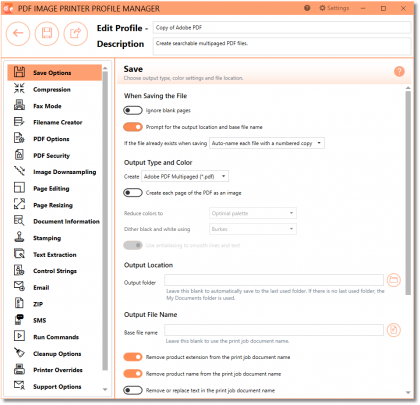
1
Name profile
2
Turn off prompting
3
Create PDF Multipaged or PDF Serialized
4
Enable PDF security
5
Add watermark
1
2
3
4
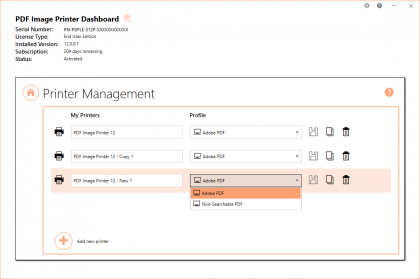
1
Rename printer
2
Copy printer
3
Change default profile
4
Add new printer
Manage Printers
Edit, copy & create new printers.
Quickly manage your printer settings directly from the Dashboard. Printer Management allows users to change the default profile PDF Image Printer uses to create output files, add new copies of the printer, and rename or delete existing printers.
Everything In One Place
Access all tools from the Dashboard.
The PDF Image Printer Dashboard is the control center which brings all the tools for creating and editing profiles, managing printers, accessing help resources and product activation together in one place. Great place to quickly check your subscription expiry date or get notified about new updates.
1
2
3
4
5
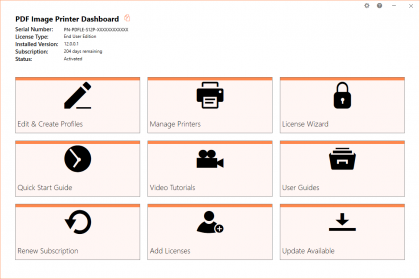
1
Open profile manager
2
Open printer management
3
Edit activation status
4
Access help resource
5
Check for updates
Support Platforms
- Windows 11 / Windows Server 2025, 2022 and 2019
- Windows 10 / Windows Server 2016
- Windows 8.1 / Windows Server 2012 and 2012 R2
- Windows 7 / Windows Server 2008 R2

Related Solutions
PEERNET’s family of image printer drivers, PDF Image Printer, TIFF Image Printer and Raster Image Printer all share the same user interface, options and most features as applicable.
Where TIFF and PDF Image Printer only support TIFF and PDF respectively, Raster Image Printer supports multiple formats including TIFF, PDF, JPEG, PNG, DCX and others. We recommend Raster Image Printer if you foresee a need to create both TIFF and PDF, or any other image formats.
The PEERNET team is always happy to help!
Give Us a Call
1-800-883-7980
Ask Us a Question
Complete our contact form
LATEST NEWS
 PNSrv11Lib to PNSrv12Lib: Migration Made EasyMarch 14, 2025 - 2:10 pm
- Migrating to Version 12: Compatibility Mode Quick Start GuideMarch 14, 2025 - 2:09 pm
- Well Logs: Stitch PDF Pages into a Continuous TIFF ImageMarch 14, 2025 - 2:08 pm
- Dynamic Stamp ContentNovember 4, 2024 - 4:47 pm


